SkyDoc

Storage & Collaboration For NetSuite

SkyDoc is a secure, native NetSuite SuiteApp designed for seamless document management. With unlimited storage powered by Amazon S3, it offers an intuitive interface that simplifies your processes while ensuring your data remains protected and easily accessible. Say goodbye to document hassles and hello to efficiency!
Bulk Email Invoices - Tvarana
Find the Right SuiteApp
Thank you! Your submission has been received!
Oops! Something went wrong while submitting the form.

Benefits

Uploading Files

Accessing the SkyDoc Subtab:

Open any record and navigate to the SkyDoc subtab.

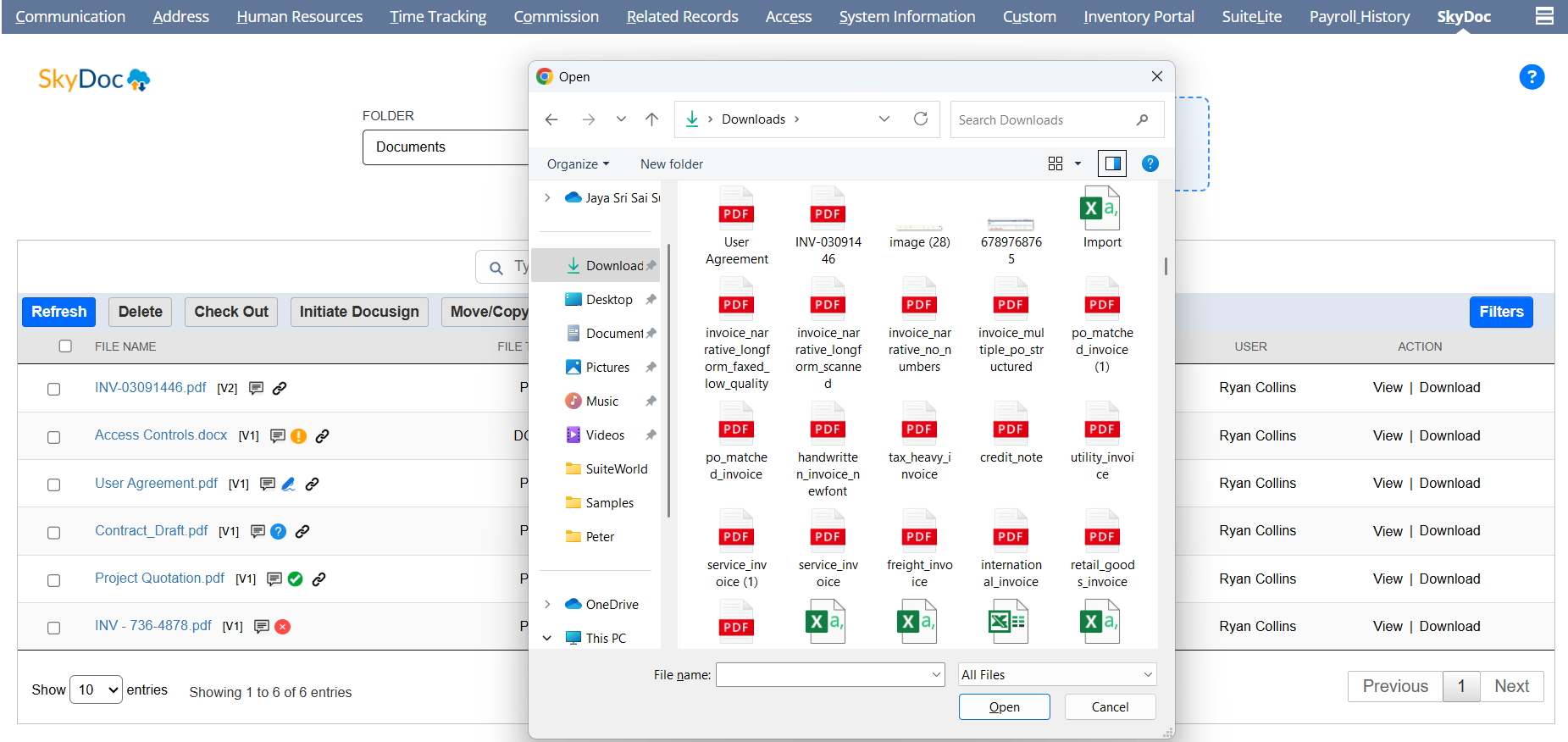
  • To upload files, select the desired folder and category, then click the "Drag and Drop files here to upload" box to start the upload process.

BEI Set up

Default Folder Configuration (For NetSuite OneWorld Accounts):

  • Default upload folders can be configured based on subsidiaries.
  • To do this, navigate to: Documents -> SkyDoc Folders -> SkyDoc Folders List -> Edit a Folder
  • In the folder settings, select the relevant subsidiary in the Subsidiary field.
  • Select the desired Folder and optionally a Category.
  • The Drag and Drop files here to upload box can be used to upload your files.
  • Multiple files can be uploaded simultaneously.
  • Monitor the upload progress via the Status Bar.

BEI Set up

Display List

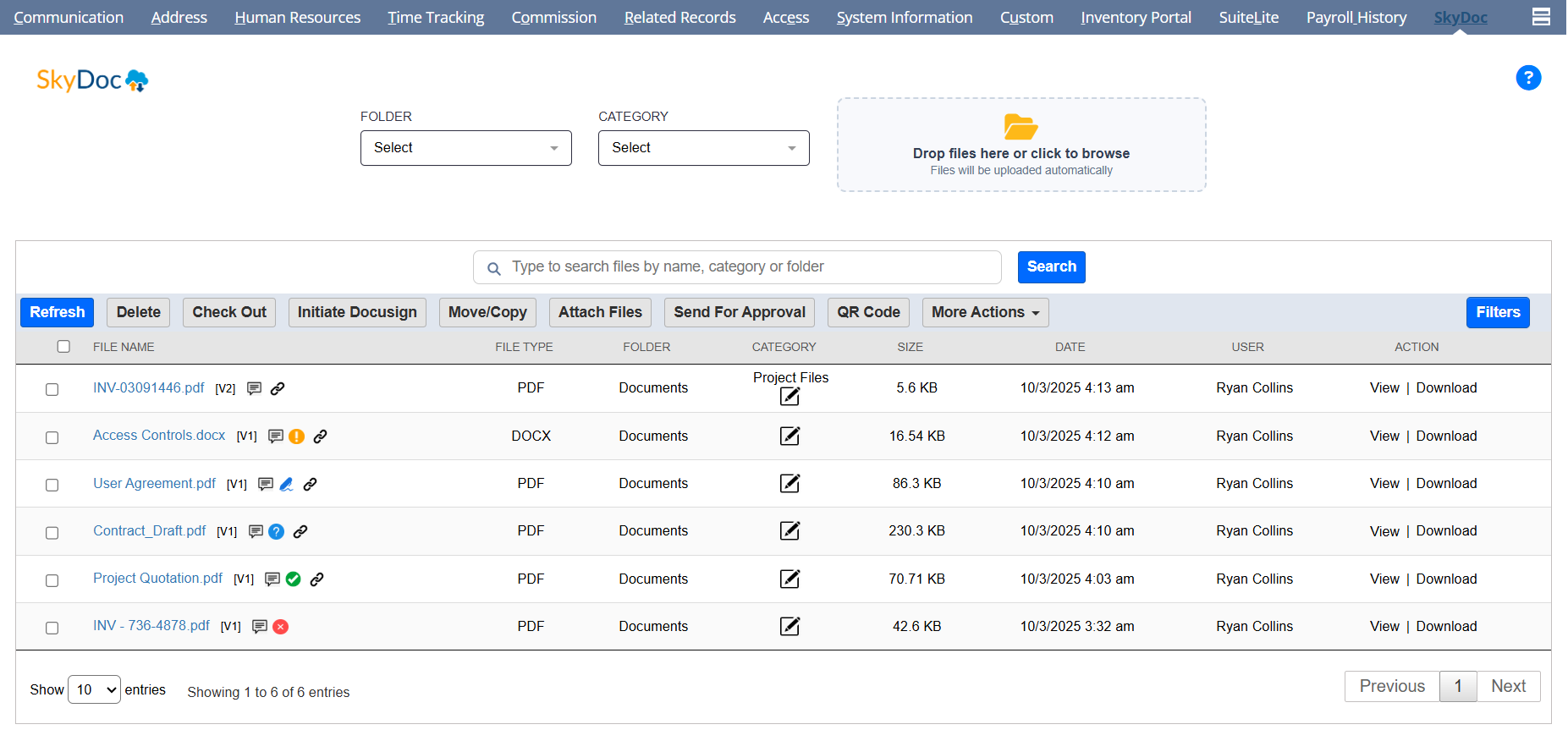
The Display List section allows users to view all files uploaded to a record. It includes:

  • Folder and Category dropdowns for filtering the displayed files.
  • A search bar to find specific files quickly.
  • A dropdown list to select the number of entries to display per page.
  • A set of buttons to perform various actions.
  • A View Link that enables users to view files with a single click
  • A download Link that enables users to download files with a single click
  • Detailed information about each file, such as the file name, folder, category, size, date, and status, is shown for easy reference.

BEI Set up

Display List

The Display List section allows users to view all files uploaded to a record. It includes:

  • Folder and Category dropdowns for filtering the displayed files.
  • A search bar to find specific files quickly.
  • A dropdown list to select the number of entries to display per page.
  • A set of buttons to perform various actions.
  • A View Link that enables users to view files with a single click
  • A download Link that enables users to download files with a single click
  • Detailed information about each file, such as the file name, folder, category, size, date, and status, is shown for easy reference.

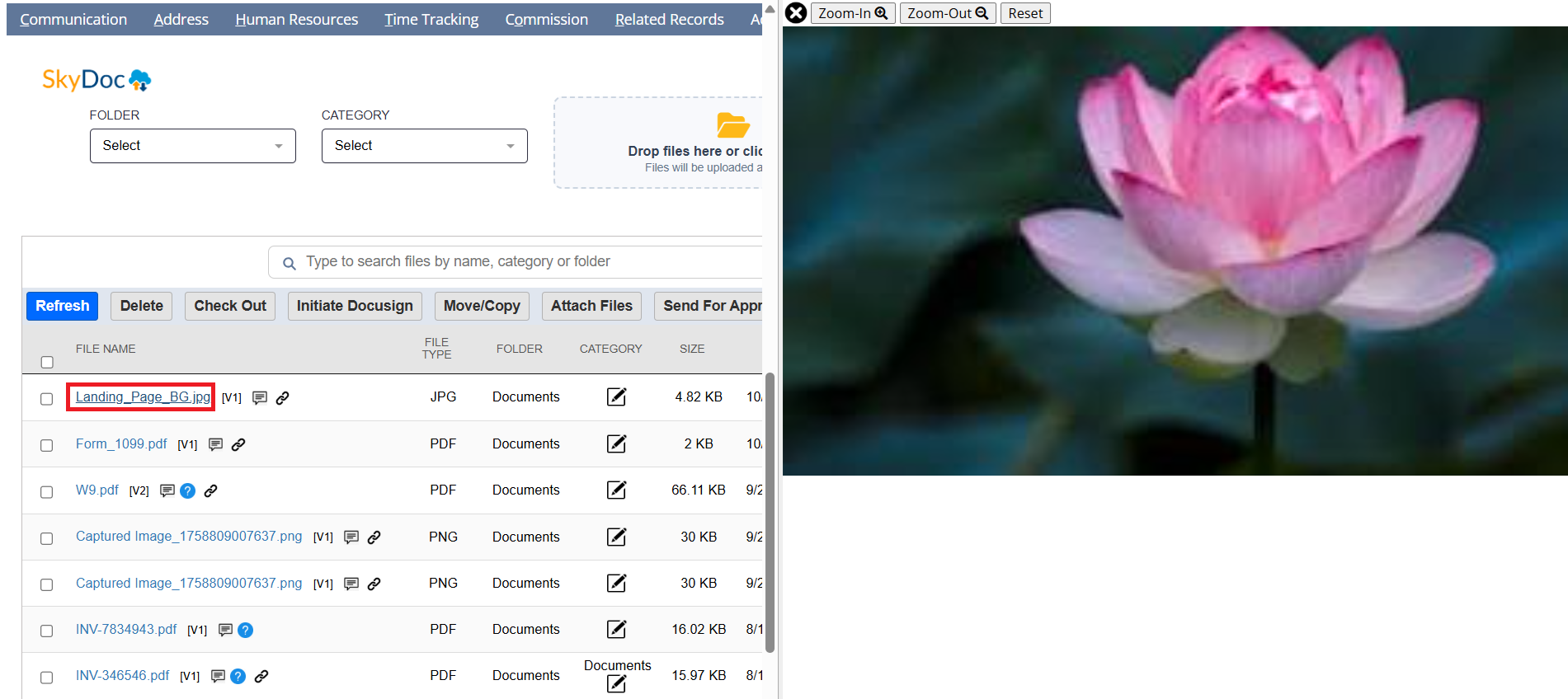
Preview

To preview a selected file, simply hover over the file name and click on it. The file will open in a split-screen view, as illustrated below.
BEI Set up

Display List

The Display List section allows users to view all files uploaded to a record. It includes:

  • Folder and Category dropdowns for filtering the displayed files.
  • A search bar to find specific files quickly.
  • A dropdown list to select the number of entries to display per page.
  • A set of buttons to perform various actions.
  • A View Link that enables users to view files with a single click
  • A download Link that enables users to download files with a single click
  • Detailed information about each file, such as the file name, folder, category, size, date, and status, is shown for easy reference.

Zoom In and Zoom Out

The Zoom In & Zoom Out feature in SkyDoc enables users to adjust the size of images within the split-screen interface. You can enlarge or reduce the image to examine details more closely, with an option to reset the view to its original size for a standard display.

BEI Set up

Display List

The Display List section allows users to view all files uploaded to a record. It includes:

  • Folder and Category dropdowns for filtering the displayed files.
  • A search bar to find specific files quickly.
  • A dropdown list to select the number of entries to display per page.
  • A set of buttons to perform various actions.
  • A View Link that enables users to view files with a single click
  • A download Link that enables users to download files with a single click
  • Detailed information about each file, such as the file name, folder, category, size, date, and status, is shown for easy reference.

Versioning

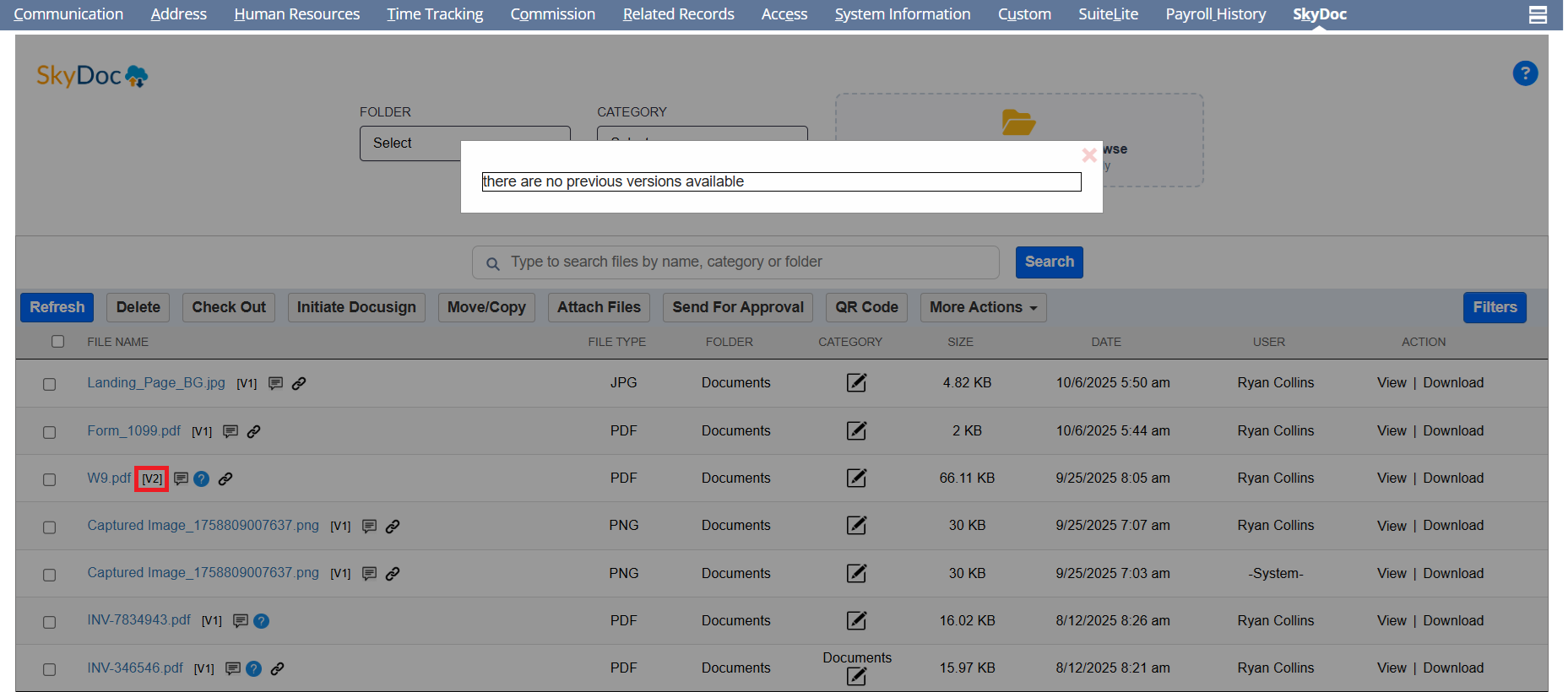
SkyDoc supports file versioning to prevent overwriting. Each time a file is uploaded, a new version is created, allowing users to view and manage previous versions of the file.
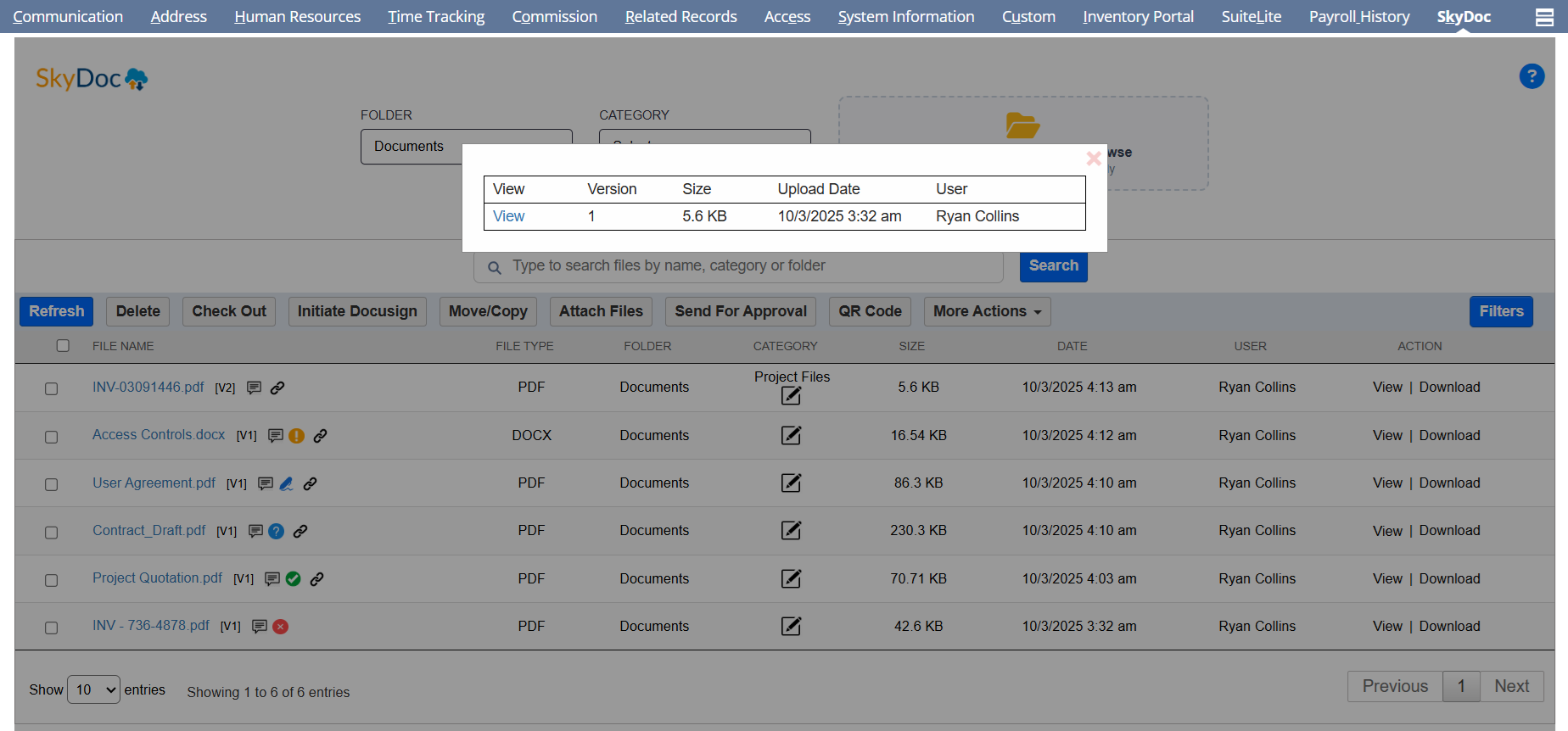
To view the available versions, click the "View" link. If no previous versions exist, a message will appear indicating that there are no versions available.
BEI Set up

Display List

The Display List section allows users to view all files uploaded to a record. It includes:

  • Folder and Category dropdowns for filtering the displayed files.
  • A search bar to find specific files quickly.
  • A dropdown list to select the number of entries to display per page.
  • A set of buttons to perform various actions.
  • A View Link that enables users to view files with a single click
  • A download Link that enables users to download files with a single click
  • Detailed information about each file, such as the file name, folder, category, size, date, and status, is shown for easy reference.

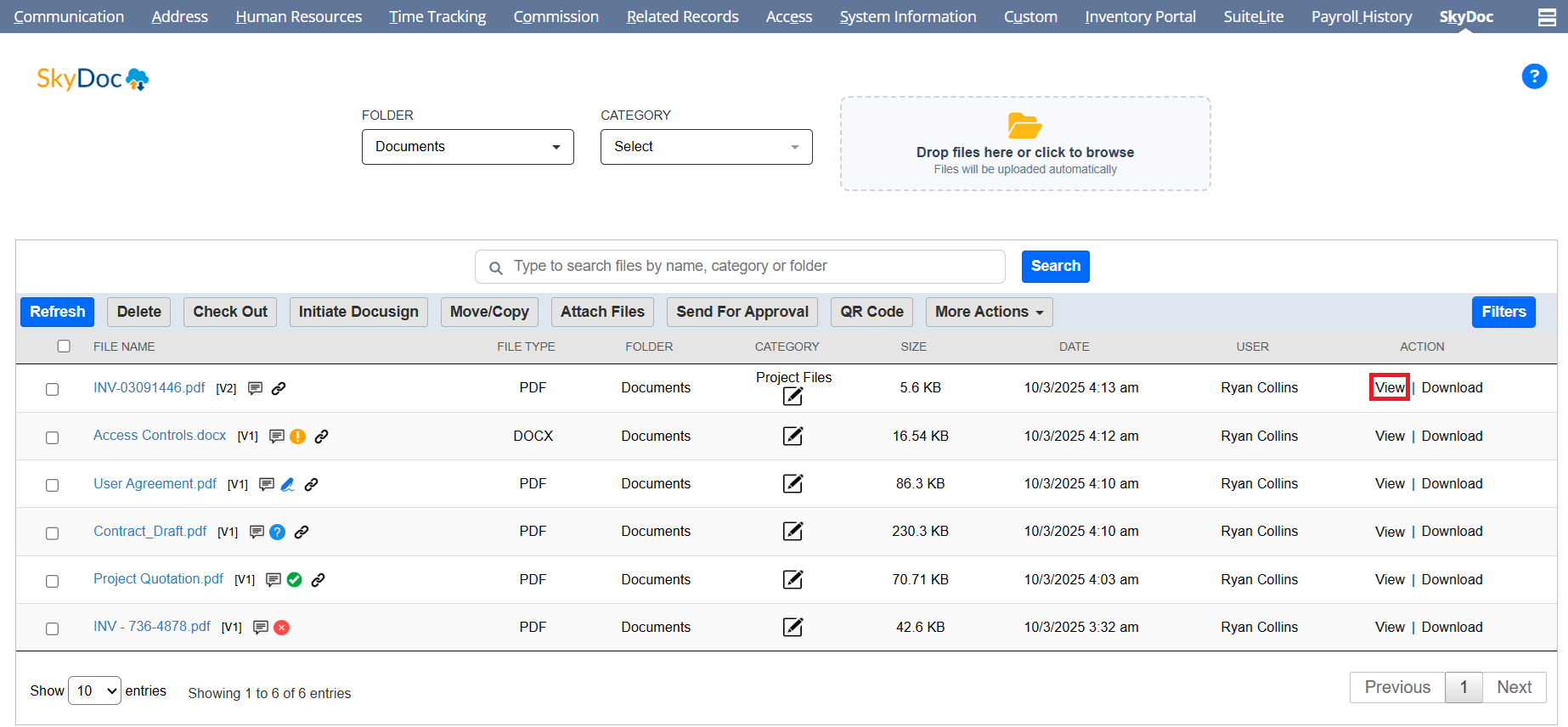
View

The "View" link in the SkyDoc display list allows users to access and view the content of a file.
BEI Set up

Display List

The Display List section allows users to view all files uploaded to a record. It includes:

  • Folder and Category dropdowns for filtering the displayed files.
  • A search bar to find specific files quickly.
  • A dropdown list to select the number of entries to display per page.
  • A set of buttons to perform various actions.
  • A View Link that enables users to view files with a single click
  • A download Link that enables users to download files with a single click
  • Detailed information about each file, such as the file name, folder, category, size, date, and status, is shown for easy reference.

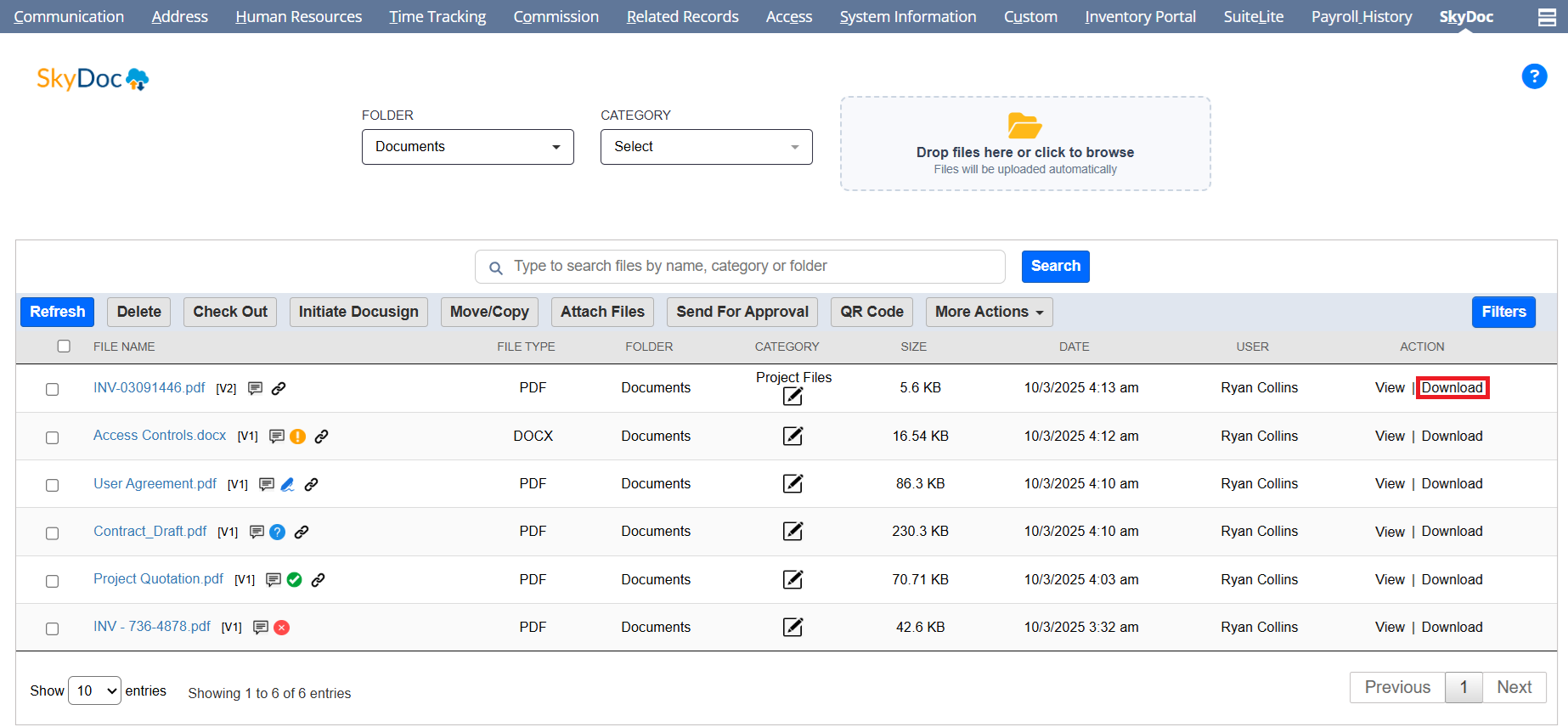
Download

The "Download" link in the SkyDoc display list allows you to download the file
BEI Set up

Display List

The Display List section allows users to view all files uploaded to a record. It includes:

  • Folder and Category dropdowns for filtering the displayed files.
  • A search bar to find specific files quickly.
  • A dropdown list to select the number of entries to display per page.
  • A set of buttons to perform various actions.
  • A View Link that enables users to view files with a single click
  • A download Link that enables users to download files with a single click
  • Detailed information about each file, such as the file name, folder, category, size, date, and status, is shown for easy reference.

Adding Notes to File

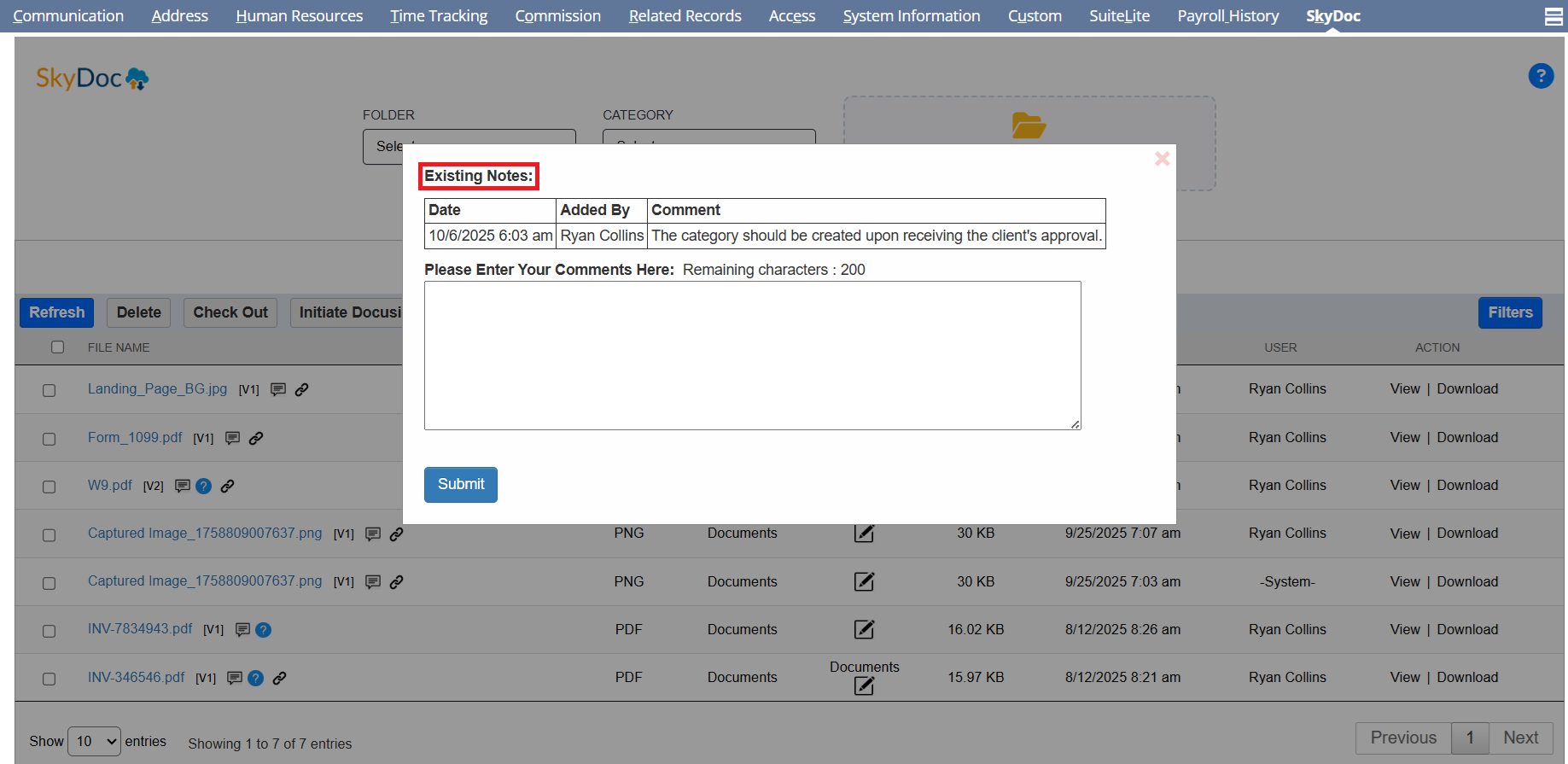
To add a description to a file, click on the ‘Comment’ icon next to the file name to open the comment section.
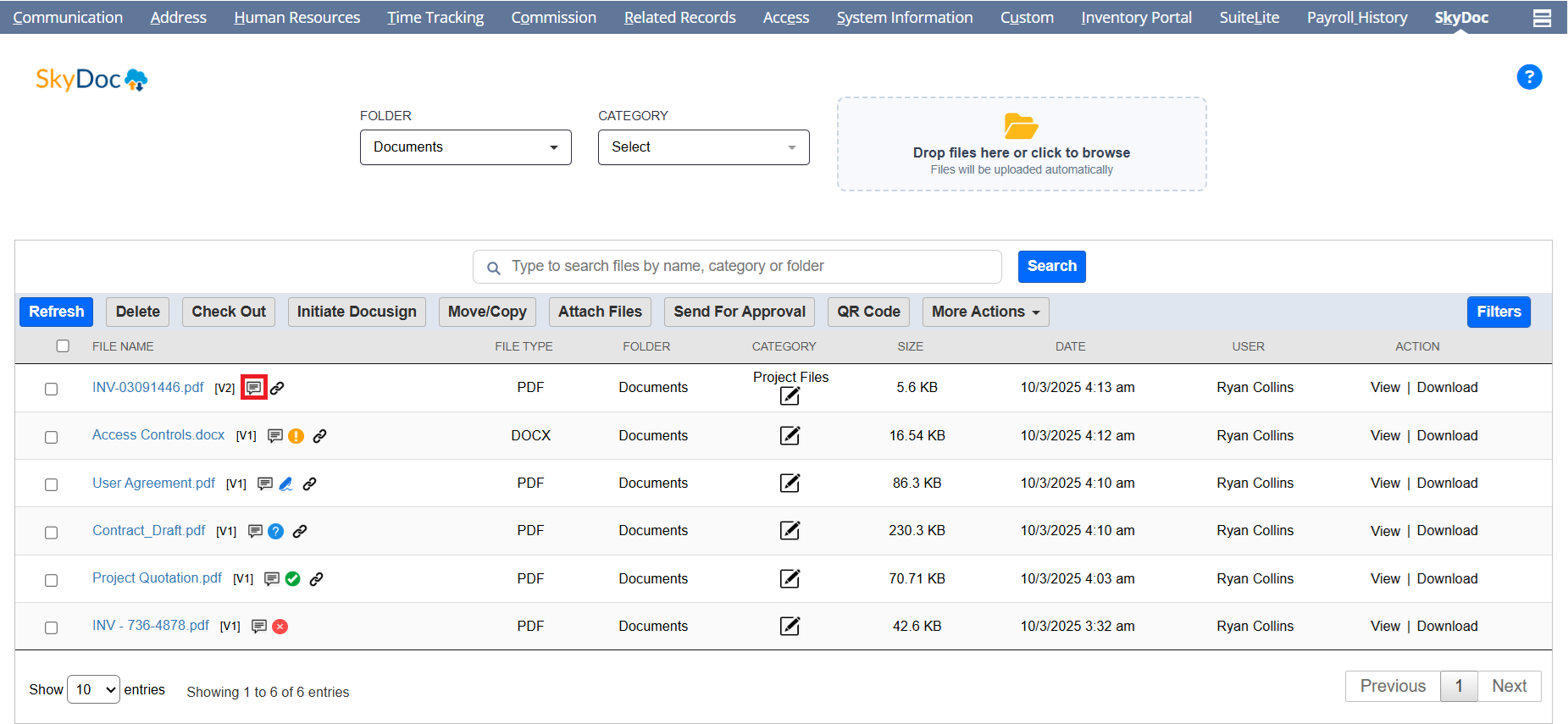
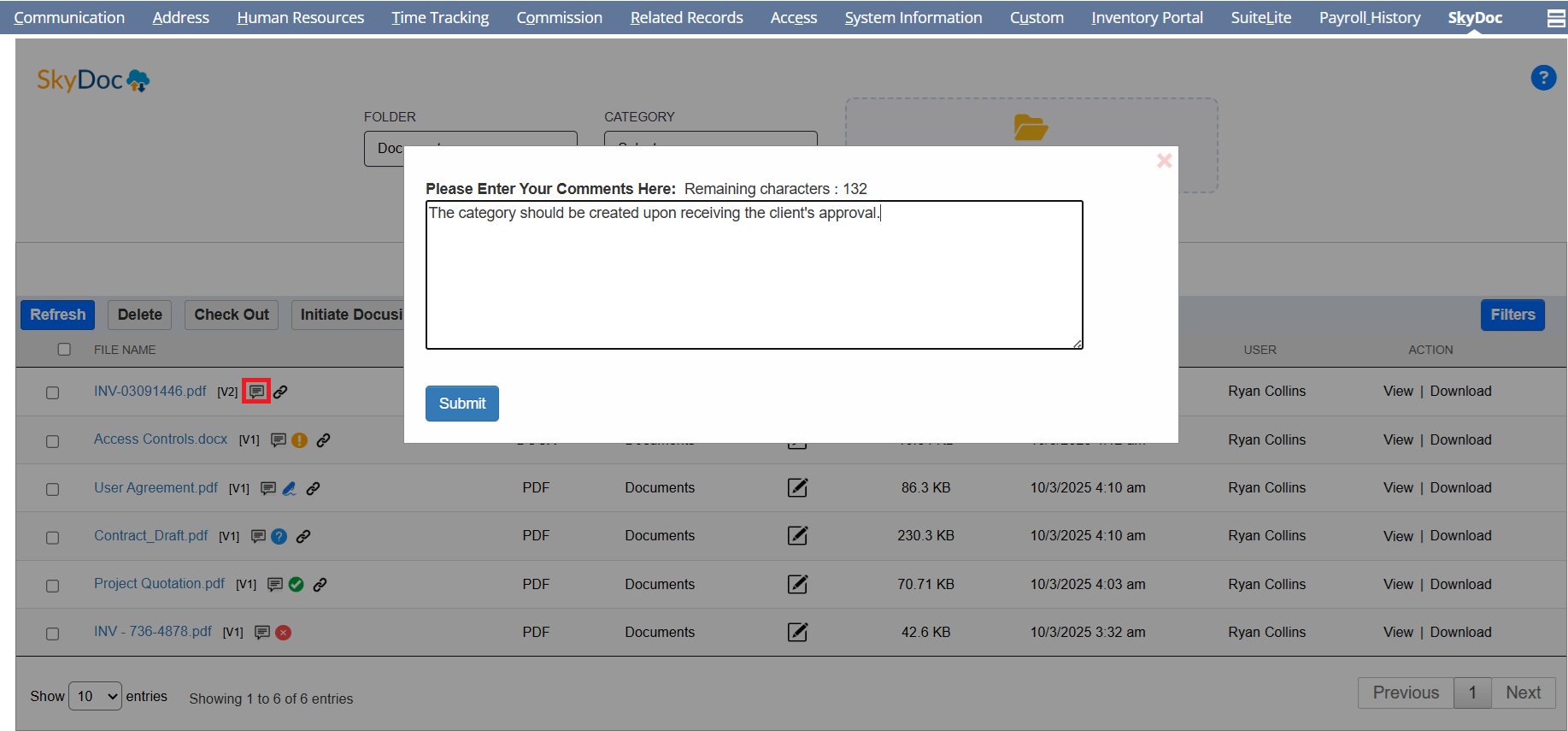
  • A popup window will appear. Enter your comment in the text field provided
  • Your comment will be successfully added to the file after clicking the Submit button
  • By clicking the comment icon again, you can view the previous comments added to the file, along with the associated Date, Added By, and Comment details

BEI Set up

Display List

The Display List section allows users to view all files uploaded to a record. It includes:

  • Folder and Category dropdowns for filtering the displayed files.
  • A search bar to find specific files quickly.
  • A dropdown list to select the number of entries to display per page.
  • A set of buttons to perform various actions.
  • A View Link that enables users to view files with a single click
  • A download Link that enables users to download files with a single click
  • Detailed information about each file, such as the file name, folder, category, size, date, and status, is shown for easy reference.

Updating Categories

To update the category of existing files that have not been categorized, simply click the pencil icon in the SkyDoc display list. From there, select the desired category to assign to the file.
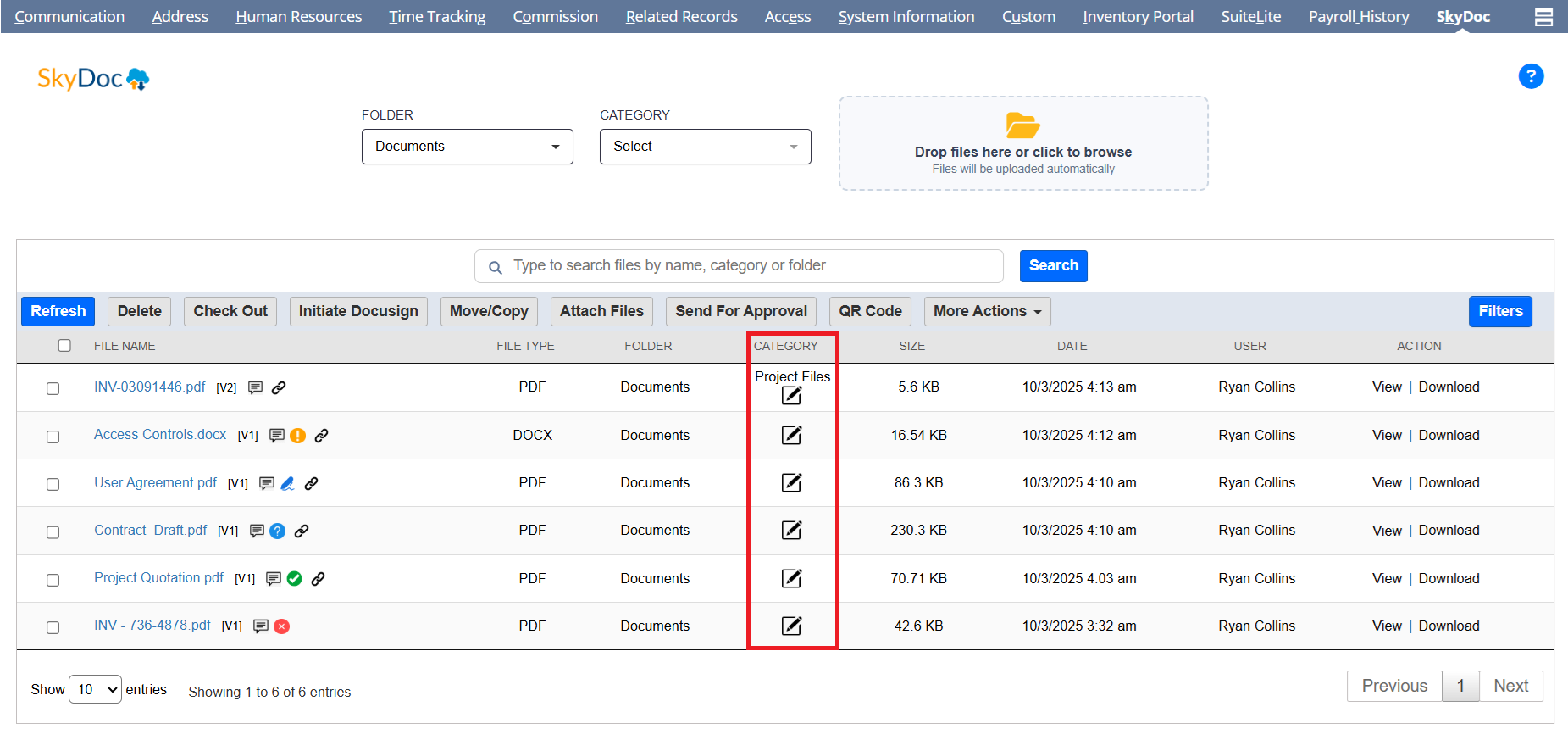
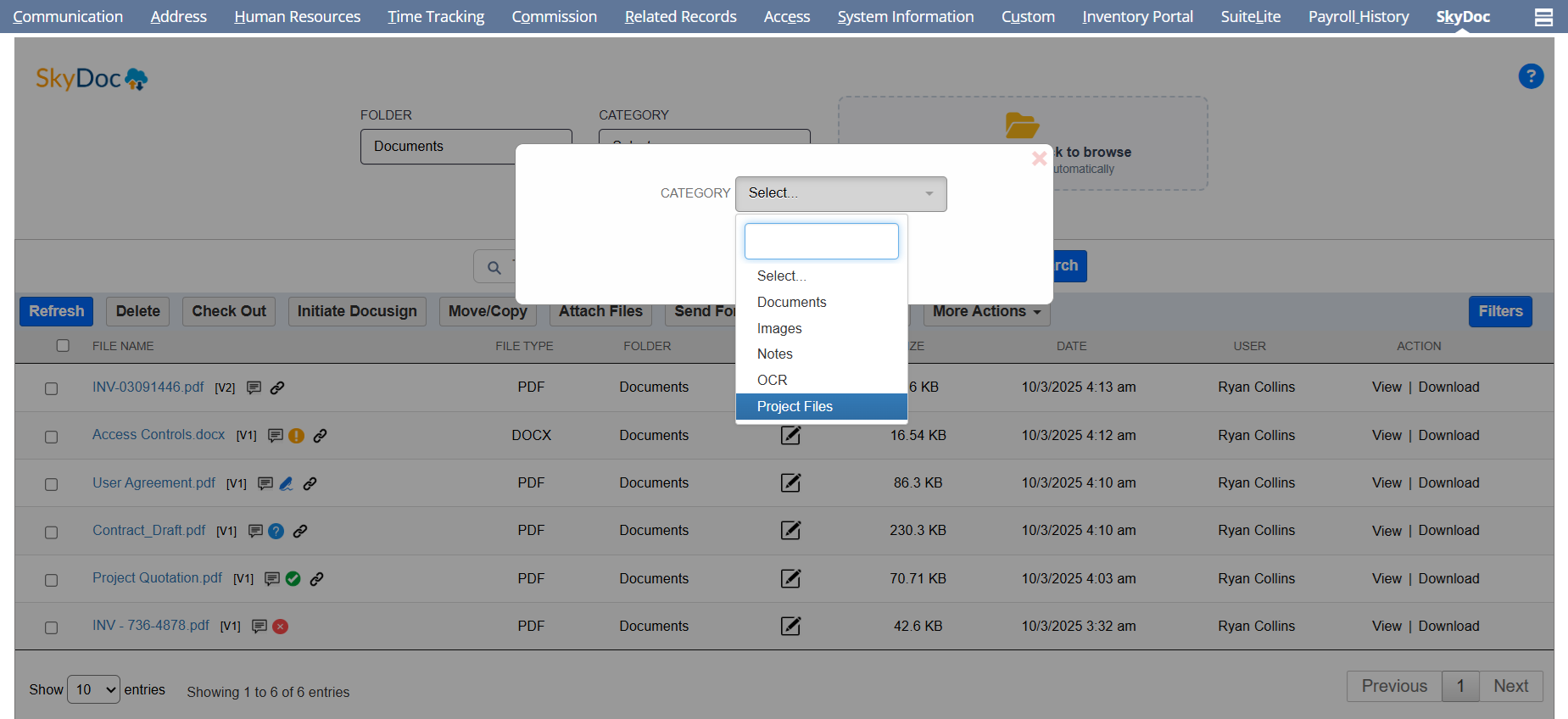
  • The selected category will be updated and reflected in the list.

BEI Set up

Display List

The Display List section allows users to view all files uploaded to a record. It includes:

  • Folder and Category dropdowns for filtering the displayed files.
  • A search bar to find specific files quickly.
  • A dropdown list to select the number of entries to display per page.
  • A set of buttons to perform various actions.
  • A View Link that enables users to view files with a single click
  • A download Link that enables users to download files with a single click
  • Detailed information about each file, such as the file name, folder, category, size, date, and status, is shown for easy reference.

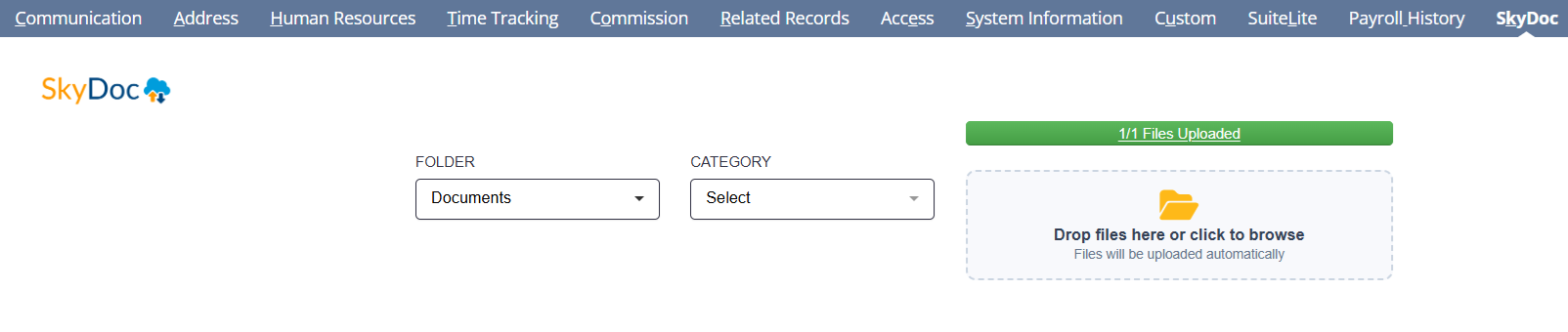
Status Bar

The Status Bar allows you to monitor the progress of file uploads within the "Drag and Drop" box located in the SkyDoc upload section. It displays the current upload status, providing real-time updates during the process.
BEI Set up

Display List

The Display List section allows users to view all files uploaded to a record. It includes:

  • Folder and Category dropdowns for filtering the displayed files.
  • A search bar to find specific files quickly.
  • A dropdown list to select the number of entries to display per page.
  • A set of buttons to perform various actions.
  • A View Link that enables users to view files with a single click
  • A download Link that enables users to download files with a single click
  • Detailed information about each file, such as the file name, folder, category, size, date, and status, is shown for easy reference.

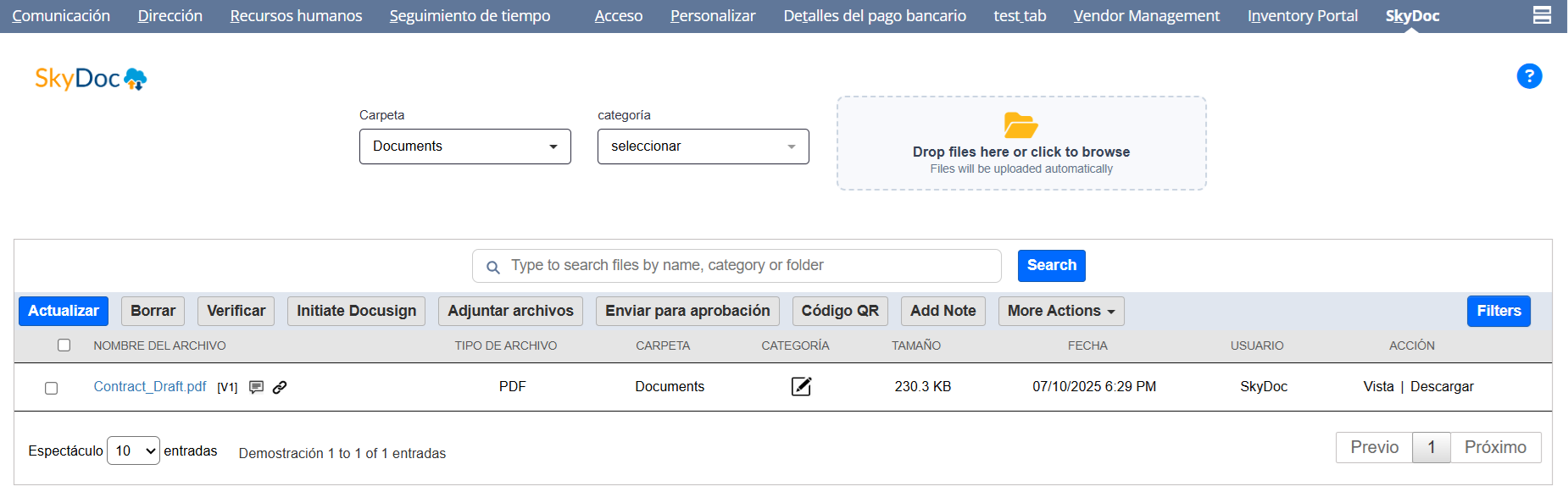
Multi-language

When a preferred language is activated in NetSuite, the system will automatically translate the user interface as well as any preconfigured SkyDoc records into the selected language.
BEI Set up

Display List

The Display List section allows users to view all files uploaded to a record. It includes:

  • Folder and Category dropdowns for filtering the displayed files.
  • A search bar to find specific files quickly.
  • A dropdown list to select the number of entries to display per page.
  • A set of buttons to perform various actions.
  • A View Link that enables users to view files with a single click
  • A download Link that enables users to download files with a single click
  • Detailed information about each file, such as the file name, folder, category, size, date, and status, is shown for easy reference.

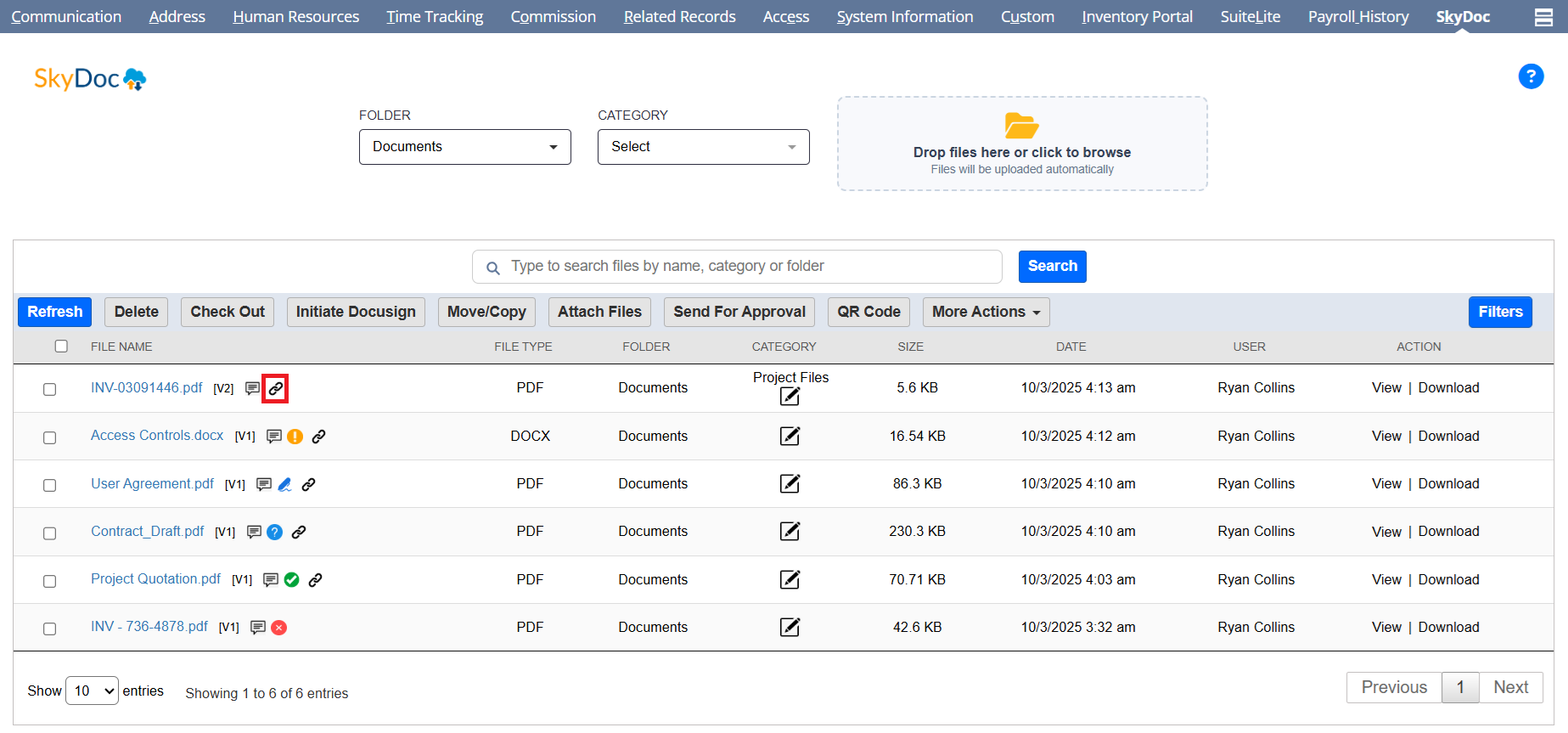
Copy link

To share files with users outside of NetSuite, you can use the "Copy Link" feature. To enable this, simply click the "Public URL" button on the SkyDoc File record. This will generate a link that can be shared with non-NetSuite users.
BEI Set up

Display List

The Display List section allows users to view all files uploaded to a record. It includes:

  • Folder and Category dropdowns for filtering the displayed files.
  • A search bar to find specific files quickly.
  • A dropdown list to select the number of entries to display per page.
  • A set of buttons to perform various actions.
  • A View Link that enables users to view files with a single click
  • A download Link that enables users to download files with a single click
  • Detailed information about each file, such as the file name, folder, category, size, date, and status, is shown for easy reference.

BUTTONS

Refresh

The Refresh button is used to reload the page and display the most current content after performing actions such as deleting, attaching, or uploading files. This ensures the page reflects the latest updates.

BEI Set up

Display List

The Display List section allows users to view all files uploaded to a record. It includes:

  • Folder and Category dropdowns for filtering the displayed files.
  • A search bar to find specific files quickly.
  • A dropdown list to select the number of entries to display per page.
  • A set of buttons to perform various actions.
  • A View Link that enables users to view files with a single click
  • A download Link that enables users to download files with a single click
  • Detailed information about each file, such as the file name, folder, category, size, date, and status, is shown for easy reference.

Delete

The Delete button allows users to remove files or notes. To delete files, select the desired files under the SkyDoc subtab and click the Delete button to permanently remove them from AWS and SkyDoc.

BEI Set up

Display List

The Display List section allows users to view all files uploaded to a record. It includes:

  • Folder and Category dropdowns for filtering the displayed files.
  • A search bar to find specific files quickly.
  • A dropdown list to select the number of entries to display per page.
  • A set of buttons to perform various actions.
  • A View Link that enables users to view files with a single click
  • A download Link that enables users to download files with a single click
  • Detailed information about each file, such as the file name, folder, category, size, date, and status, is shown for easy reference.

Add Note

The Add Note button enables users to create and add notes to records.

To add a note, click on the Add Note button, select a folder and category, enter any comments, and click on Attach note.
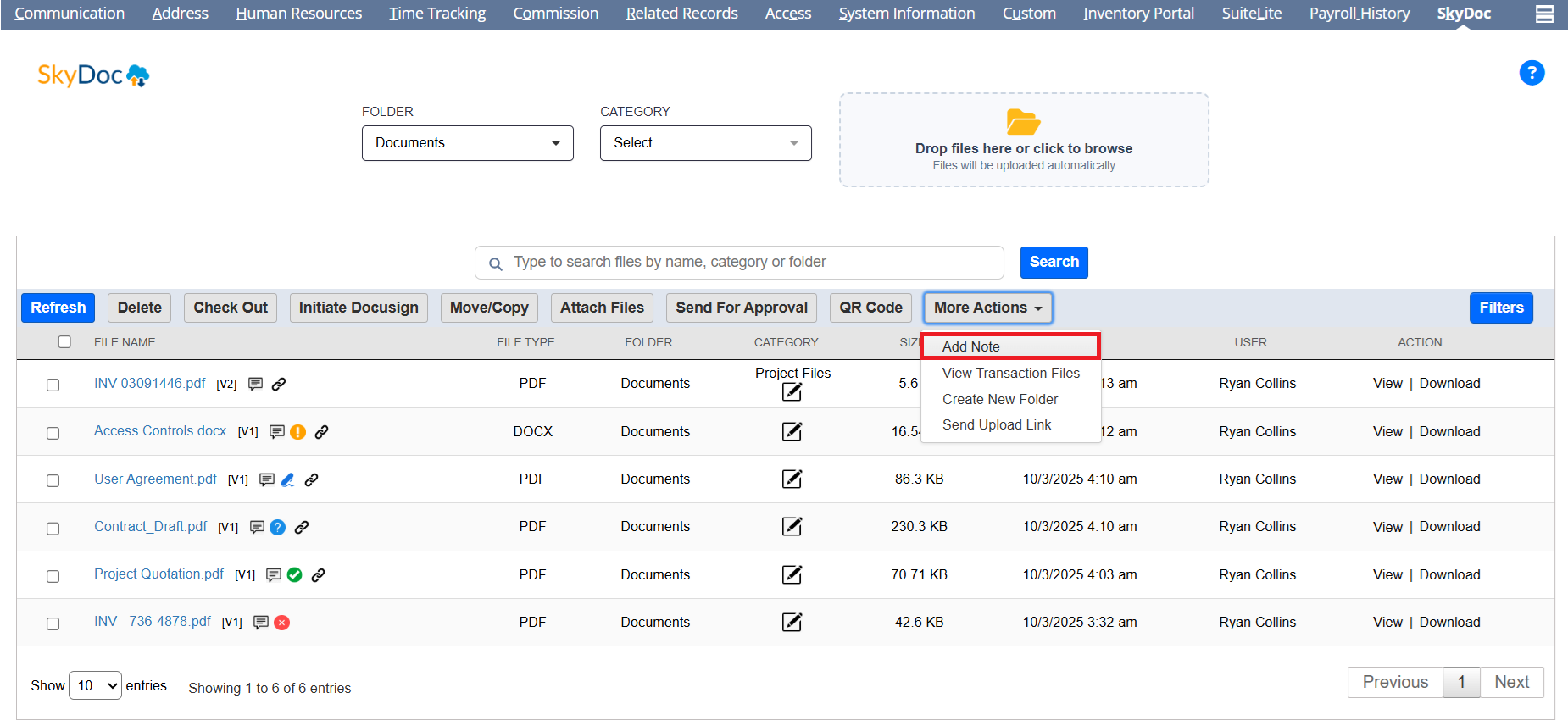
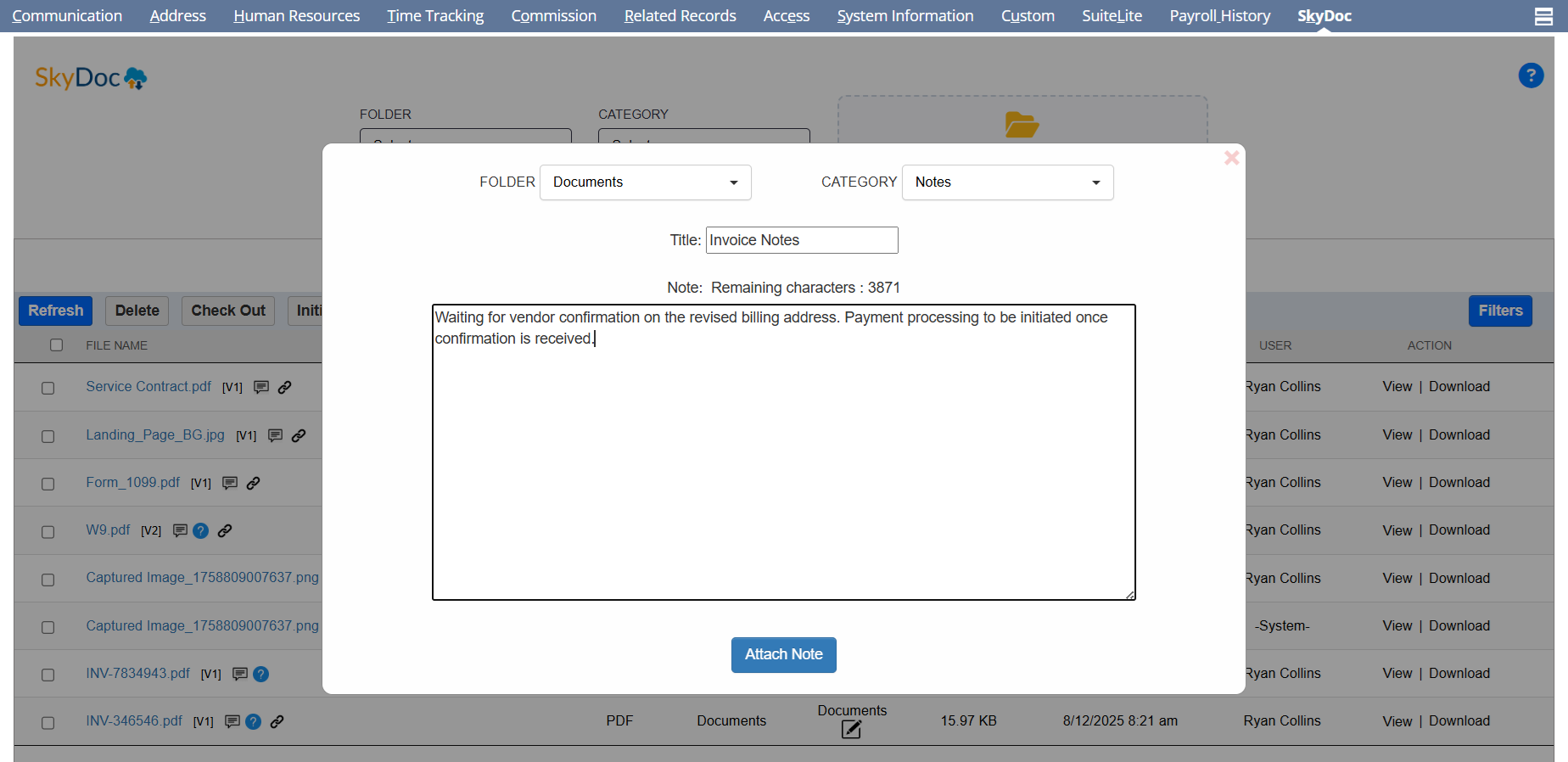
After attaching notes, they can be seen in the display list.

BEI Set up

Display List

The Display List section allows users to view all files uploaded to a record. It includes:
  • Folder and Category dropdowns for filtering the displayed files.
  • A search bar to find specific files quickly.
  • A dropdown list to select the number of entries to display per page.
  • A set of buttons to perform various actions.
  • A View Link that enables users to view files with a single click
  • A download Link that enables users to download files with a single click
  • Detailed information about each file, such as the file name, folder, category, size, date, and status, is shown for easy reference.

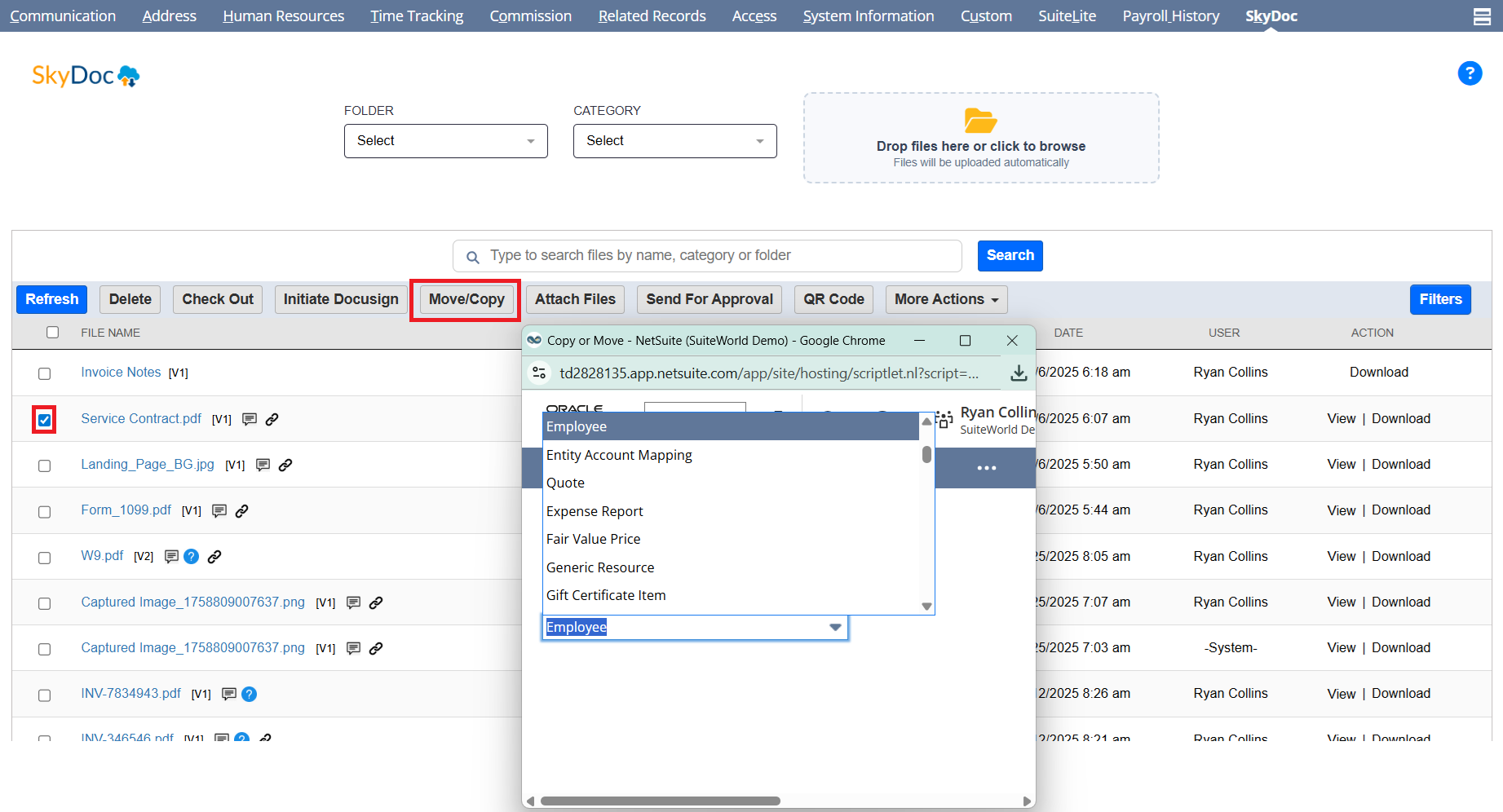
Move/Copy

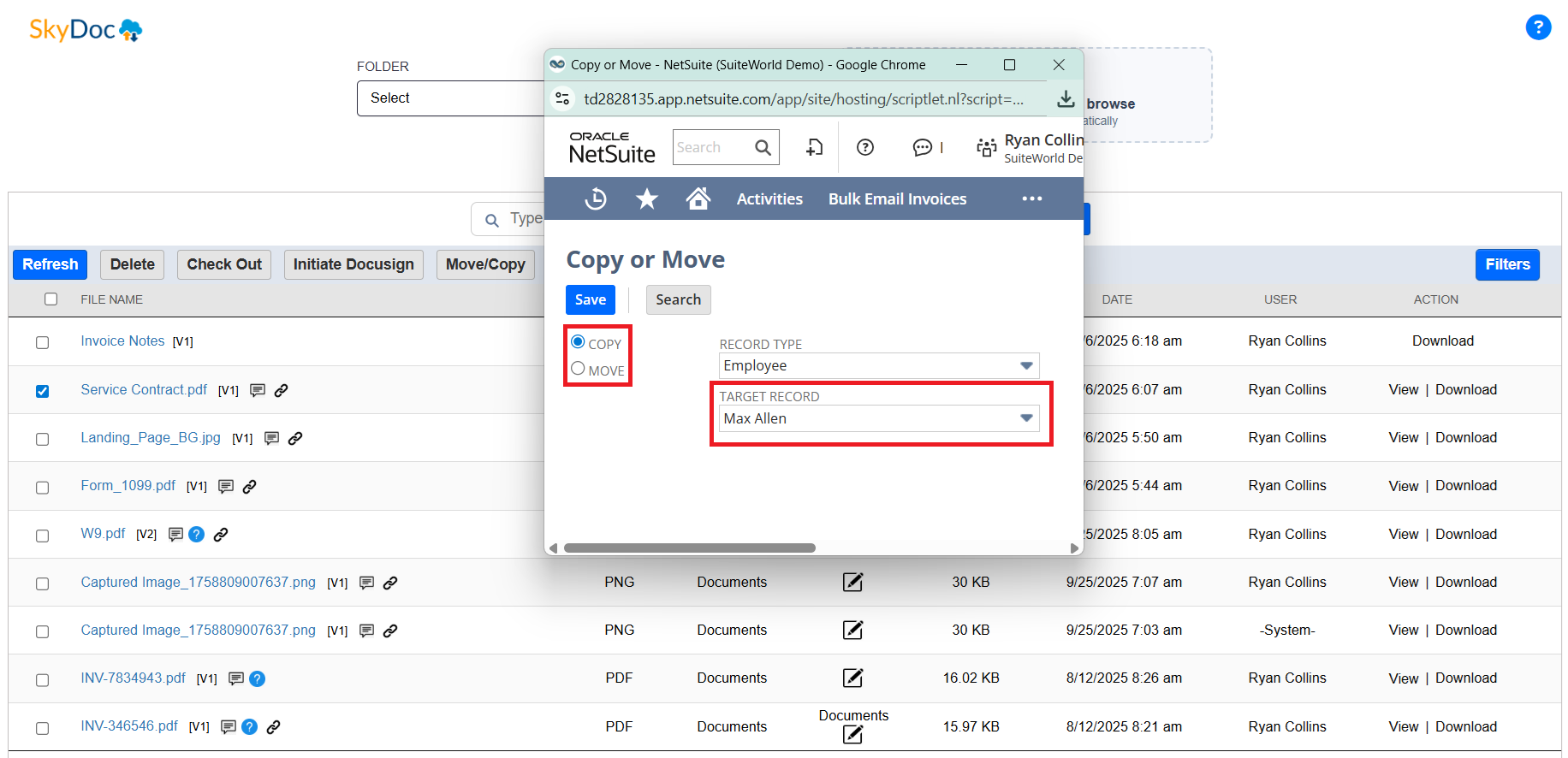
To move or copy a file, please follow the steps outlined below:

  • Select the file by checking the corresponding checkbox.
  • Click on the "Move/Copy" button to initiate the process
  • Choose the relevant record type and click on the "Search" button
  • Select the desired action (Move or Copy) and specify the target record
  • Click "Save" to complete the action.

For accounts with a large number of records, you can enter the document number of the target transaction directly into the "Target Record" field to avoid time-out issues, rather than selecting it from the list. This option is available only if enabled in your account.
BEI Set up

Display List

The Display List section allows users to view all files uploaded to a record. It includes:

  • Folder and Category dropdowns for filtering the displayed files.
  • A search bar to find specific files quickly.
  • A dropdown list to select the number of entries to display per page.
  • A set of buttons to perform various actions.
  • A View Link that enables users to view files with a single click
  • A download Link that enables users to download files with a single click
  • Detailed information about each file, such as the file name, folder, category, size, date, and status, is shown for easy reference.

Attach Files

To attach externally uploaded files to any record, follow these steps:
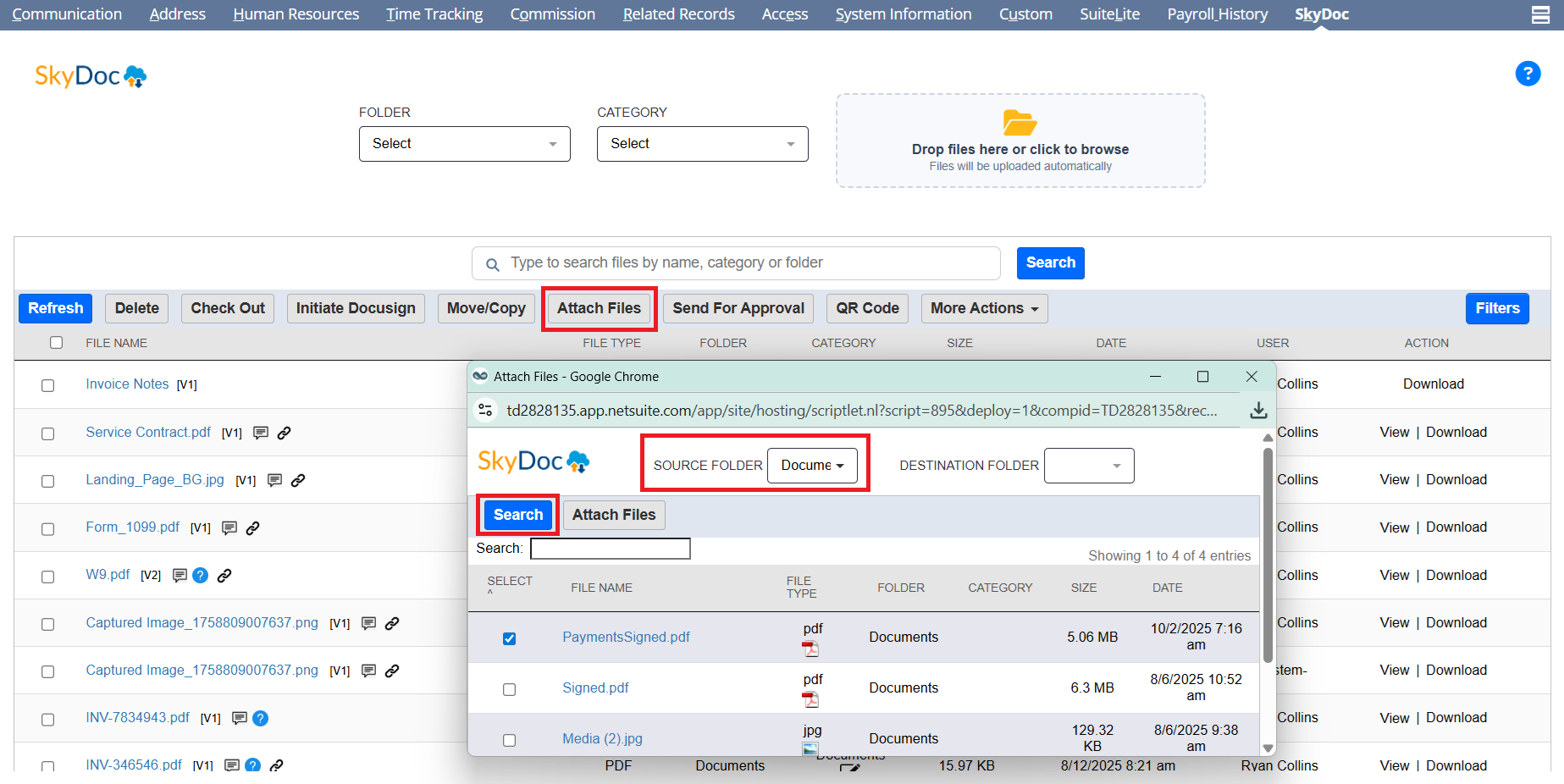
  • Click on the “Attach Files” button.
  • The source folder will be pre-populated, based on the configuration set in the SkyDoc setup page.
  • If necessary, use the Search bar to locate specific files.
  • Select the appropriate destination folder. If no folder is chosen, the files will be attached to the current record by default.
  • Choose the files you wish to attach, then click “Attach Files”
  • To view the attached files, click the “Refresh” button in the SkyDoc display list

BEI Set up

Display List

The Display List section allows users to view all files uploaded to a record. It includes:

  • Folder and Category dropdowns for filtering the displayed files.
  • A search bar to find specific files quickly.
  • A dropdown list to select the number of entries to display per page.
  • A set of buttons to perform various actions.
  • A View Link that enables users to view files with a single click
  • A download Link that enables users to download files with a single click
  • Detailed information about each file, such as the file name, folder, category, size, date, and status, is shown for easy reference.

BEI Set up

Display List

The Display List section allows users to view all files uploaded to a record. It includes:

  • Folder and Category dropdowns for filtering the displayed files.
  • A search bar to find specific files quickly.
  • A dropdown list to select the number of entries to display per page.
  • A set of buttons to perform various actions.
  • A View Link that enables users to view files with a single click
  • A download Link that enables users to download files with a single click
  • Detailed information about each file, such as the file name, folder, category, size, date, and status, is shown for easy reference.

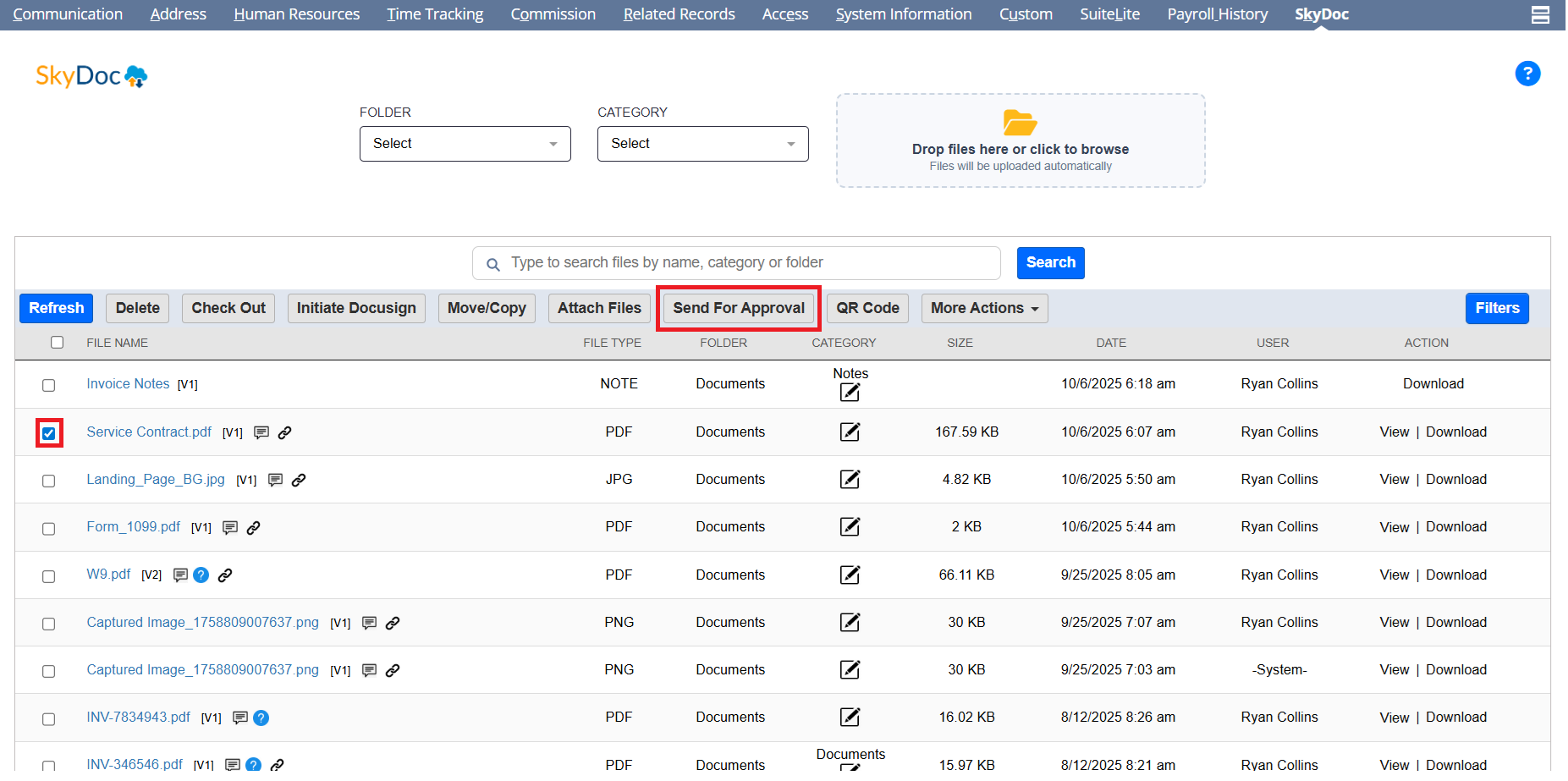
Approve, Reject, Send for Approval

The Send for Approval buttons in the SkyDoc display list facilitate the approval process within SkyDoc. For detailed information, please refer to the Approval Process document
BEI Set up

Display List

The Display List section allows users to view all files uploaded to a record. It includes:

  • Folder and Category dropdowns for filtering the displayed files.
  • A search bar to find specific files quickly.
  • A dropdown list to select the number of entries to display per page.
  • A set of buttons to perform various actions.
  • A View Link that enables users to view files with a single click
  • A download Link that enables users to download files with a single click
  • Detailed information about each file, such as the file name, folder, category, size, date, and status, is shown for easy reference.

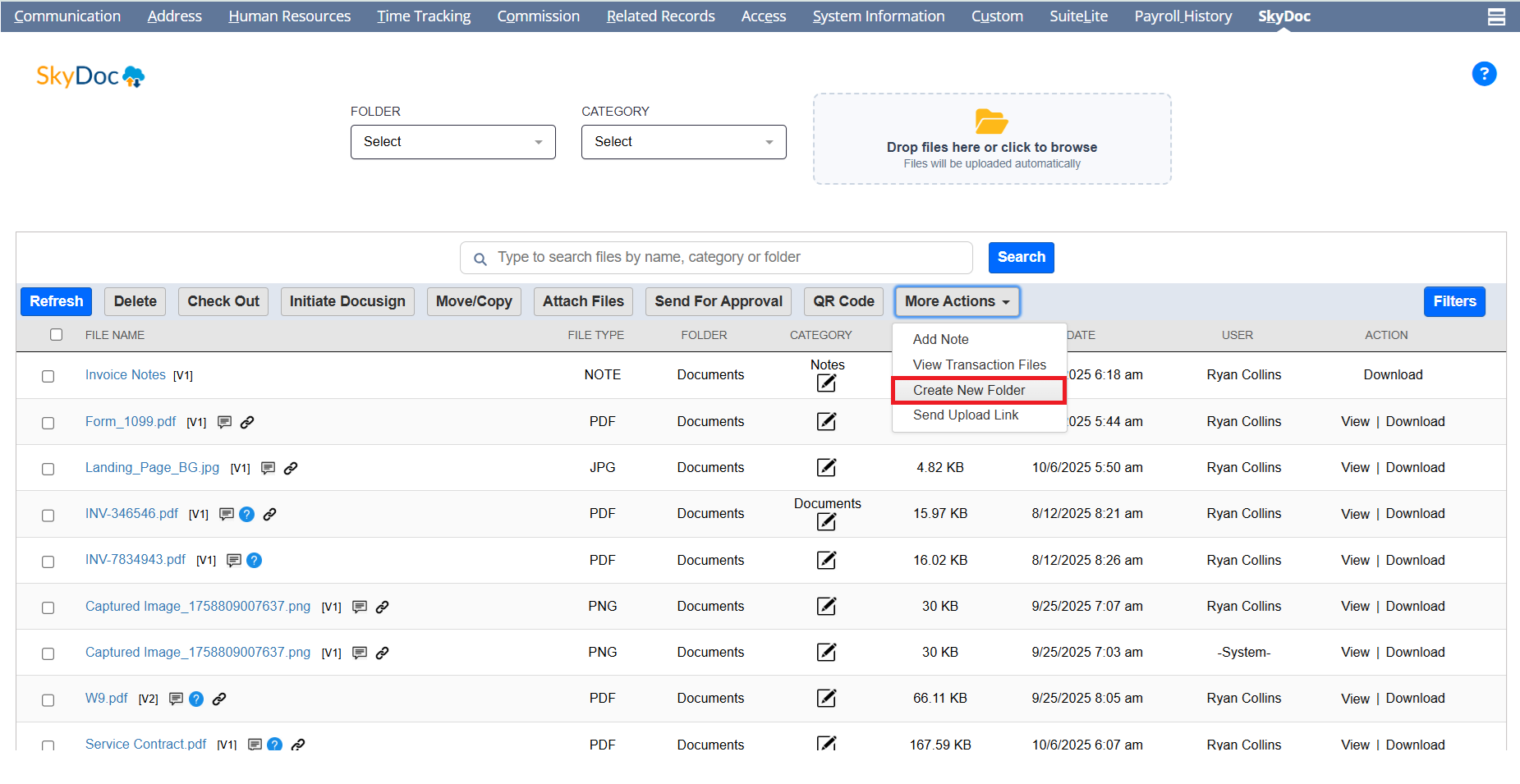
New Folder

The "New Folder" button, located in the SkyDoc display list, enables users to create a new folder directly from the list view.
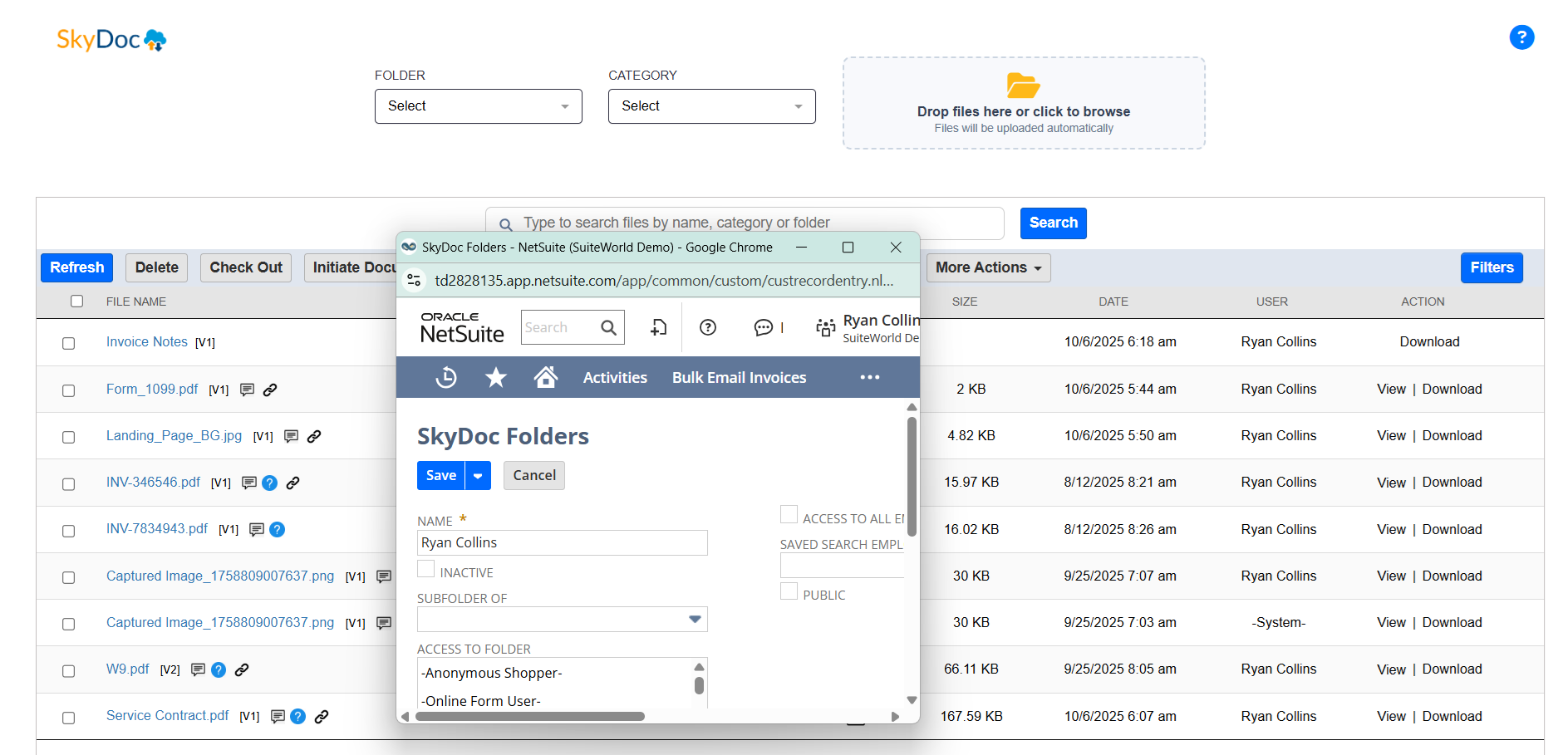
When a new folder is created from the SkyDoc Folder list, it is automatically set as the default folder for the current record. This helps streamline organization and ensures that the folder is immediately linked to the record

Additionally, the folder name is pre-populated in the SkyDoc folder creation page, based on the record type and record ID. This feature enhances user efficiency by eliminating the need for manual data entry

BEI Set up

Display List

The Display List section allows users to view all files uploaded to a record. It includes:

  • Folder and Category dropdowns for filtering the displayed files.
  • A search bar to find specific files quickly.
  • A dropdown list to select the number of entries to display per page.
  • A set of buttons to perform various actions.
  • A View Link that enables users to view files with a single click
  • A download Link that enables users to download files with a single click
  • Detailed information about each file, such as the file name, folder, category, size, date, and status, is shown for easy reference.

Check Out

The Check Out feature in the SkyDoc tab is designed to lock a document, signalling to other users that the file is currently in use. This prevents multiple users from uploading the same file simultaneously, reducing the risk of confusion.

Steps to Check Out a File:
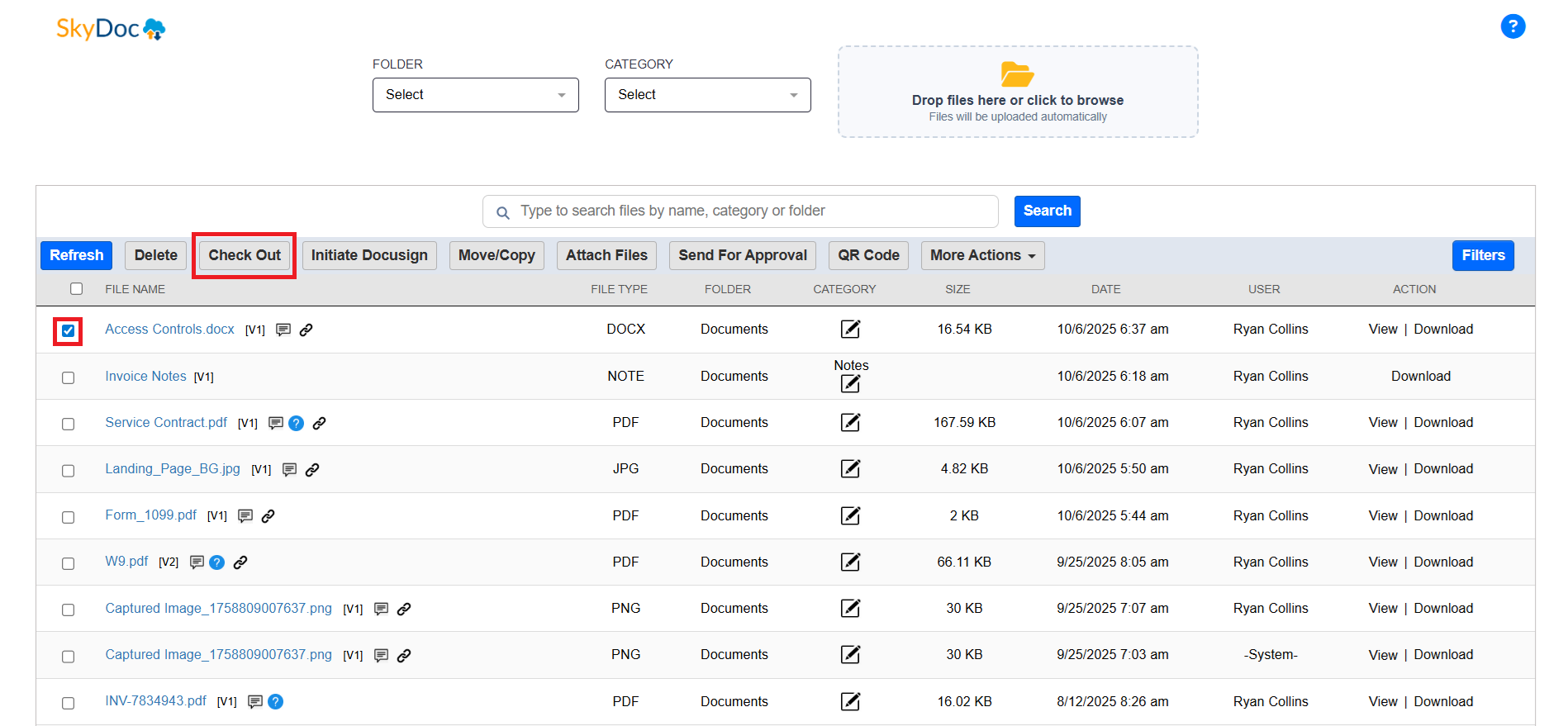
  1. Select the desired file.
  2. Click the Check Out button.

Once we click on the Check Out button an alert will appear confirming that the file has been checked out successfully. Click OK to proceed.
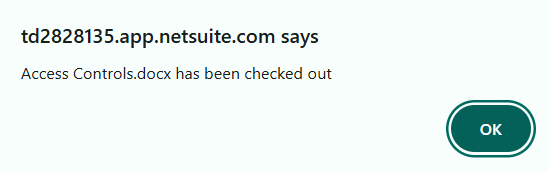
By clicking on the “OK” button we will be able to see an alert in the SkyDoc tab.
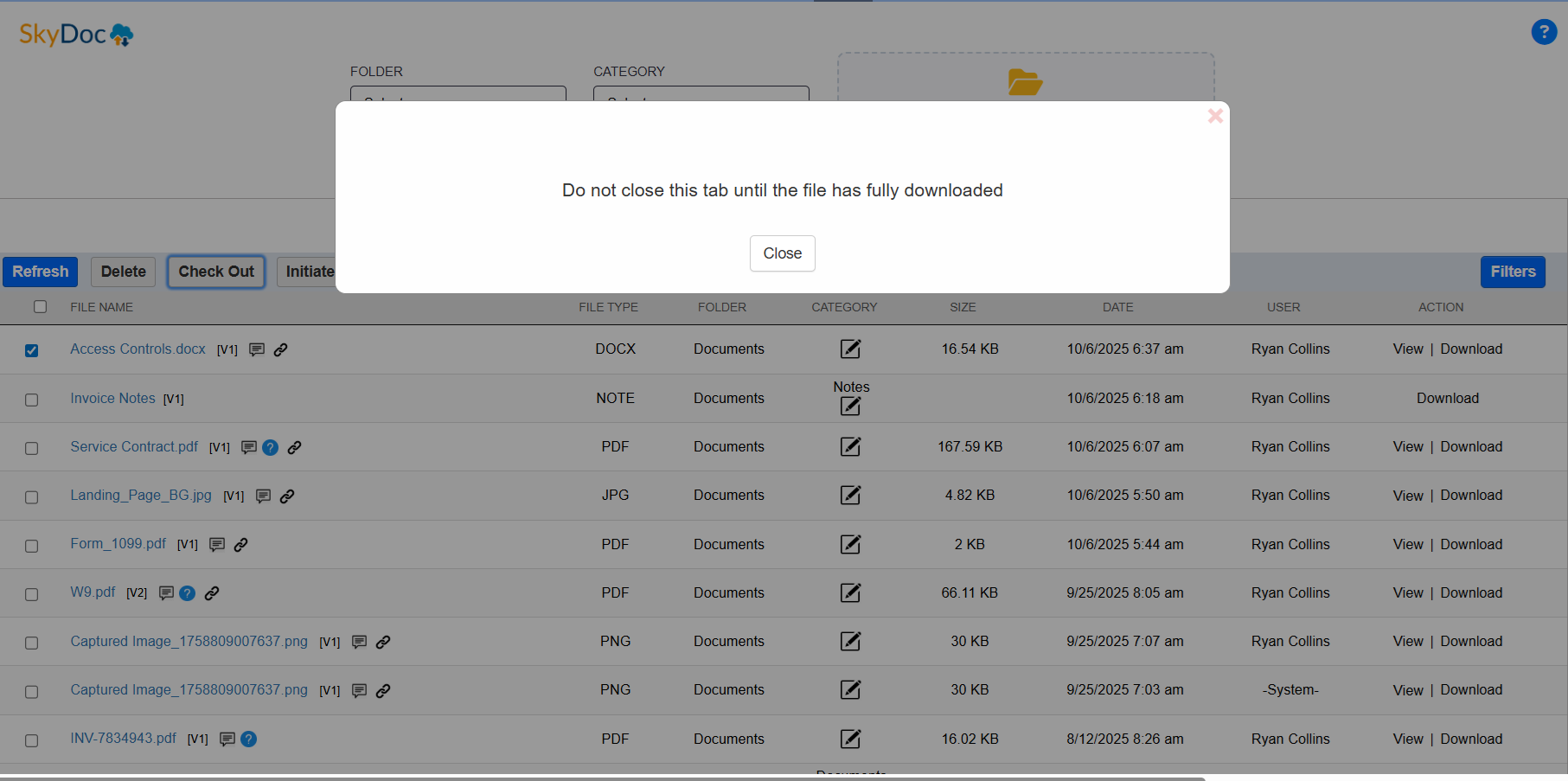
  • The file will be downloaded.
  • Click on the “Close” button, the SkyDoc tab will be refreshed.

BEI Set up

Display List

The Display List section allows users to view all files uploaded to a record. It includes:

  • Folder and Category dropdowns for filtering the displayed files.
  • A search bar to find specific files quickly.
  • A dropdown list to select the number of entries to display per page.
  • A set of buttons to perform various actions.
  • A View Link that enables users to view files with a single click
  • A download Link that enables users to download files with a single click
  • Detailed information about each file, such as the file name, folder, category, size, date, and status, is shown for easy reference.

Once the file is checked out, the following changes will occur in the SkyDoc tab:
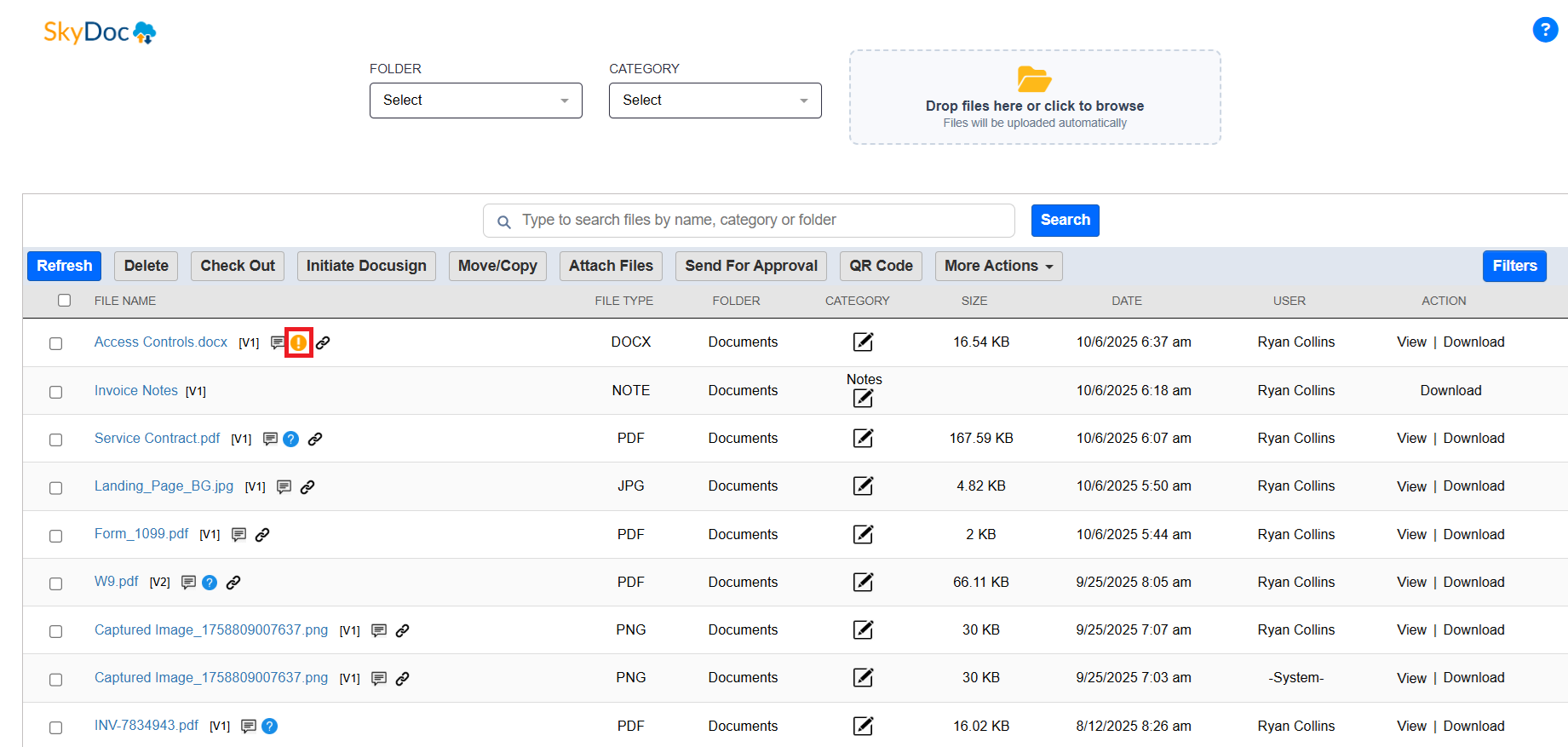
  • A Warning Icon will appear next to the file, indicating it is checked out.
  • The Checked Out By column will display the name of the user who has checked out the file.

BEI Set up

Display List

The Display List section allows users to view all files uploaded to a record. It includes:

  • Folder and Category dropdowns for filtering the displayed files.
  • A search bar to find specific files quickly.
  • A dropdown list to select the number of entries to display per page.
  • A set of buttons to perform various actions.
  • A View Link that enables users to view files with a single click
  • A download Link that enables users to download files with a single click
  • Detailed information about each file, such as the file name, folder, category, size, date, and status, is shown for easy reference.

Check In Process: To check in the file:

Steps to Check Out a File:
  1. Upload the same file to the same folder
  2. After uploading, click the Refresh button
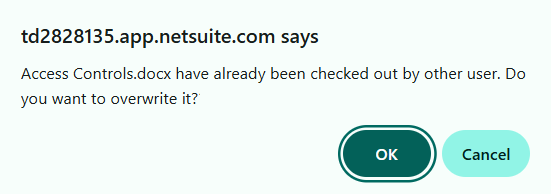
  3. The Warning Icon and the Checked Out By entry will be removed, and a new version of the file will be created.
  4. If a user attempts to check in a file that has already been checked out by another user, an alert will be displayed.

BEI Set up

Display List

The Display List section allows users to view all files uploaded to a record. It includes:

  • Folder and Category dropdowns for filtering the displayed files.
  • A search bar to find specific files quickly.
  • A dropdown list to select the number of entries to display per page.
  • A set of buttons to perform various actions.
  • A View Link that enables users to view files with a single click
  • A download Link that enables users to download files with a single click
  • Detailed information about each file, such as the file name, folder, category, size, date, and status, is shown for easy reference.

Transaction Files

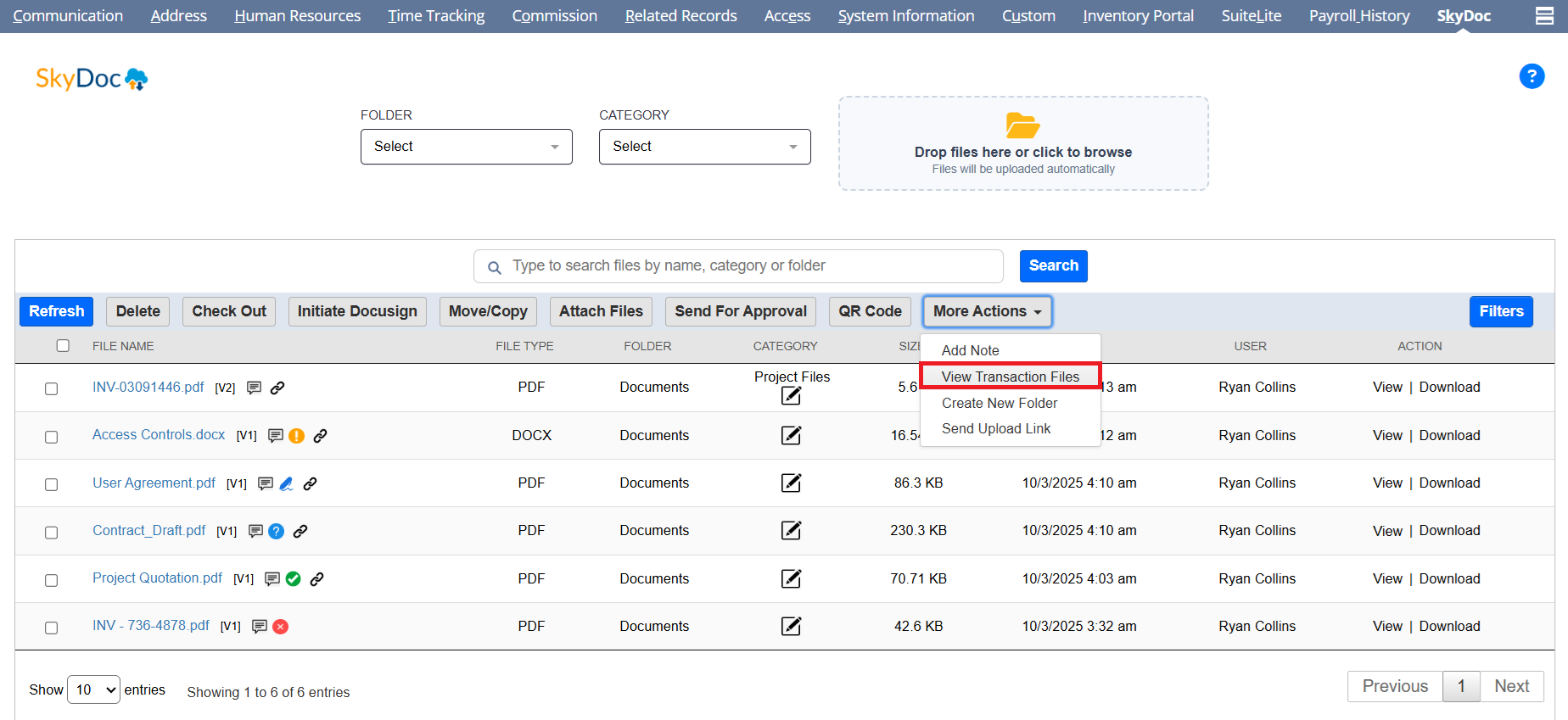
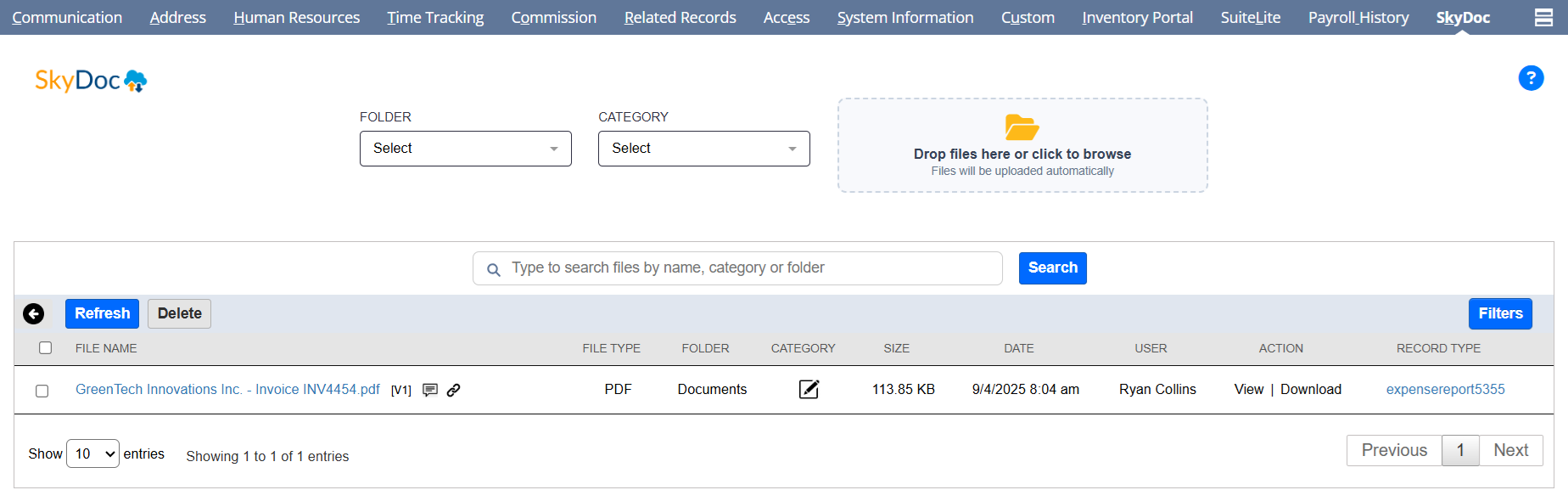
To view the related transactions associated with Transactions and Entity records, simply click the Transaction Files button under the SkyDoc subtab. This will display the relevant transactions linked to the selected records.
BEI Set up

Display List

The Display List section allows users to view all files uploaded to a record. It includes:

  • Folder and Category dropdowns for filtering the displayed files.
  • A search bar to find specific files quickly.
  • A dropdown list to select the number of entries to display per page.
  • A set of buttons to perform various actions.
  • A View Link that enables users to view files with a single click
  • A download Link that enables users to download files with a single click
  • Detailed information about each file, such as the file name, folder, category, size, date, and status, is shown for easy reference.

Message Attachments

When a file is attached in any Email message sent from any record, then auto upload is performed, and the file is deleted from the NetSuite and transferred to SkyDoc.
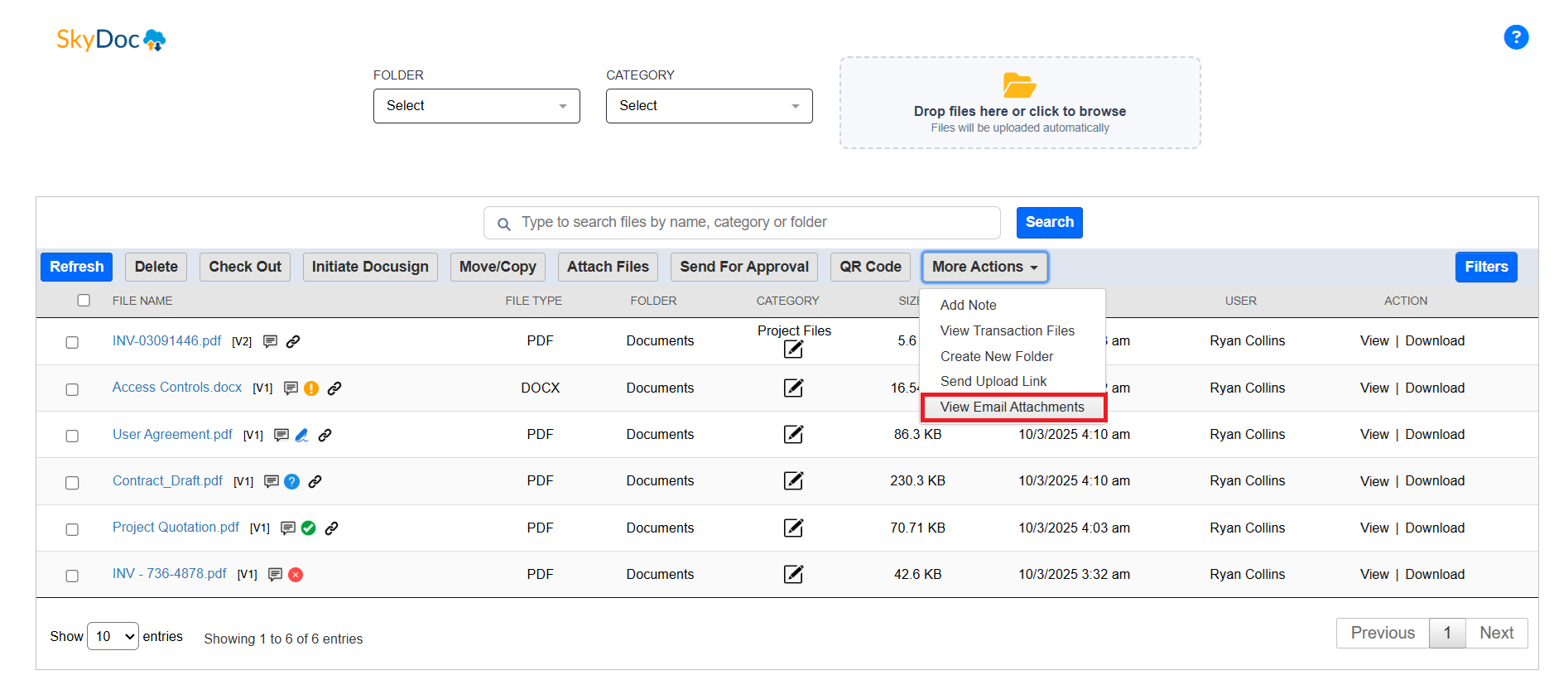
Click on the Message icon in the SkyDoc Display List

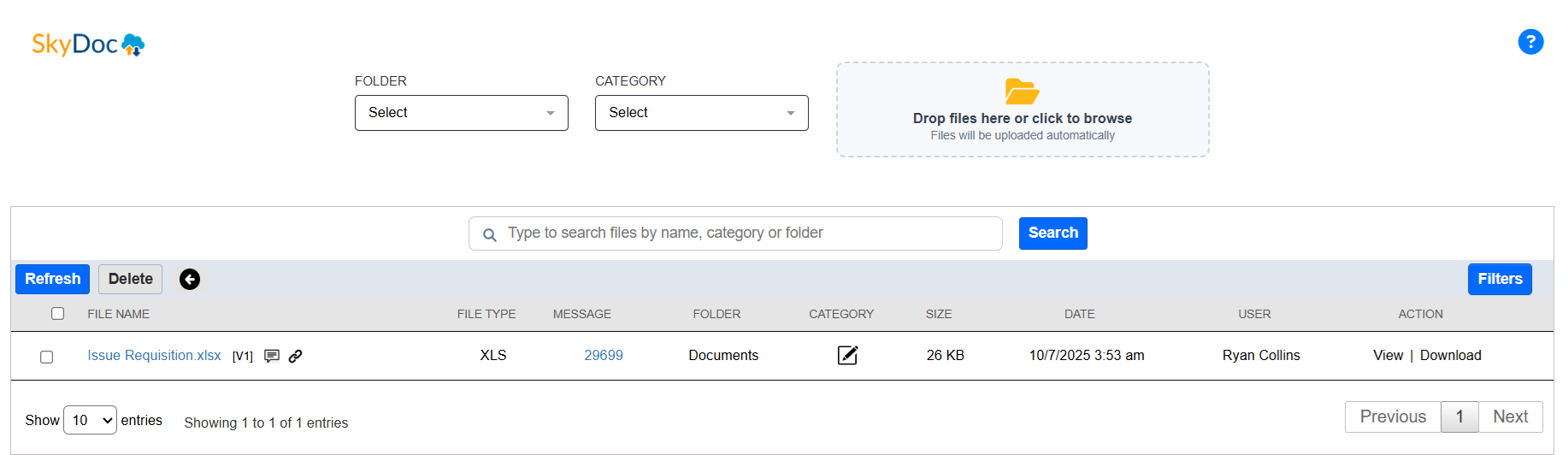
After clicking on the icon, we will be able to see the files attached in the Email messages of that record.
An External user can also upload the files directly to NetSuite using External Email Upload and QR Code.

BEI Set up

Display List

The Display List section allows users to view all files uploaded to a record. It includes:

  • Folder and Category dropdowns for filtering the displayed files.
  • A search bar to find specific files quickly.
  • A dropdown list to select the number of entries to display per page.
  • A set of buttons to perform various actions.
  • A View Link that enables users to view files with a single click
  • A download Link that enables users to download files with a single click
  • Detailed information about each file, such as the file name, folder, category, size, date, and status, is shown for easy reference.

External Email Upload

The external email upload is the feature that allows users to upload files to SkyDoc.
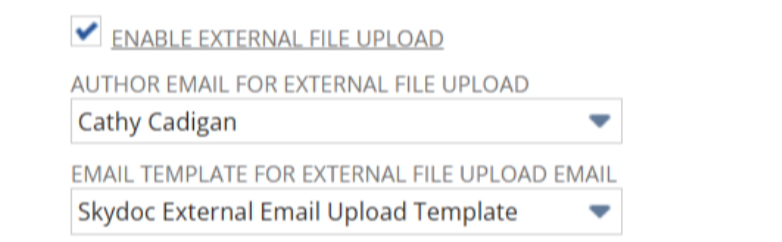
  • To enable “External Email Upload navigate to the Setup -> SkyDoc -> SkyDoc Setup.Enable the “ ENABLE EXTERNAL FILE UPLOAD” check box.
  • Check the “Enable External File Upload” checkbox which shows the External File Upload button in the SkyDoc Subtab.
  • After enabling the checkbox, you can view the “AUTHOR EMAIL FOR EXTERNAL FILE UPLOAD” and “EMAIL TEMPLATE FOR EXTERNAL FILE UPLOAD EMAIL” dropdown fields.
  • Select the Email author and the email template for the external file upload email.
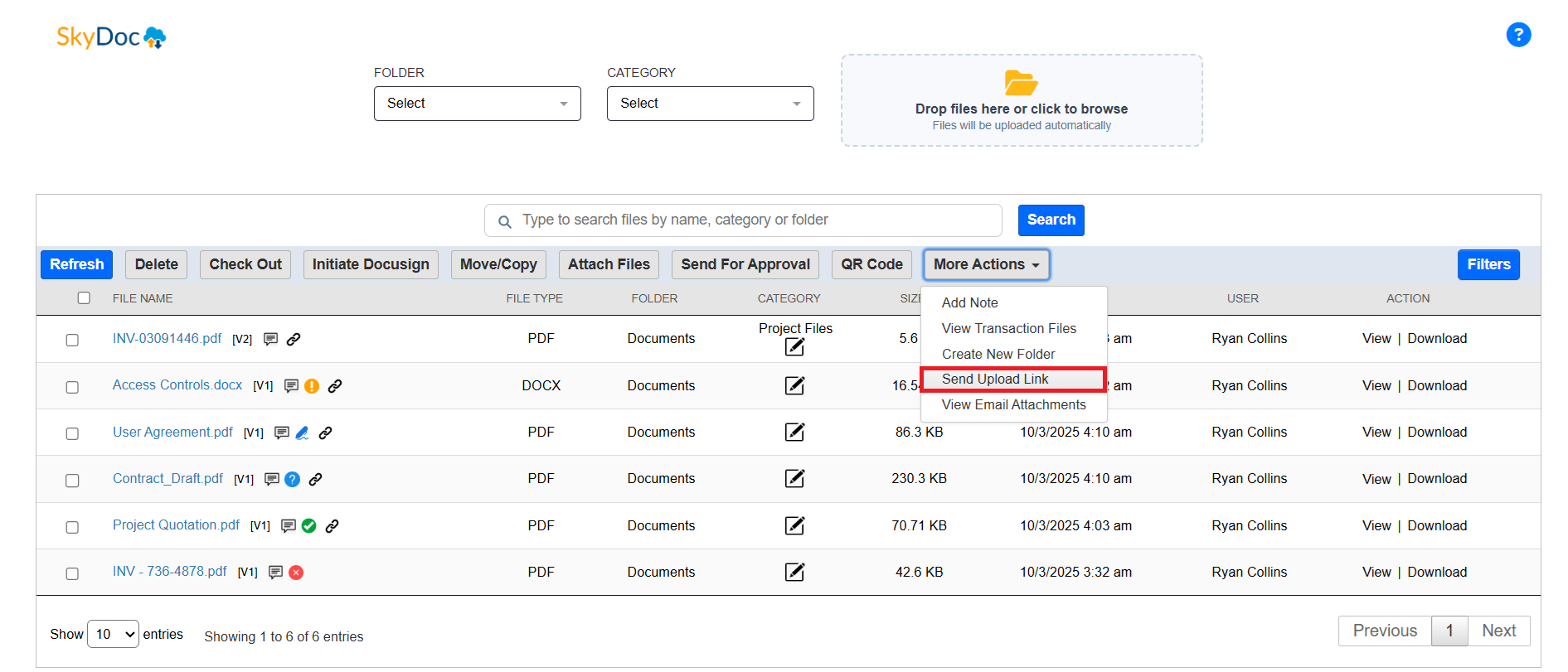
  • Under the SkyDoc tab you can view the “External Email Upload” button
  • Click on the “External Email Upload” button.
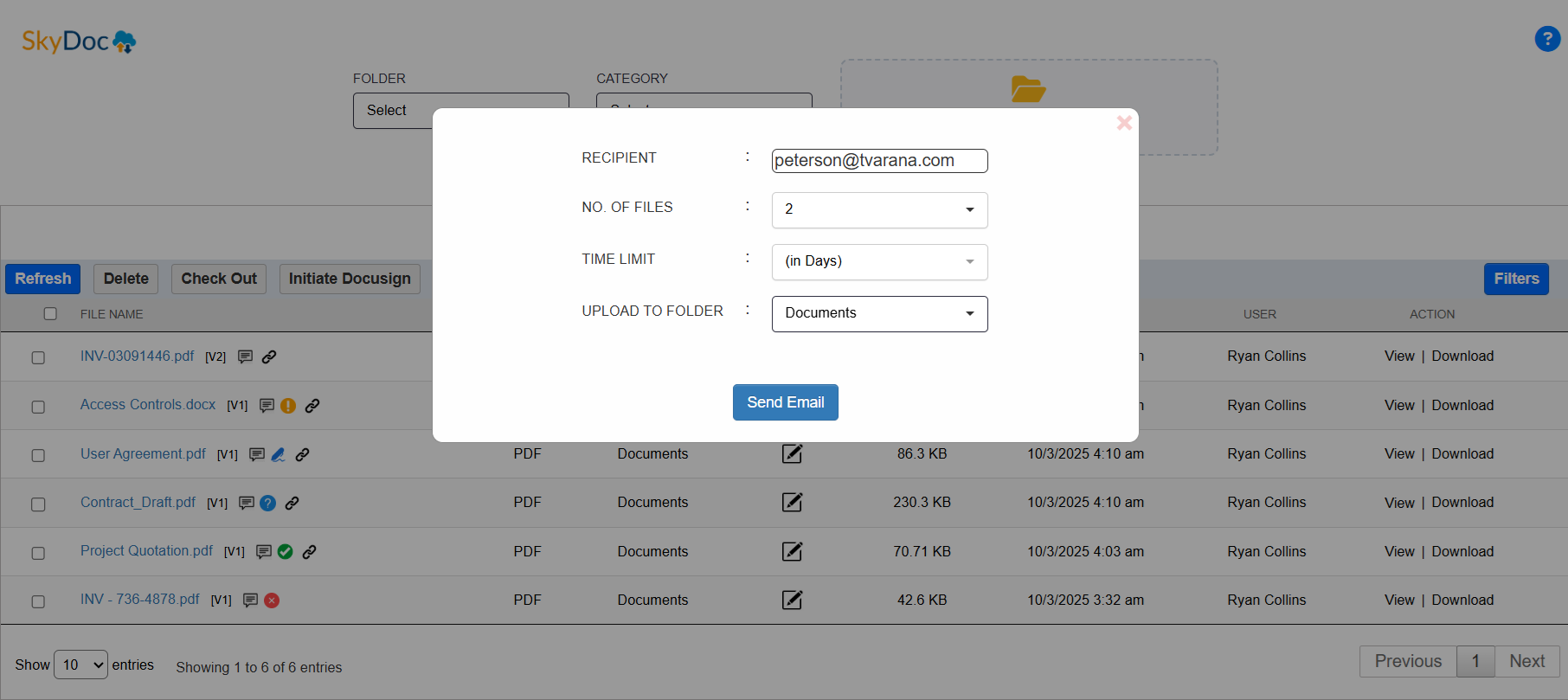
  • Under the RECIPIENT field enter the email address of the recipient.
  • In the NO. OF FILES field, enter the number of files that the recipient is allowed to upload (a recipient is restricted to upload a maximum of 10 number of files)
  • The Time Limit field makes the link active for a mentioned time in days.
  • The UPLOAD TO FOLDER field allows users to select the appropriate folder to attach the uploading files.
  • Either the no. of files field or time limit is mandatory.
  • Click on the “Send Email” button.

A popup with “email sent successfully” will be displayed after clicking on the send email button.

The recipient will receive an email with a Record link and Upload Files link to access to upload the files.
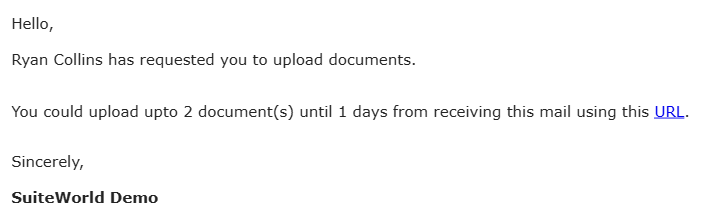
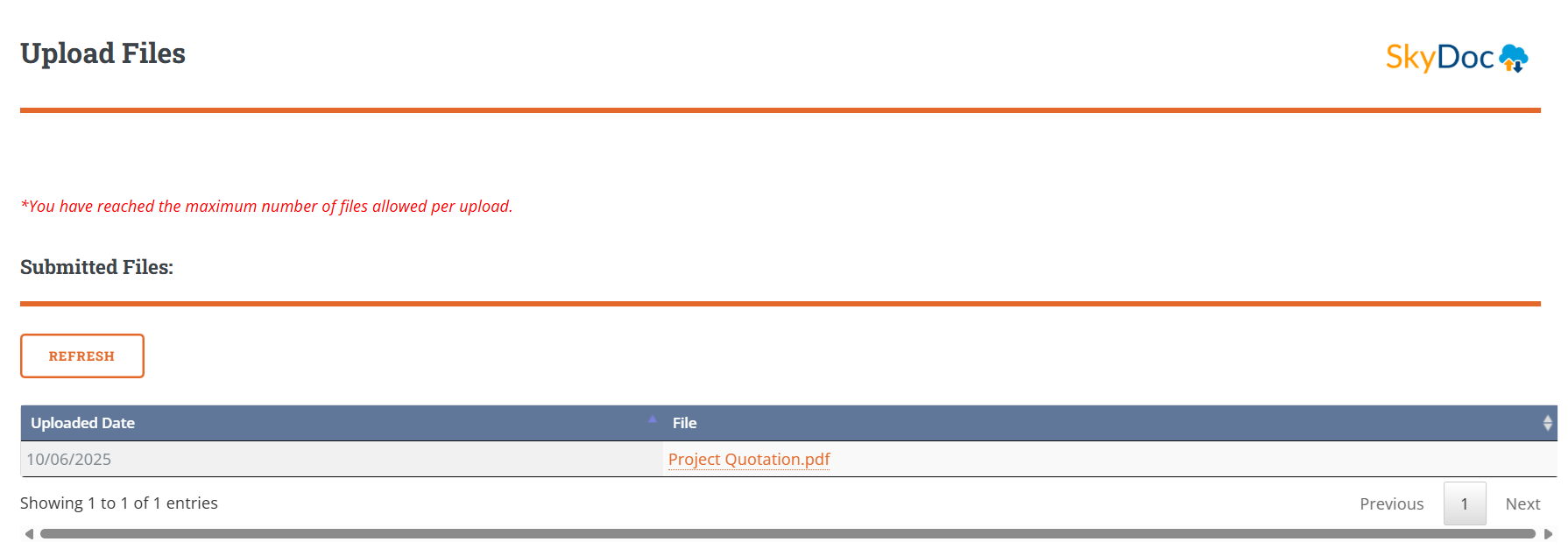
Clicking on the link provided in the email will navigate you to the page as below.
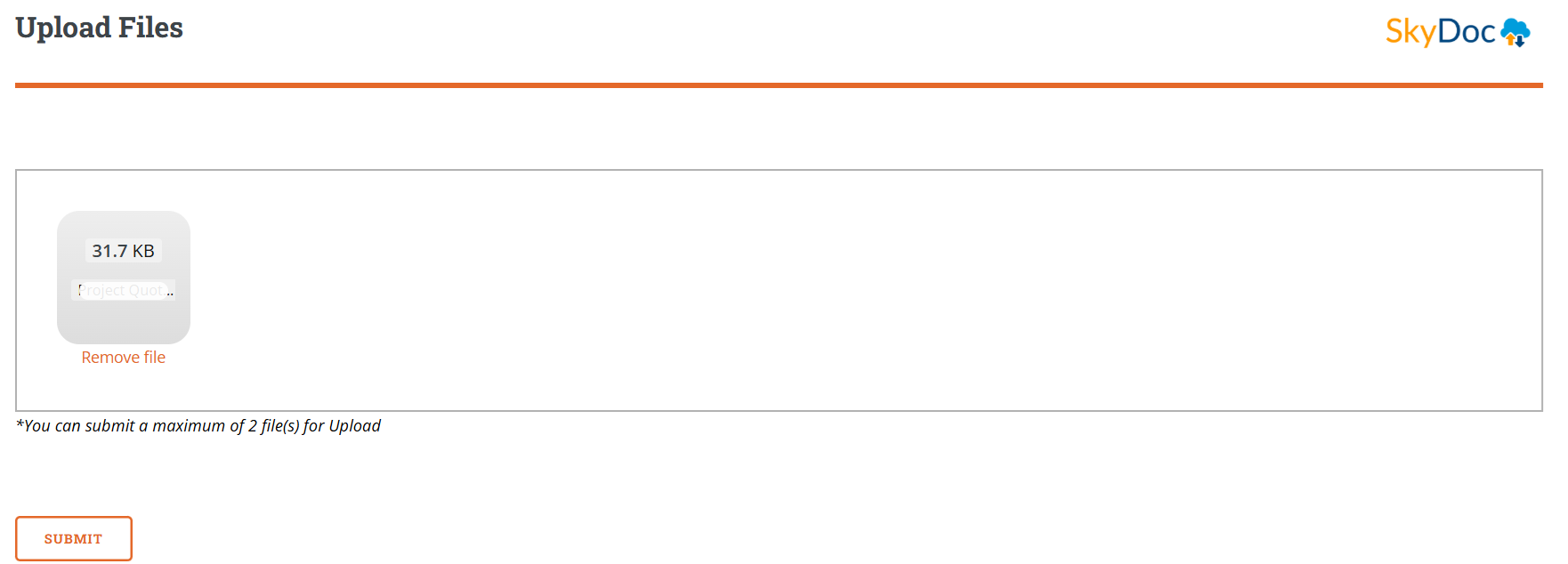
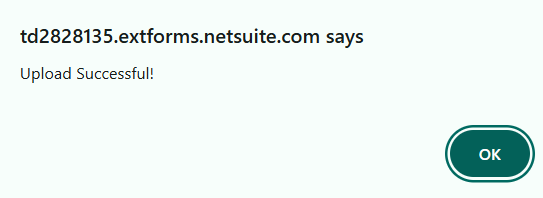
  • The recipient can upload or drag and drop the required files to attach the record and click on the submit button.
  • When the upload is successful, a message will be displayed.
  • The submitted files will be able to view under the Submitted Files section, where you can preview the file.
  • The uploaded file will be automatically attached to the appropriate record.
  • If you upload the maximum number of files, it will show a message “Maximum number of files already uploaded” and the upload box will disappear.
  • And the uploaded files will be displayed in the SkyDoc display list of a particular record.

BEI Set up

Display List

The Display List section allows users to view all files uploaded to a record. It includes:

  • Folder and Category dropdowns for filtering the displayed files.
  • A search bar to find specific files quickly.
  • A dropdown list to select the number of entries to display per page.
  • A set of buttons to perform various actions.
  • A View Link that enables users to view files with a single click
  • A download Link that enables users to download files with a single click
  • Detailed information about each file, such as the file name, folder, category, size, date, and status, is shown for easy reference.

QR Code

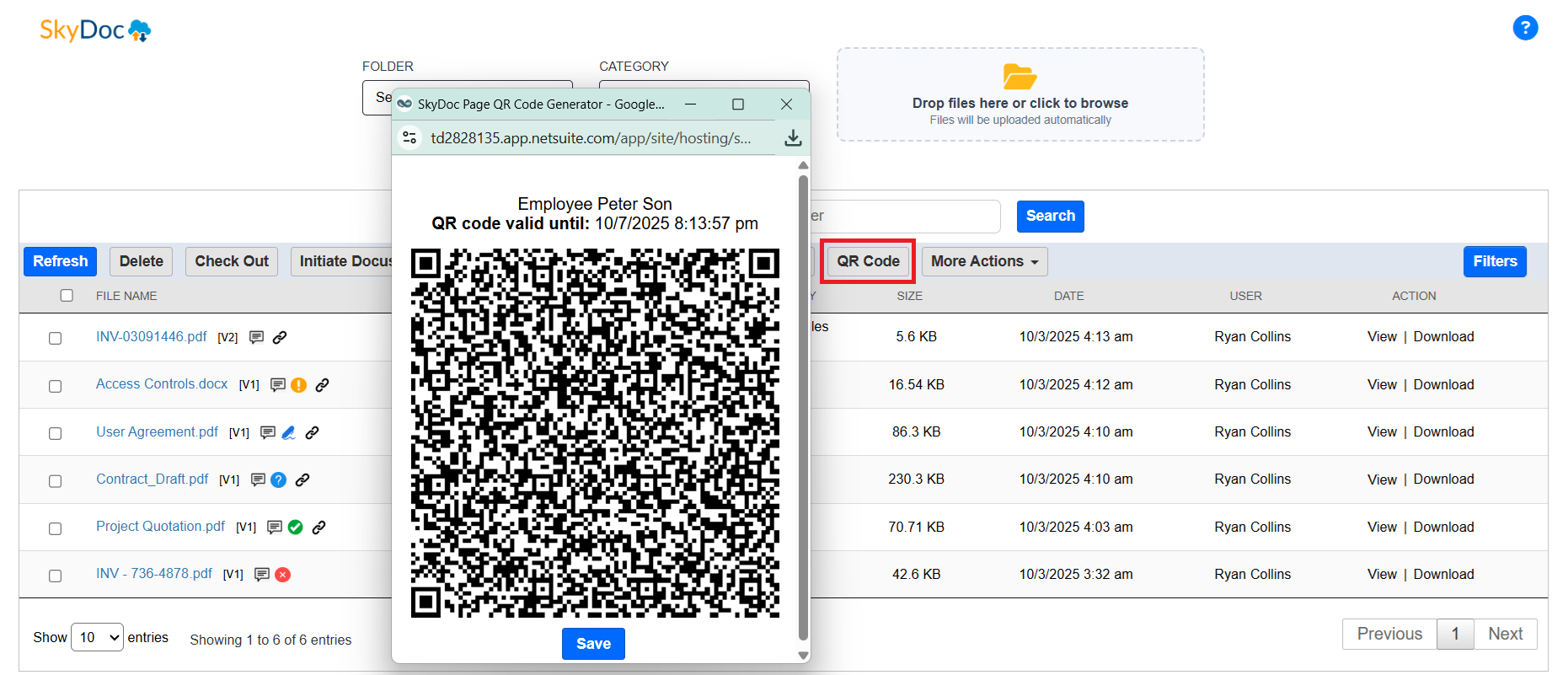
SkyDoc's QR Code Upload feature allows users to upload files to NetSuite remotely, without needing direct access to the NetSuite. This functionality simplifies file submission from external locations using mobile devices.
  1. To enable “QR Code" navigate to the Setup -> SkyDoc -> SkyDoc Setup.
  2. Enable the “Enable QR Scanner File Upload” check box.
  3. Once enabled, the QR Code button will be visible under the SkyDoc subtab on relevant records.
  4. Click the QR Code button in the SkyDoc subtab to generate and display a QR code in a popup.
  • Scan the displayed QR code using your mobile
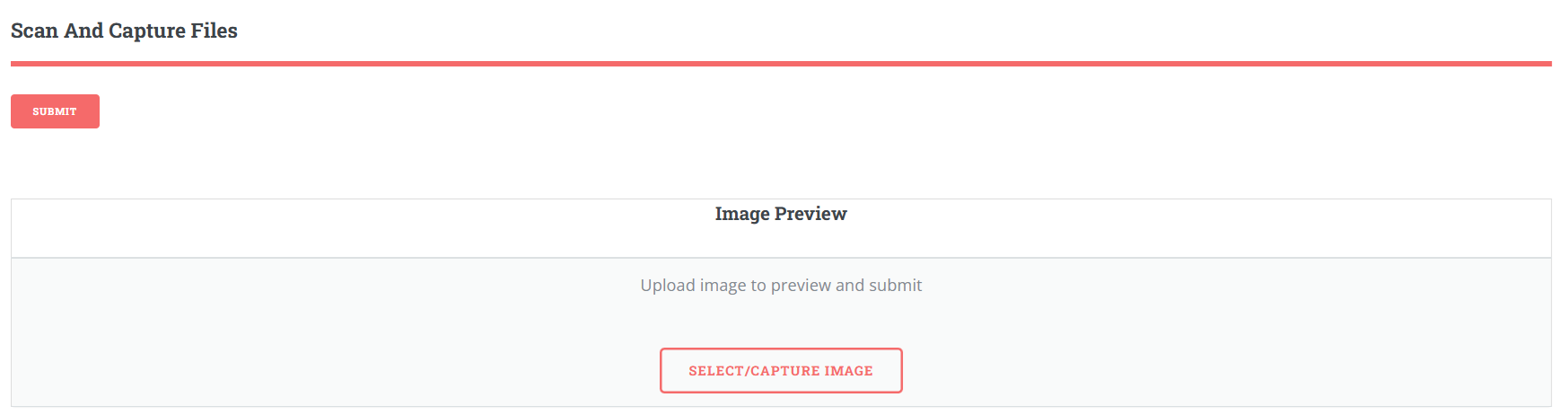
  • After scanning, click the "Select/Capture Image" button to either capture an image using your mobile camera or select an image from your mobile gallery.
  • The QR code is valid for 24 hours.
  • Once the image is selected, click Submit to upload the file to NetSuite.

Note: The QR Code and External Email Upload functionalities will work only when Lambda function is configured.

BEI Set up

Display List

The Display List section allows users to view all files uploaded to a record. It includes:

  • Folder and Category dropdowns for filtering the displayed files.
  • A search bar to find specific files quickly.
  • A dropdown list to select the number of entries to display per page.
  • A set of buttons to perform various actions.
  • A View Link that enables users to view files with a single click
  • A download Link that enables users to download files with a single click
  • Detailed information about each file, such as the file name, folder, category, size, date, and status, is shown for easy reference.

SkyDoc DocuSign

SkyDoc integrates seamlessly with DocuSign to facilitate electronic signatures within NetSuite. This integration streamlines workflows, making document signing efficient and secure. DocuSign integration allows users to send documents stored in SkyDoc for electronic signature, track the signing process, and automatically save signed documents back into SkyDoc. This eliminates the need for manual uploads and ensures signed documents are stored in the appropriate NetSuite records.

Sending a Document for Signature
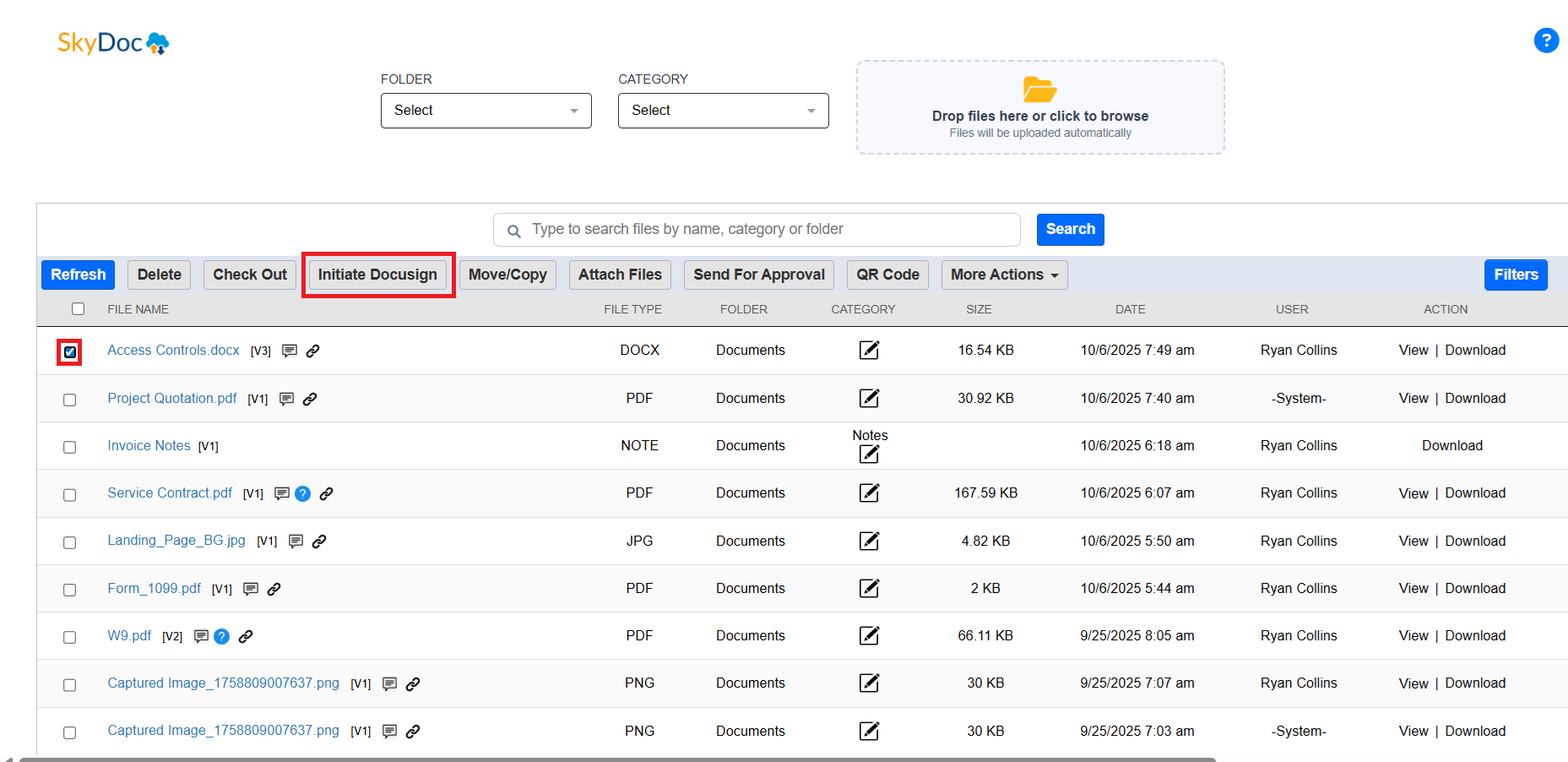
  • Navigate to the NetSuite record (e.g., Customer, Vendor, Transaction) associated with the document.
  • Open the SkyDoc tab
  • Select the document you wish to send for signature.

4. Click on the “Initiate DocuSign” button.
5. In the DocuSign pop-up window, specify:
       a. Recipients: Add email addresses of the signers.
       b. Message: Customize the email message sent to recipients.
       c. Click on the Next button.
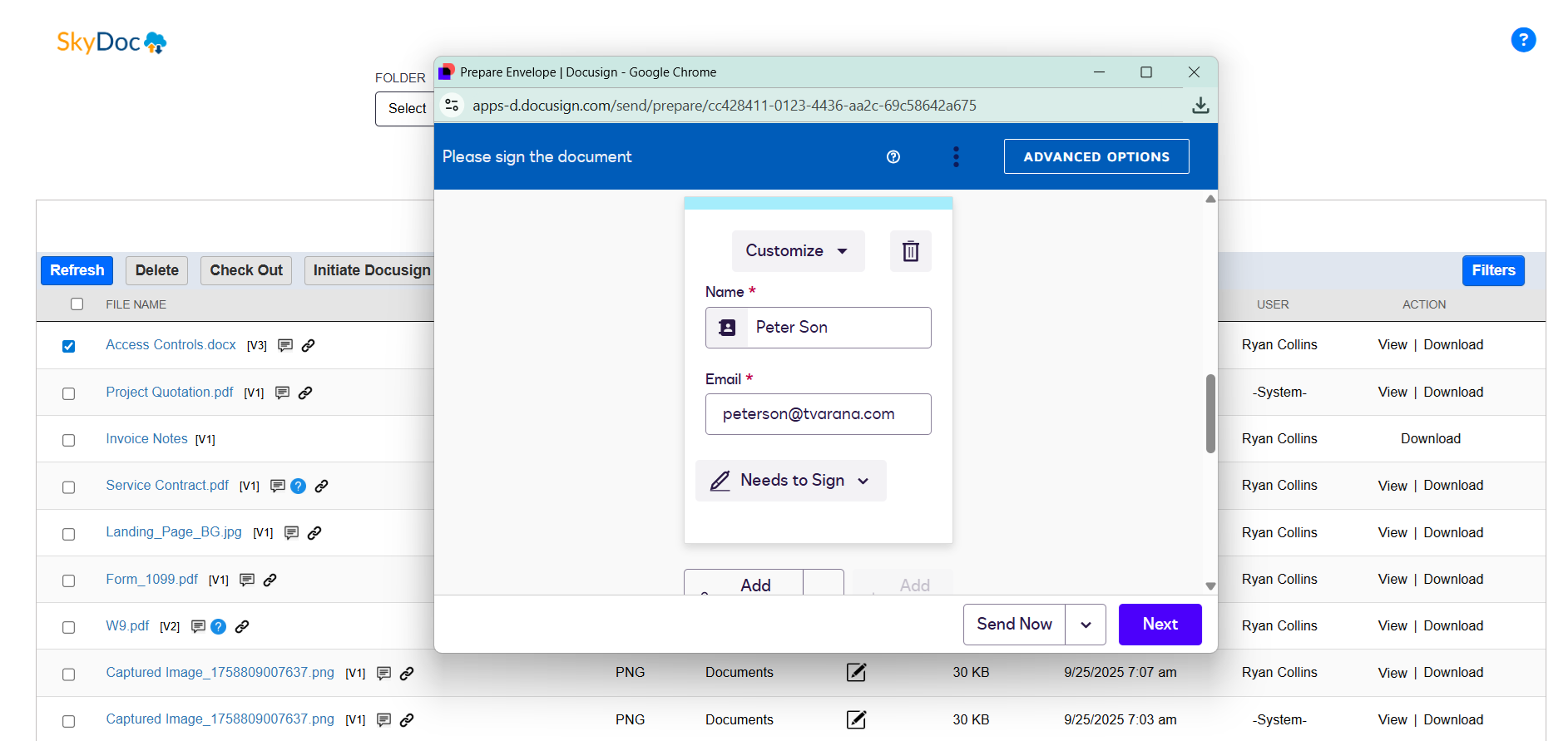
     d.Add the required fields (signature, initial, date signed etc) to the Document as shown below and click on Send.
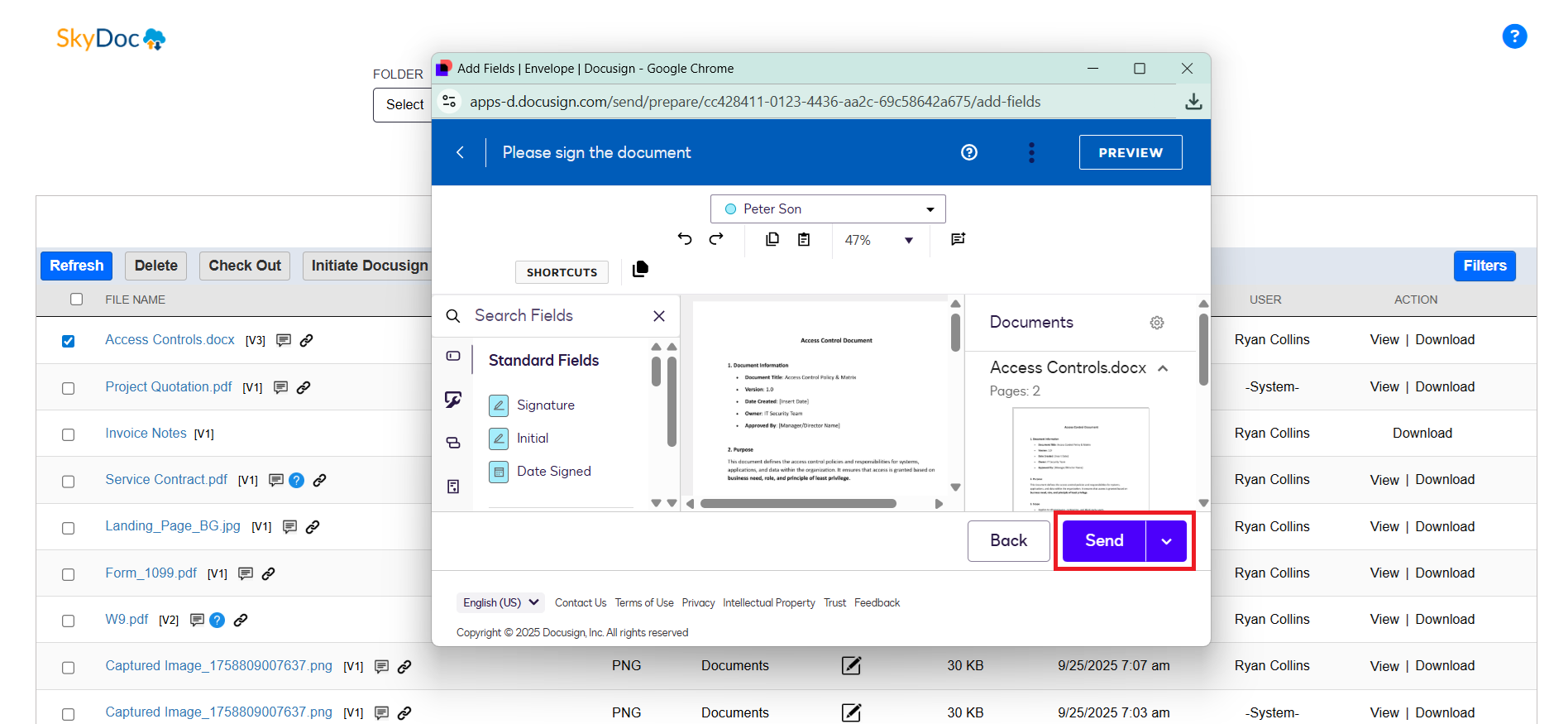
6. Upon clicking Send an email will be sent to all recipients listed in the DocuSign window.

BEI Set up

Display List

The Display List section allows users to view all files uploaded to a record. It includes:

  • Folder and Category dropdowns for filtering the displayed files.
  • A search bar to find specific files quickly.
  • A dropdown list to select the number of entries to display per page.
  • A set of buttons to perform various actions.
  • A View Link that enables users to view files with a single click
  • A download Link that enables users to download files with a single click
  • Detailed information about each file, such as the file name, folder, category, size, date, and status, is shown for easy reference.

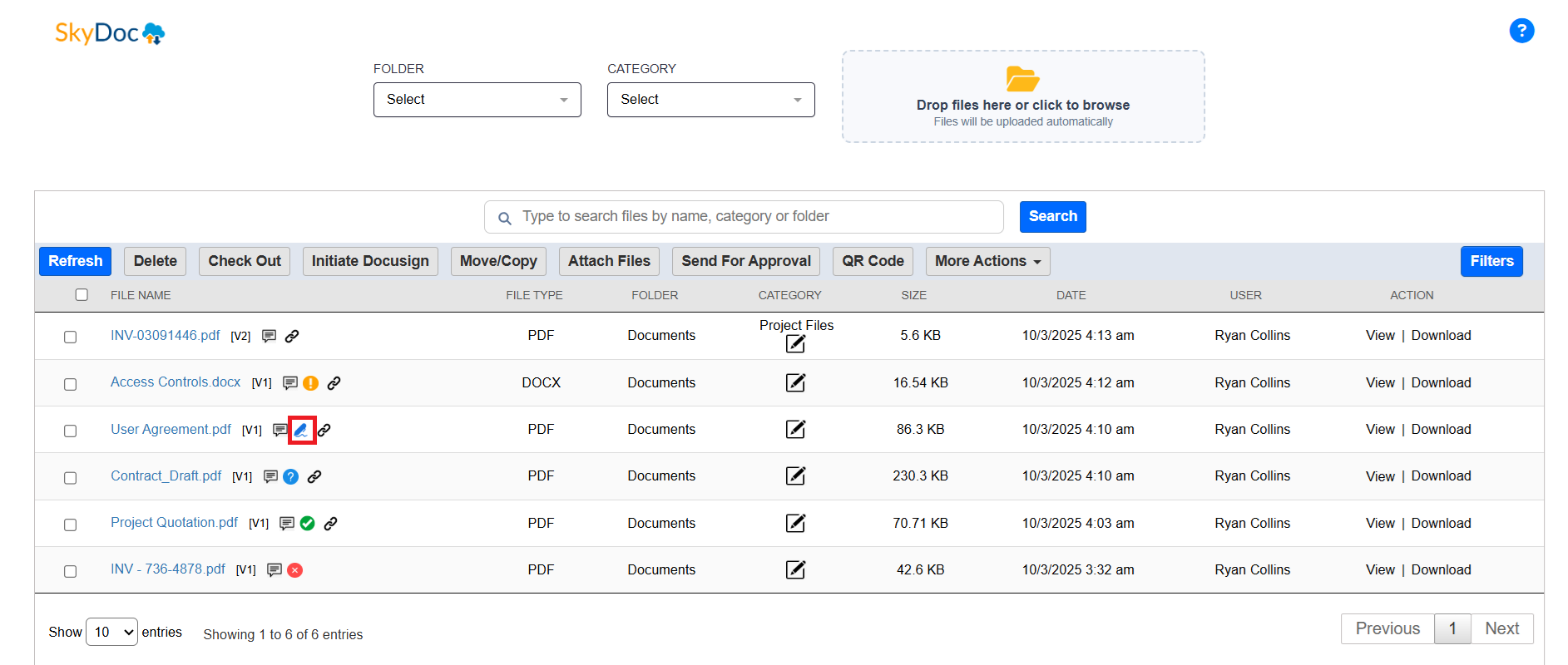
Tracking Document Status

After sending the document, the status can be tracked in the SkyDoc tab under the “DocuSign Status” column.
Retrieving Signed Documents
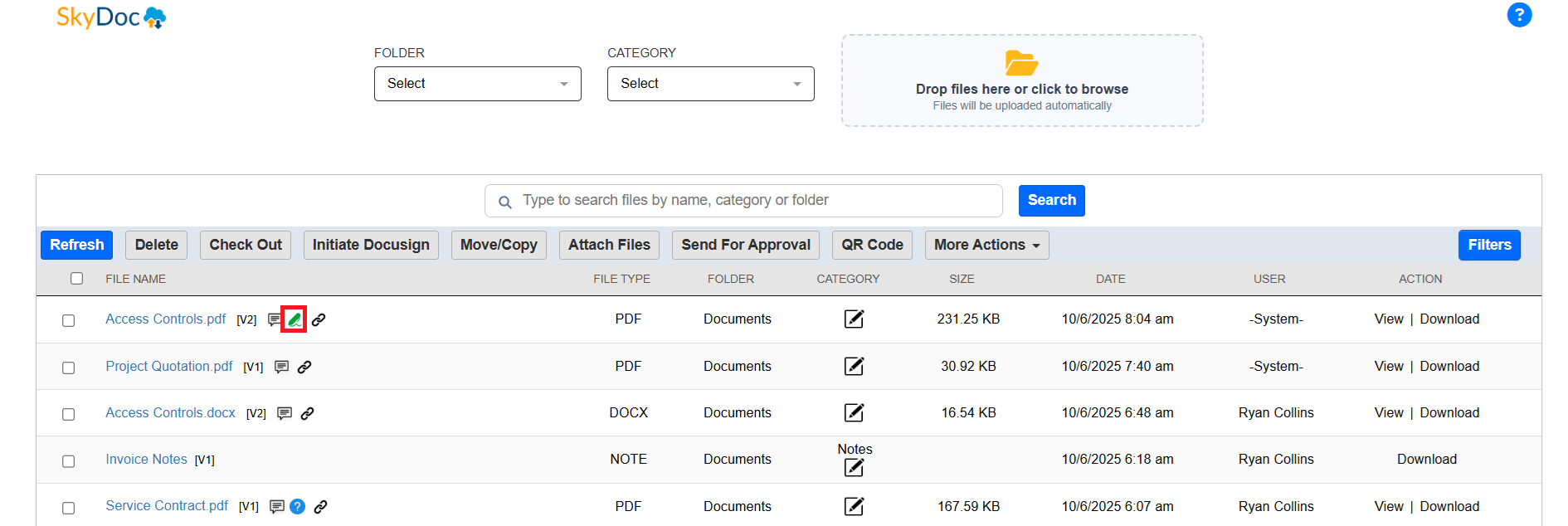
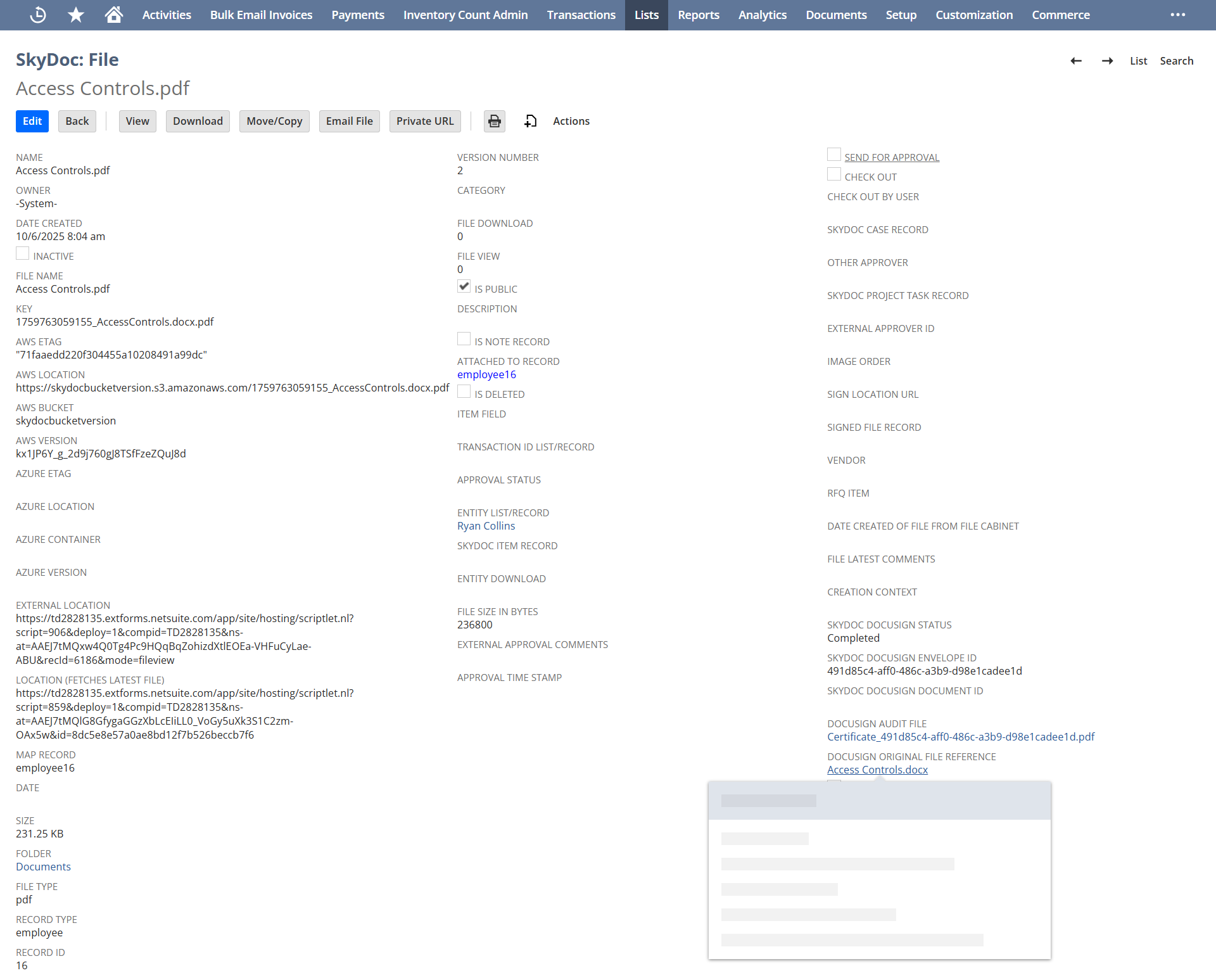
  • Once all users have signed the documents, the signed version will be automatically saved in the SkyDoc tab under the corresponding NetSuite record. Additionally, the status in the SkyDoc subtab, under the DocuSign Status column, will be updated to "Completed."

BEI Set up

Display List

The Display List section allows users to view all files uploaded to a record. It includes:
  • Folder and Category dropdowns for filtering the displayed files.
  • A search bar to find specific files quickly.
  • A dropdown list to select the number of entries to display per page.
  • A set of buttons to perform various actions.
  • A View Link that enables users to view files with a single click
  • A download Link that enables users to download files with a single click
  • Detailed information about each file, such as the file name, folder, category, size, date, and status, is shown for easy reference.

SkyDoc: File Record

BEI Set up

Display List

The Display List section allows users to view all files uploaded to a record. It includes:

  • Folder and Category dropdowns for filtering the displayed files.
  • A search bar to find specific files quickly.
  • A dropdown list to select the number of entries to display per page.
  • A set of buttons to perform various actions.
  • A View Link that enables users to view files with a single click
  • A download Link that enables users to download files with a single click
  • Detailed information about each file, such as the file name, folder, category, size, date, and status, is shown for easy reference.

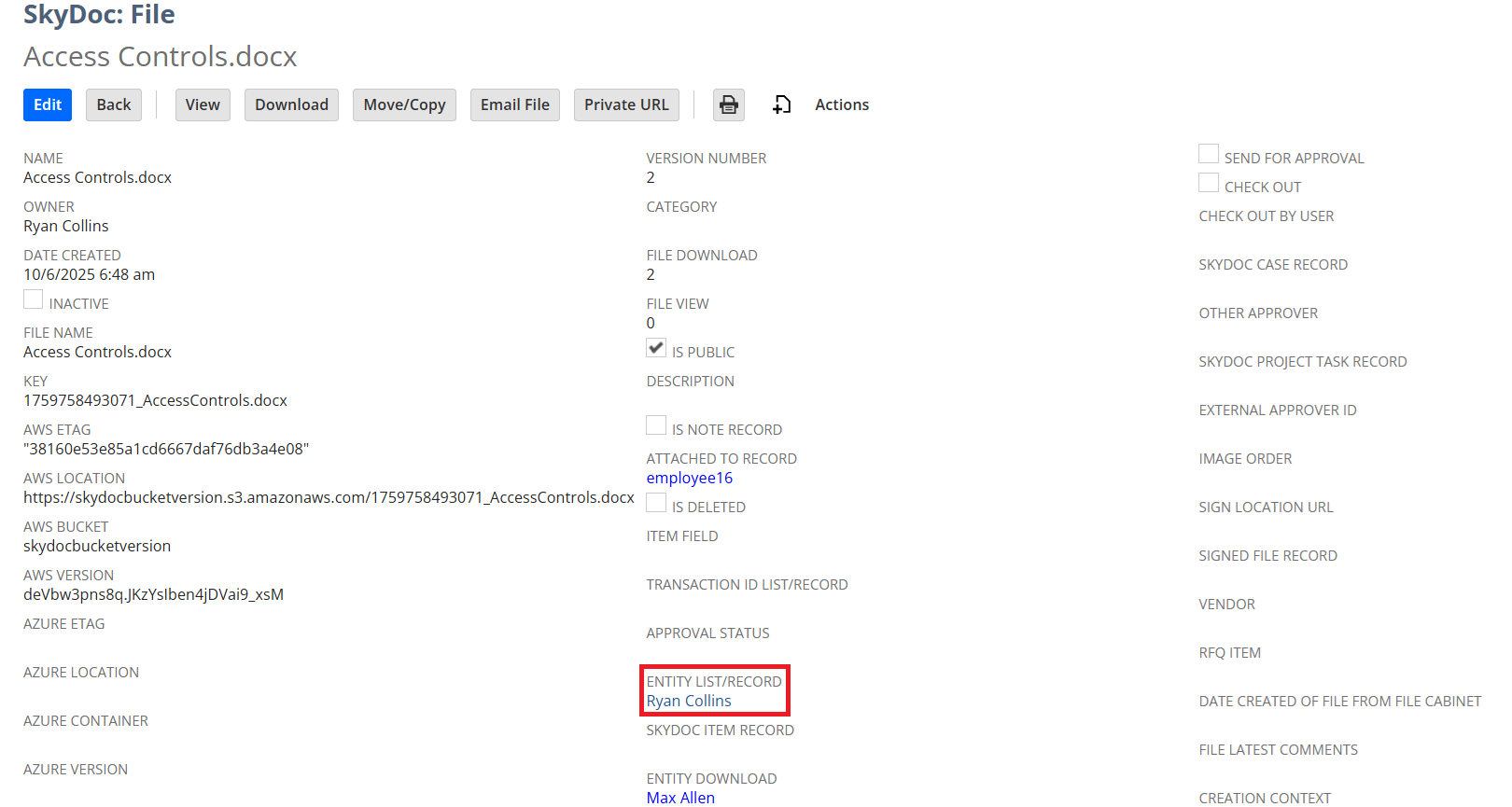
Accessing the SkyDoc File Record

  1. Select the desired file.Double-click on a file name in the SkyDoc display list to open its file record.
  2. The file record provides comprehensive details, including:
       ○ Number of downloads and views.
       ○ Attached records and associated entities.
       ○ File type, status, and more.
  3. Several buttons are available to perform certain operations like view, download, move/copy, Email, & Public URL

Edit

  • Allows you to edit the file details directly in the SkyDoc file record.

View

  • Opens the file content for viewing.

Download

  • Download the file to your system

Move/Copy

  • Move/Copy button performs the same action as in the SkyDoc display list. First click on the button and select the record type and click on the “Search” button. Then select the Target Record and click on save.

Public URL

  • The URL in the location field can be made public by clicking on the “Public URL” button.
  • If the record is private, if we try to copy the link and access it, then it returns an error as “AccessDenied”.
  • Once the file is made public, the IS PUBLIC field in the SkyDoc File record will be checked, allowing the URL to display the file content.
  • The record URL can be again converted into a private URL by clicking on the “Private URL” button.
  • To view multiple versions of a file in SkyDoc, navigate to the "File Versions" subtab within the SkyDoc File record. Each version of the file will be listed, and you can access any version by clicking the "View" link next to the corresponding entry.
  • The details of the users who downloaded the files can be seen in the “ENTITY DOWNLOAD” field of SkyDoc file record.

Sending Emails with SkyDoc Files
SkyDoc allows you to attach files in emails through two convenient options:

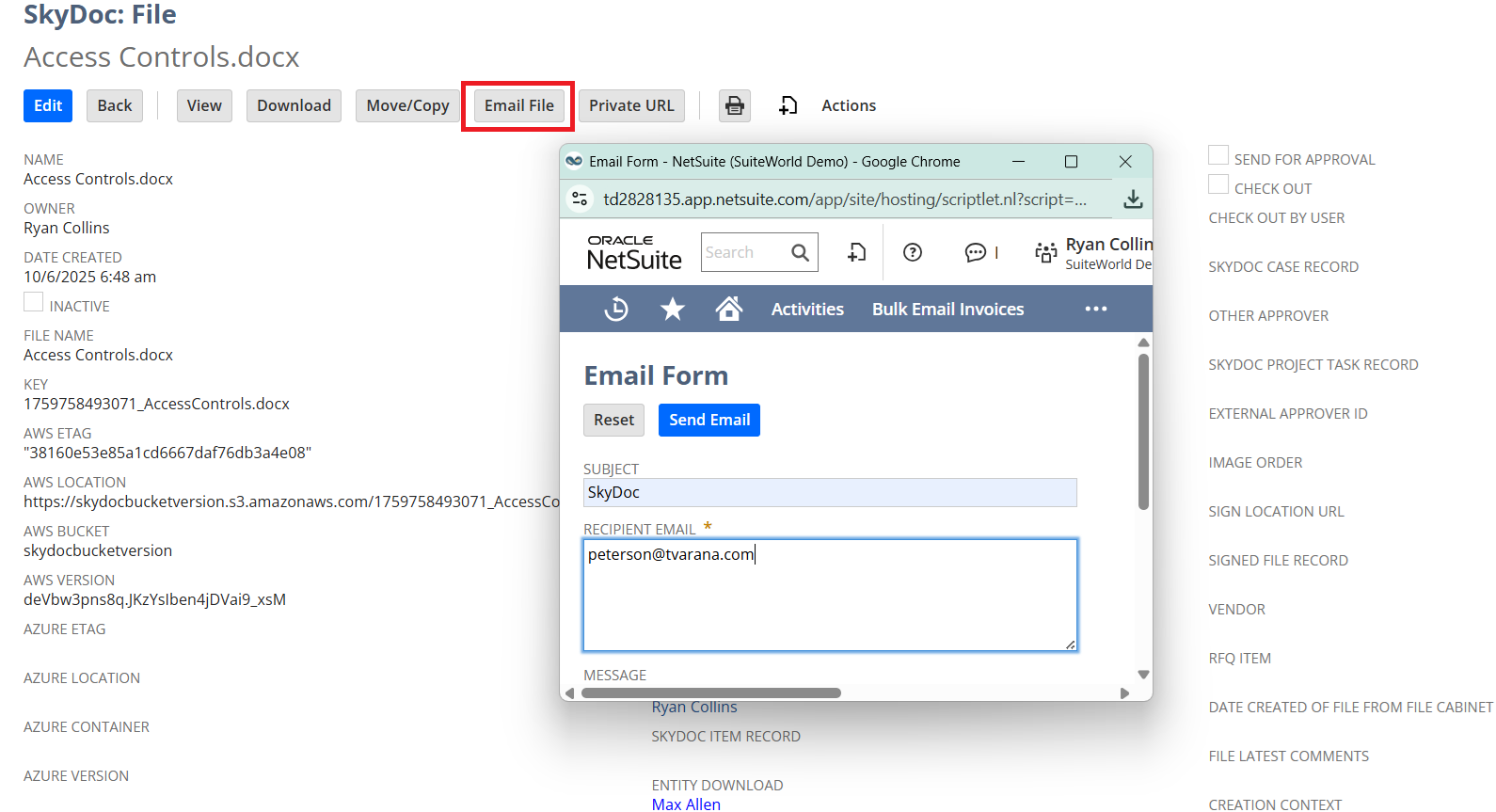
  • Using the “Email File” Button in the SkyDoc File Record
  • Using the “Email” Button in the Communication Subtab of Any Record

Sending Emails via the “Email File” Button in SkyDoc File Record
  • To send an email with an attached SkyDoc file:
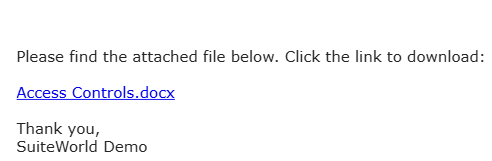
  • Click on the “Email File” button within the SkyDoc file record
  • Fill in the required email details:
  • Subject: Enter the email subject.
  • Recipient Email: Provide the recipient's email address.
  • Message: Compose the email body.
  • Email Template (optional):

      ○ To use an email template, check the “Enable Email Template” box.
      ○ Select the desired scripted template from the dropdown menu.
BEI Set up

Display List

The Display List section allows users to view all files uploaded to a record. It includes:

  • Folder and Category dropdowns for filtering the displayed files.
  • A search bar to find specific files quickly.
  • A dropdown list to select the number of entries to display per page.
  • A set of buttons to perform various actions.
  • A View Link that enables users to view files with a single click
  • A download Link that enables users to download files with a single click
  • Detailed information about each file, such as the file name, folder, category, size, date, and status, is shown for easy reference.

Sending Emails with SkyDoc Attachments

Follow these steps to send an email with SkyDoc file attachments from the Communication subtab:

Access the Communication Subtab
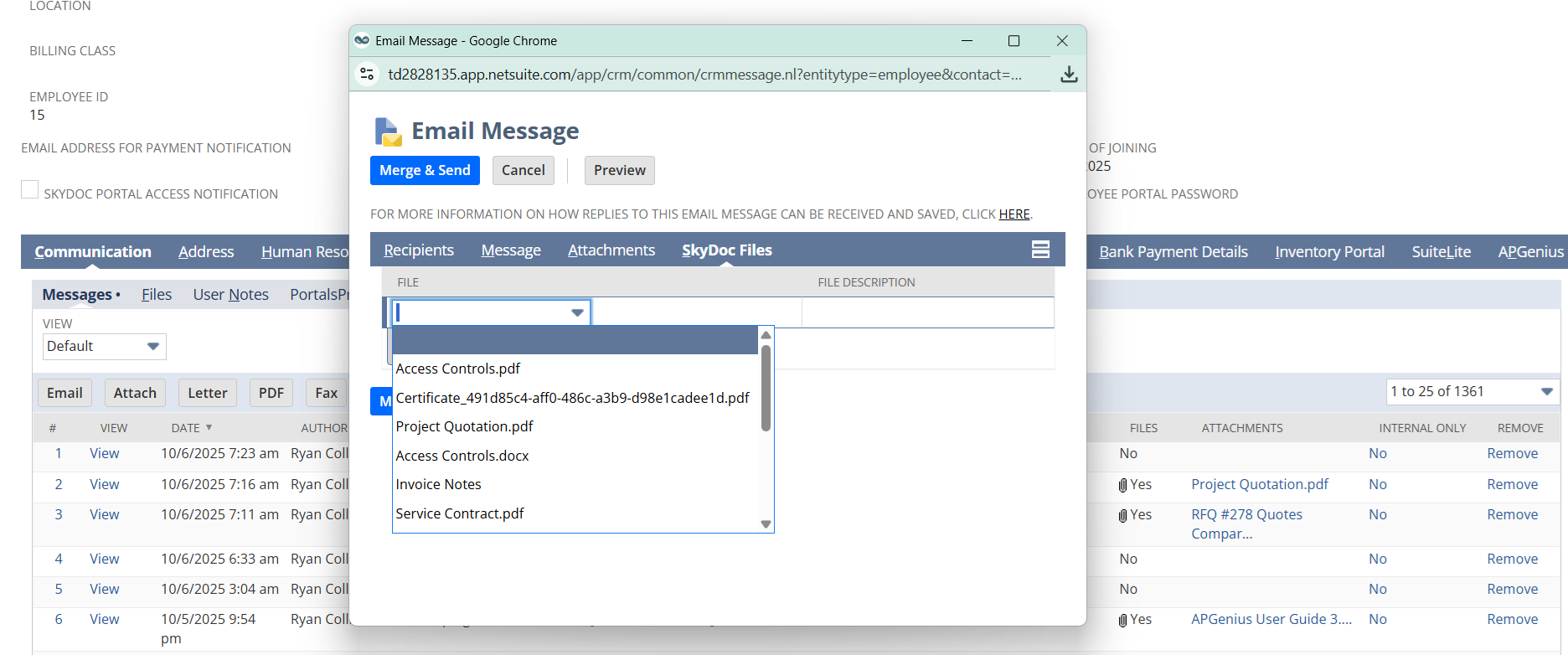
  • Navigate to the Communication subtab on the desired record.
  • Click on the Email button to open the email creation window
  • Fill in the necessary details, including the recipient's email address, subject line, and message content.
  • Switch to the SkyDoc Files subtab to select and attach the required files to the email
  • Once all details are completed, click the Merge & Send button to send the email to the recipient.
  • The email will be delivered with the selected SkyDoc files as attachments.
  • The file can be downloaded by clicking on the icon.


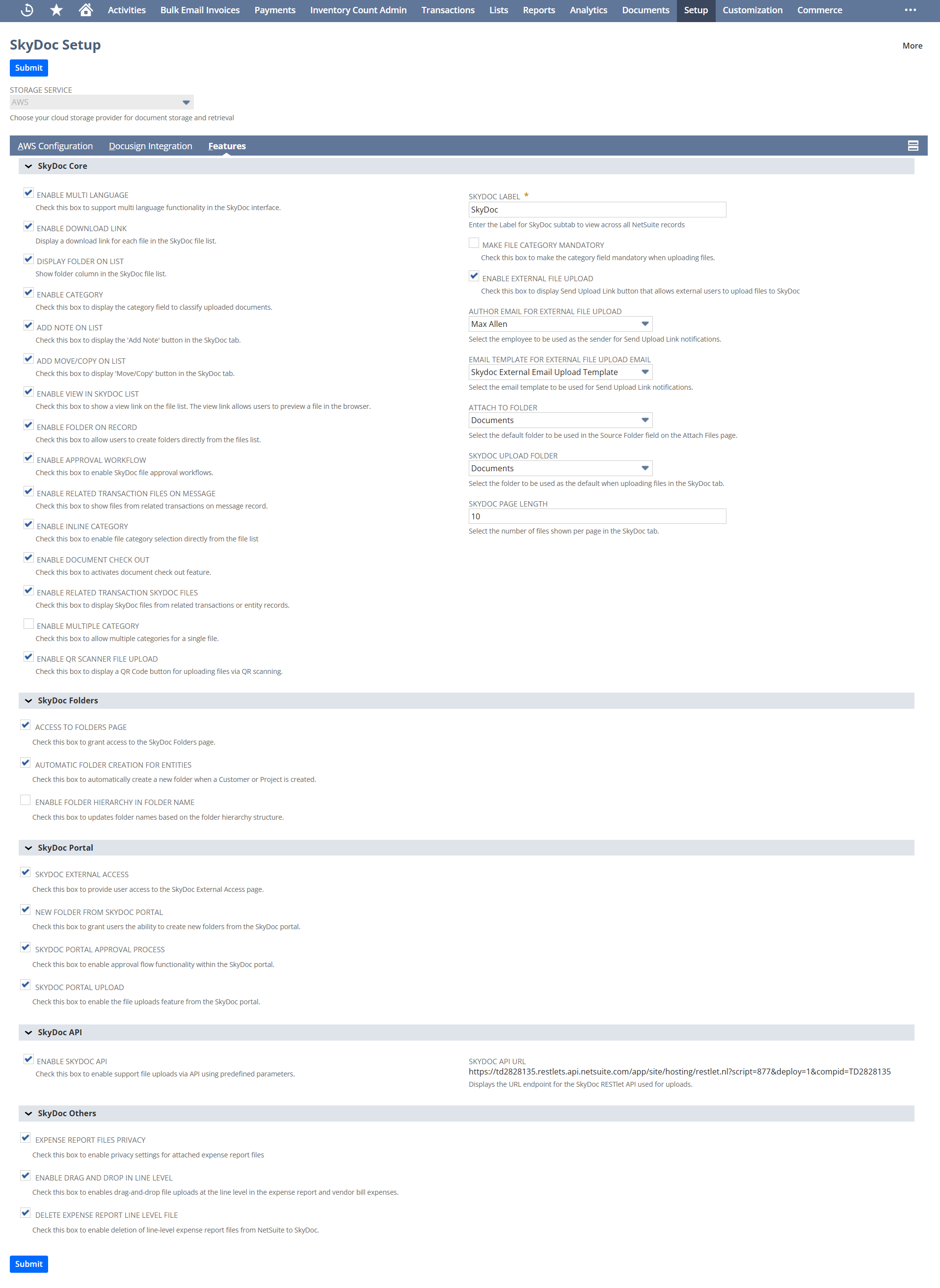
SkyDoc Setup

Navigate to Setup > SkyDoc > SkyDoc Setup
The SkyDoc Setup Page is a centralized configuration screen for managing the app's features.
Here's a detailed overview of what the setup page offers:

Storage Service Configuration

Storage Service:
This dropdown shows the storage service used for SkyDoc (AWS or Azure)

SkyDoc Label: This field allows you to set a custom label for the SkyDoc service.
Checkboxes

Enable Multi Language: Setting this field enables SkyDoc's Multi-language functionality.

Expense Report Files Privacy: Setting this field enables the Expense report files privacy functionality.

Enable Download Link: Setting this field enables the download link to be seen in the SkyDoc display list.

Display Folder on List: Setting this field enables the folder column to be displayed in the list of files under SkyDoc display list.

Enable Category: Setting this field enables the category dropdown to be seen in the SkyDoc Upload & display list.

Add Note on List: Setting this field enables the "add note" button to be seen in the SkyDoc display list.

Add Move/Copy on List: Setting this field enables the "move/copy" button to be seen in the SkyDoc display list.

SkyDoc External Access: Setting this field enables files to be uploaded externally via SkyDoc Portal.

Enable Drag and Drop in Line Level: Setting this field enables users to upload files directly at the line-item level via drag-and-drop (applies to expense reports and bill by default)

Access to Folders Page: Setting this field enables access for SkyDoc Folders page.

Enable View in SkyDoc List: Setting this field enables the View Column in the SkyDoc tab to view SkyDoc files in View mode.

Enable Folder on Record: Setting this field enables you to create a folder from the record itself.

Enable Approval Workflow: Setting this field enables the approval flow.

Automatic Folder Creation for Entities: Setting this field enables the creation of folders automatically when a new Customer or Project is created.

Enable Related Transaction Files on Message: Setting this field enables to display related transaction files on message.

Enable Inline Category: Setting this field enables setting the category for an SkyDoc File record in the SkyDoc tab.

Enable Folder Hierarchy in Folder Name: Setting this field enables to upload the folder name as per the Hierarchy.

New Folder from SkyDoc Portal: Setting this field enables users to create folders directly from the SkyDoc portal. This feature simplifies folder management by giving users the flexibility to organize their files seamlessly within the portal interface.

Enable Document Check Out: Setting this field enables the Document Check Out feature for SkyDoc.

Enable Related Transaction SkyDoc Files: Setting this field enables to display Transaction Related Record files on the Transaction and Entity Record.

Enable Multiple Category: Setting this field enables users to select multiple categories during file uploads under SkyDoc, as specified in the REQUIRED NUMBER OF CATEGORIES field.

Note: The "REQUIRED NUMBER OF CATEGORIES" field will only appear after enabling the "MAKE FILE CATEGORY MANDATORY" checkbox.

Delete Expense Report Line Level File: Setting this field enables delete expense reports line level files.

SkyDoc Portal Approval Process:
Setting this field enables the approval process in SkyDoc portal.

SkyDoc Portal Upload: Setting this field enables the upload option in the SkyDoc portal.

Make File Category Mandatory: Setting this field enables making categories mandatory while uploading the files in the SkyDoc drag and drop box.

When this checkbox is checked you can view "REQUIRED NUMBER OF CATEGORIES" here you can enter the number of categories you want to make mandatory.

When this check box is enabled you need to select the category while uploading the file in drag and drop box or else it will throw an error message "Please select at least 1 category".

Enable QR Scanner File Upload: Setting this field enables users to upload files using a QR code.

Enable External File Upload: Setting this field enables users to upload files to NetSuite externally.

Enable SkyDoc API: Setting this field enables SkyDoc API functionality.

SkyDoc API URL: This field displays the API URL for SkyDoc integration.


DocuSign Integration
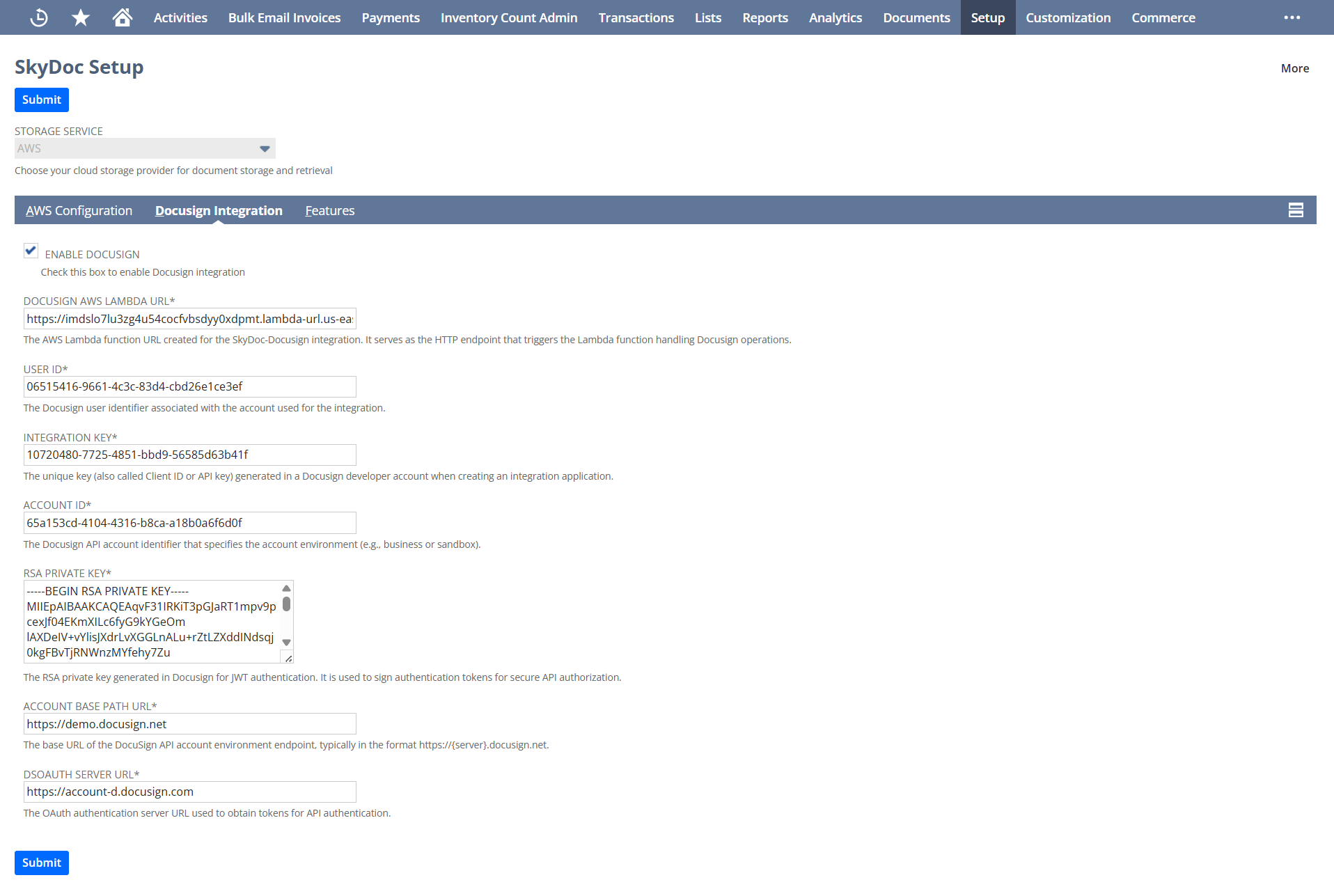
Enable DocuSign: Setting this field enables users to send documents for electronic signature directly through SkyDoc.

DocuSign AWS Lambda URL:
Provide the API Gateway endpoint URL linked to the AWS Lambda function. This enables integration with backend services for processing uploaded files.

User ID: This field displays the unique user identifier for SkyDoc integration.

Integration Key:
This field contains the integration key required for SkyDoc API authentication.

Account ID: This field displays the account identifier for SkyDoc services.

RSA Private Key: This field contains the RSA private key used for secure authentication with SkyDoc services.

Account Base Path URL: This field displays the base URL path of the DocuSign account.

DocuSign Server URL: This field contains the DocuSign server URL for electronic signature integration.


Email Configuration

Author Email for External File Upload: This dropdown allows selection of the default author for files uploaded externally through SkyDoc.

Email Template for External File Upload Email: This dropdown allows selection of the email template used when notifying about external file uploads.

Folder ConfigurationUpload Tool: This dropdown allows selection of the folders to which the files will be uploaded.

Attach To Folder: The folder selected here is displayed in Source Folder Field in the Attach Files page. Displays the unattached files of the selected folder in the Attach Files Page.

SkyDoc Upload Folder: The folder selected here is considered as the default folder while uploading files in the SkyDoc tab.


Display Configuration

SkyDoc Page Length: This field displays the number of files to be displayed in the SkyDoc display list.

AWS Configuration

The AWS Configuration section allows you to connect the application with your AWS account for secure file storage and processing. Enter the following details to complete the setup:
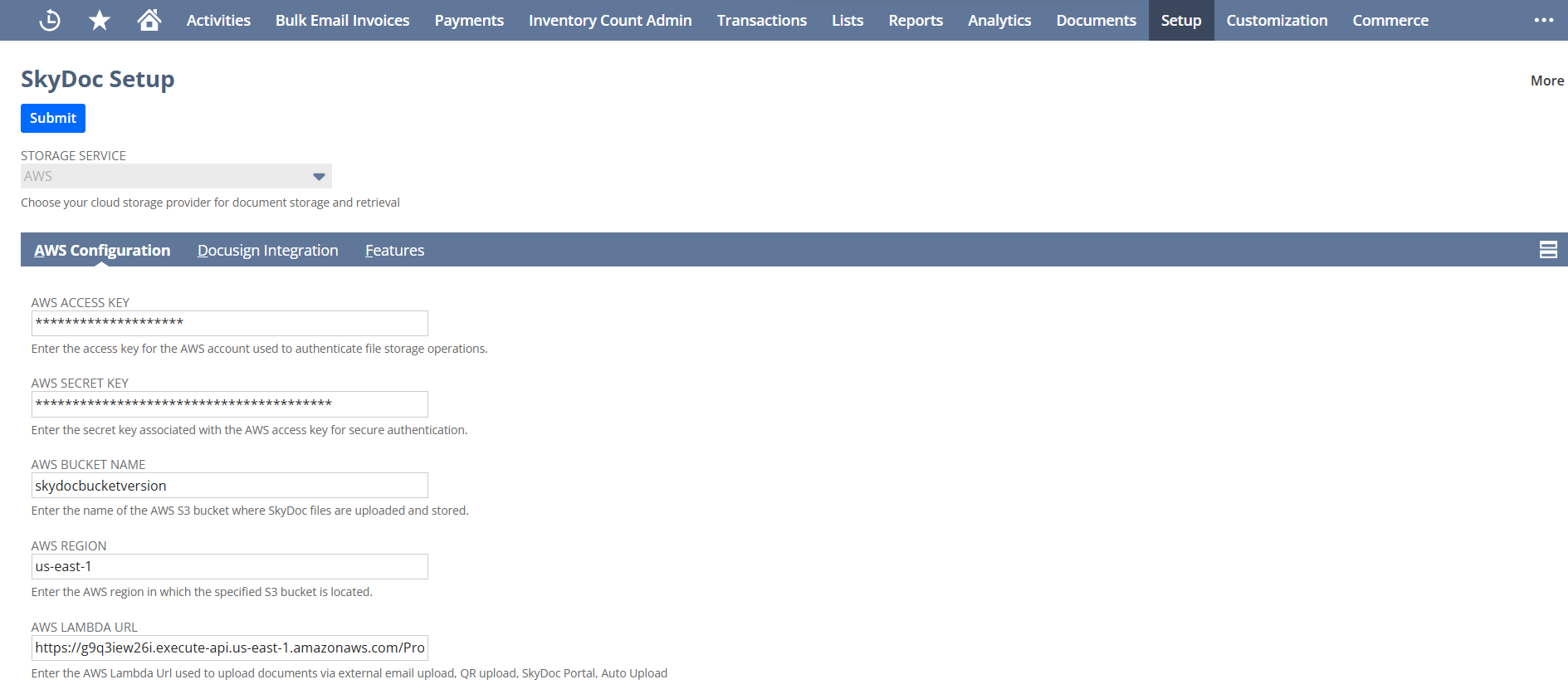
  • AWS Access Key: Enter the AWS Access Key ID associated with your AWS account. This key is required for authentication.
  • AWS Secret Key: Enter the AWS Secret Access Key corresponding to the Access Key. Ensure that this value is kept secure and not shared.
  • AWS Bucket Name: Specify the name of the S3 bucket where files will be stored.
  • AWS Region: Enter the AWS region where your S3 bucket is hosted
  • AWS Lambda URL: Provide the API Gateway endpoint URL linked to the AWS Lambda function. This enables integration with backend services for processing uploaded files.


SkyDoc Roles Page

To configure permissions for different roles within SkyDoc, navigate to Setup > SkyDoc > SkyDoc Roles. This page allows you to define and manage role-based access for various functionalities, including administrative tasks, file uploads, viewing, deletion, attachment handling, file movement/copying, and access to the SkyDoc folders page.
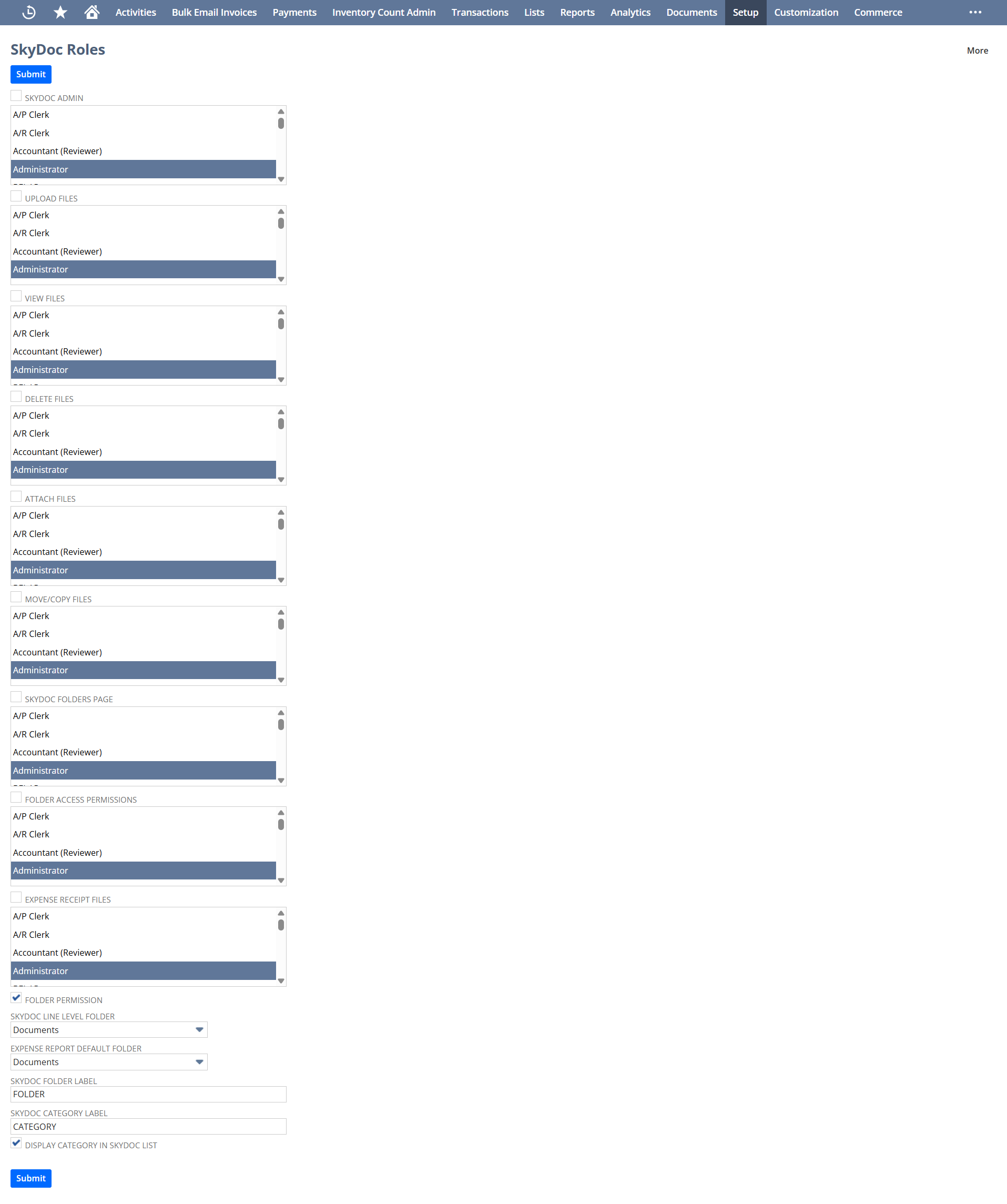
SkyDoc Admin: Select the roles for giving access to all the SkyDoc forms like SkyDoc setup, SkyDoc Roles, External access pages.

Upload Roles: Select the roles to give permission for uploading files in SkyDoc.

View Roles: Select the roles to give permission for viewing files in SkyDoc.

Delete Files: Select the roles to give permission for deleting files in SkyDoc.

Attach Files Roles: Select the roles to give permission for attaching files in SkyDoc.

Move/Copy Roles: Select the roles to give permission for moving or copying files in SkyDoc.

Folder Roles: Select the roles to give permission for viewing SkyDoc Folders Page in SkyDoc.

Folder Access Permissions Role: Select the roles to give folder permission for selected roles, and to restrict the permission for other roles.

Expense Receipt Roles: Select the roles to give permission for accessing all Expense report receipts.

Checkboxes
        ● Folder Permission: Check this box to restrict the SkyDoc folders to the logged in user based on permissions assigned in SkyDoc Folder Record.
       ● Display Category In SkyDoc List: Check this box to display category column in list of files in SkyDoc Tab.Text fields
       ● SkyDoc Folder Label: Enter the label for Folder field and also for Folder column in SkyDoc Tab.
       ● SkyDoc Category Label: Enter the label for Category field and also for Category column in SkyDoc Tab.

Dropdown lists:
       
● External Access Folder: The folder selected here is displayed in the Folder field in the External Access page. By default, files uploaded in the external access page are stored in this selected folder.
      ● SkyDoc Line Level Folder: Select the folder to store line level item Files to this default folder.
       ● SkyDoc Form Level Folder: Select the folder to store Form Level Drag and Drop Files to this Default Folder.
       ● Expense Report Default Folder: Select the folder to be default on expense report and restriction of files to other users.

SkyDoc External Access

To give access to the portal, navigate to any Entity record.

       ● SkyDoc Portal Access: To grant access to SkyDoc Portal, enable the SkyDoc Portal Access check box.
       ● SkyDoc Portal Access Notification: Enable SkyDoc Portal Access Notification to send email notifications.
       ● SkyDoc Portal Password: The SkyDoc Portal Password is used to enter password
            The individual to whom we have granted access will receive the email notification.
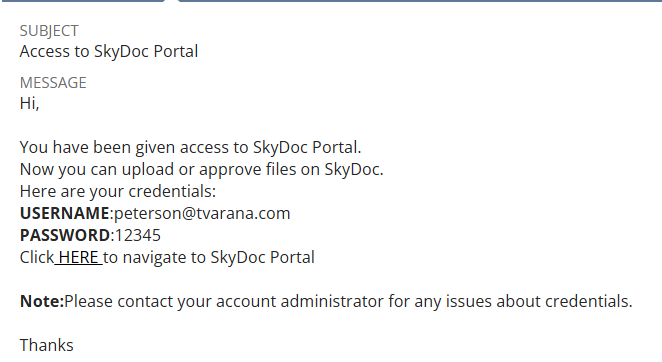
To access your account, use the link provided in the email along with your username and password, and hit the login button.
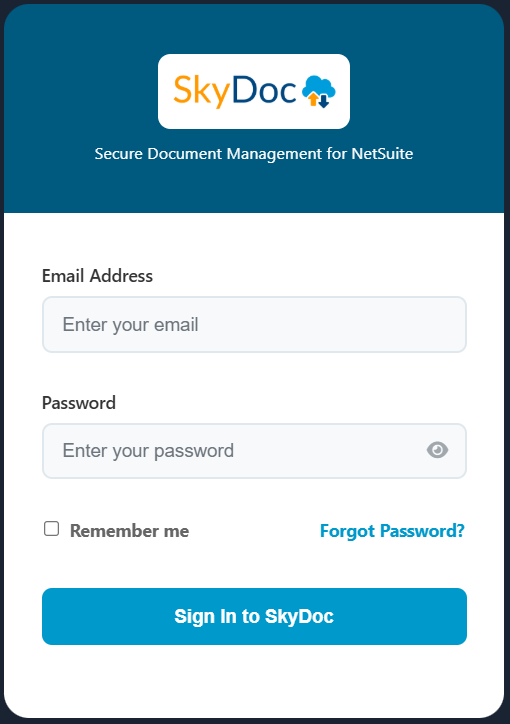
Upon successful login, you will have access to two options:
        1. Approve Records
        2. Upload Documents

Approve Records: The files submitted for approval can be either "Approved" or "Rejected" through the Approve SkyDoc Records feature.
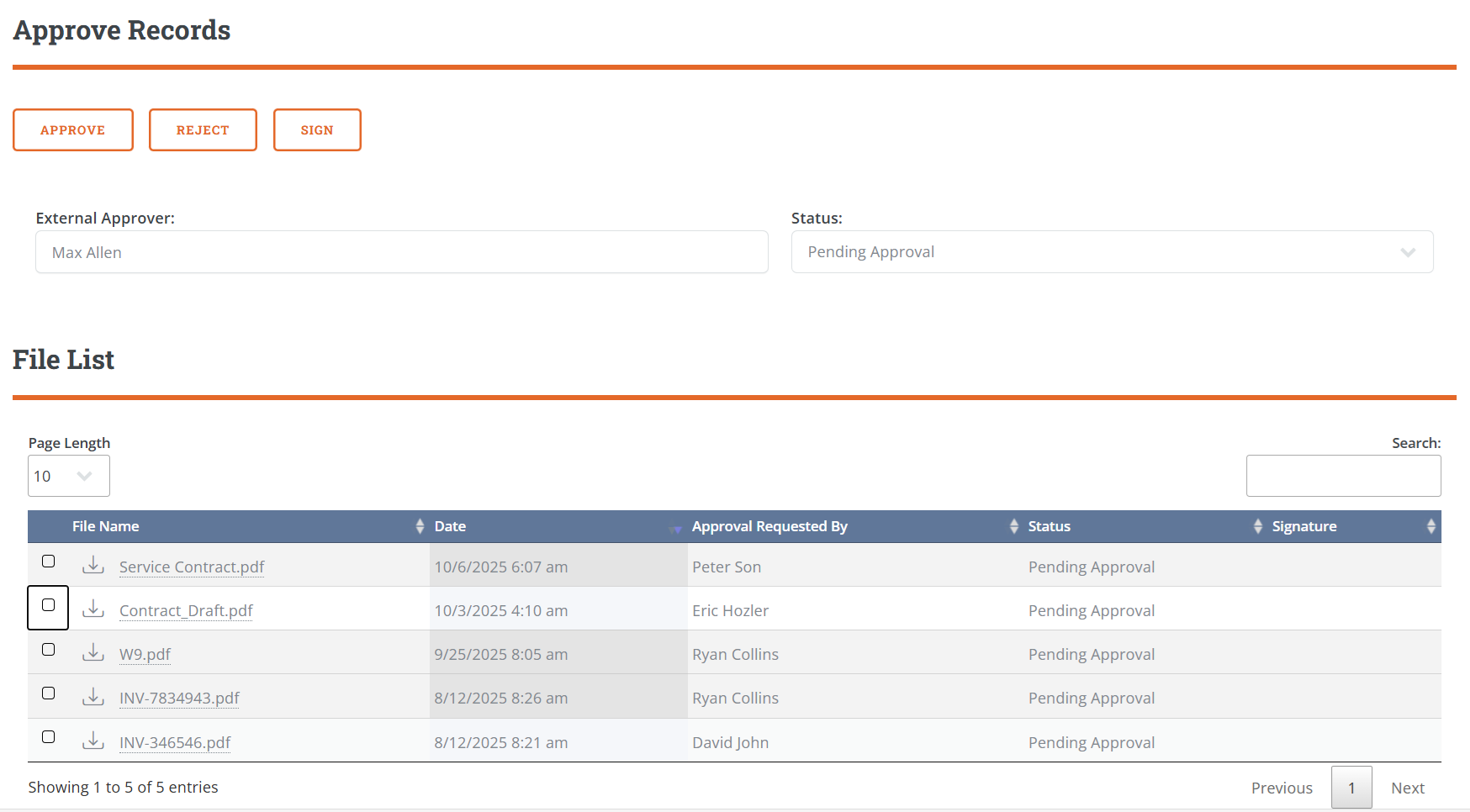
  • To approve the selected files, click the "Approve" button. Please ensure to provide a comment when approving the files.
  • To reject the selected files, click the "Reject" button and include a comment explaining the reason for rejection.
  • To sign the selected files electronically, click the "Sign" button.
  • To view the signatures on the files, click the "View" button under the Signature column.
  • You can also select specific records by clicking on them in the File List subtab.
  • To filter records by their approval status, use the "Status" dropdown. You can choose from options such as "Pending Approval," "Approved," or "Rejected."

Upload Documents: In upload documents we can upload files directly from SkyDoc portal
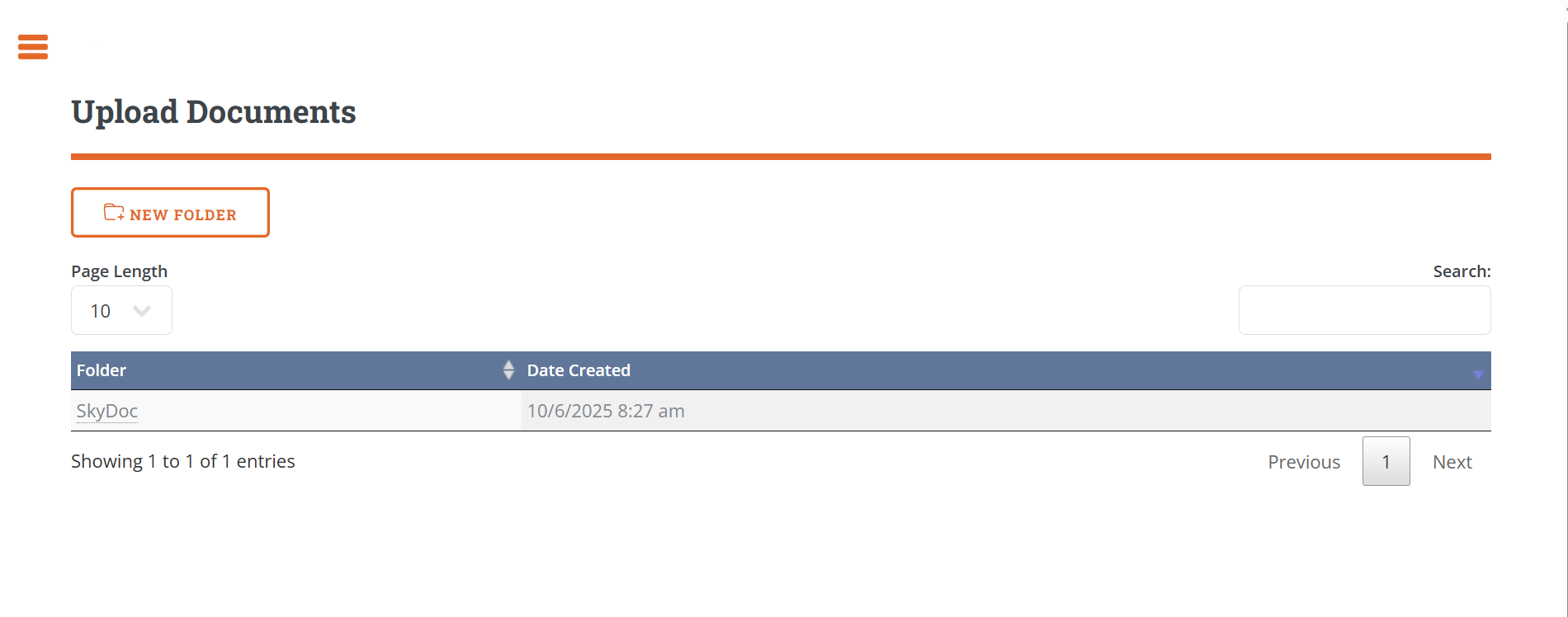
  • Click the "New Folder" button to create a new folder directly within the SkyDoc portal.
  • Select the folder where you want to upload files.
  • Once you've chosen the desired folder, you can upload files by clicking the "Upload File" button.
  • To view the uploaded files, simply refresh the page.
  • If you find yourself in another folder, use the "Back" button to return to the folders page.


SkyDoc Folders List


SkyDoc Folders are used to organize and store files efficiently. Follow the steps below to create a new folder and configure its settings:
Go to Documents > SkyDoc Folders > SkyDoc Folder List and click New.
  ● Enter a name for the folder.
  ● If this is a subfolder, select the parent folder from the dropdown list.
  ● Access to Folder: Use this field to restrict folder access to specific users.
  ● Access to All Employees: Check this box to grant access to all employees.
  ● Saved Search Employee Access: Specify a saved search to grant access to users based on its results
 .● Public: Enable this checkbox to make the folder public, ensuring that all files uploaded to it are public by default.


SkyDoc Portal Access


On the SkyDoc Portal Access subtab:

External Entity: Select employees who should have access to the folder via the SkyDoc Portal.
Saved Search External Entity Access: Use a saved search to grant access to external entities.
Subsidiary: This field allows a single folder to serve as the default for multiple subsidiaries. This streamlines document management and simplifies the upload process.

SkyDoc Folders

To view all folders and their contents in one location, navigate to Documents > SkyDoc Folders > SkyDoc Folders. This will provide a comprehensive view of the folder structure and associated files.
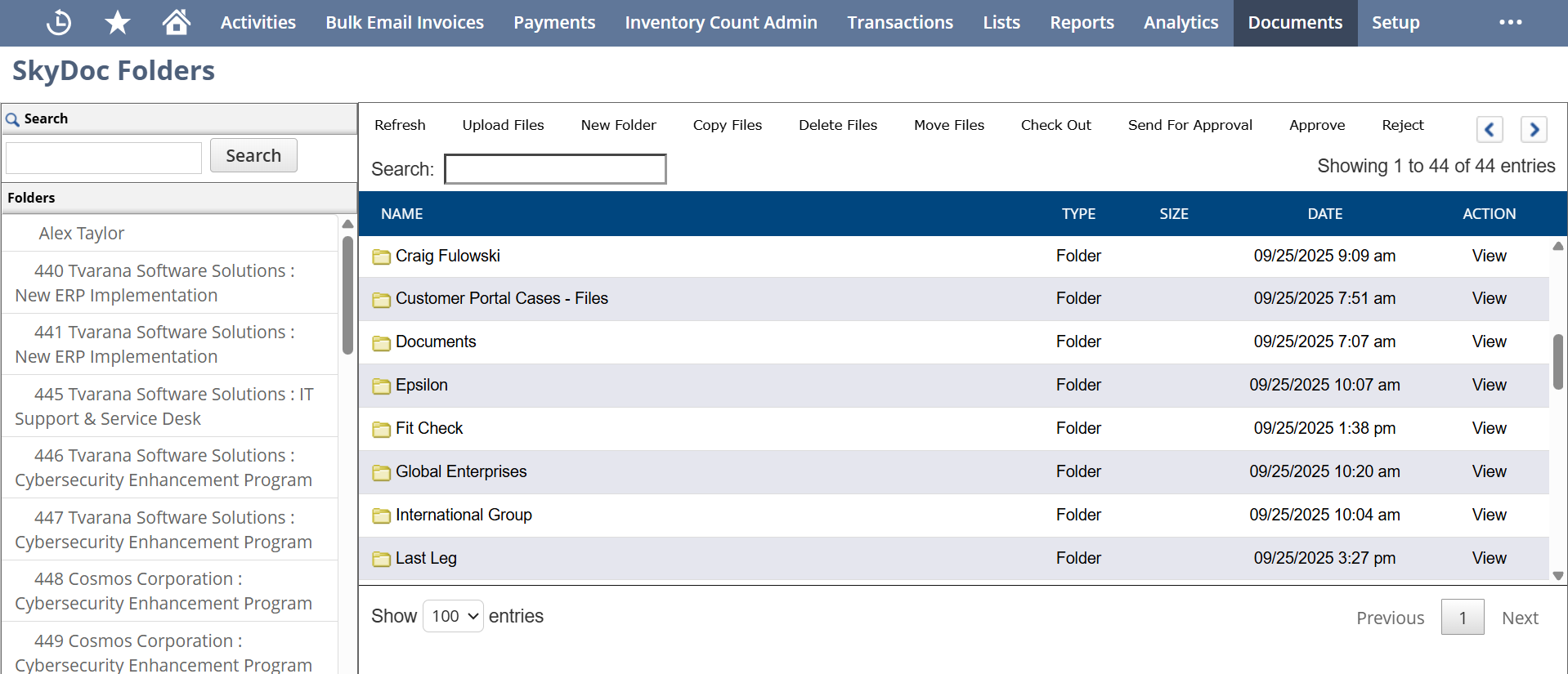
This page serves as a comprehensive file cabinet, allowing users to view all folder contents in a single location. It facilitates various file management operations, including uploading files,creating new folders, deleting files, copying and moving files between folders, checking out files, sending files for approval, and downloading files.

SkyDoc File Category
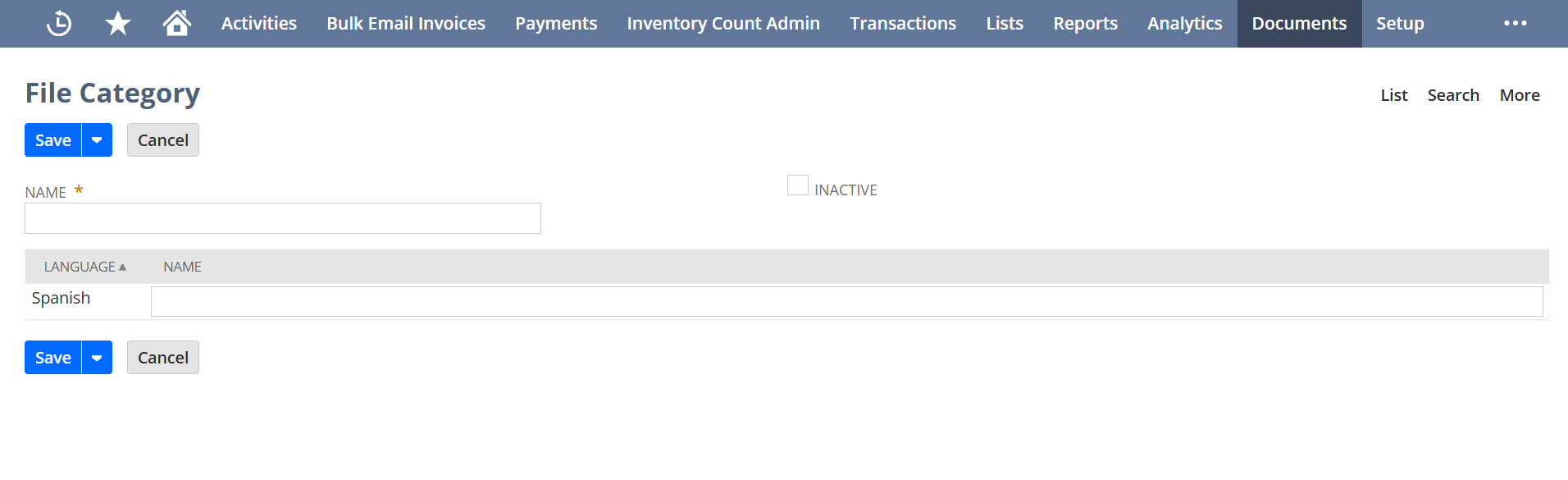
SkyDoc file categories are used to organize and differentiate files within a folder
To create a new category, navigate to Documents > SkyDoc Folders > SkyDoc Files Category > new.

BEI Set up

Display List

The Display List section allows users to view all files uploaded to a record. It includes:

  • Folder and Category dropdowns for filtering the displayed files.
  • A search bar to find specific files quickly.
  • A dropdown list to select the number of entries to display per page.
  • A set of buttons to perform various actions.
  • A View Link that enables users to view files with a single click
  • A download Link that enables users to download files with a single click
  • Detailed information about each file, such as the file name, folder, category, size, date, and status, is shown for easy reference.

Any questions? We're here to help!

Reach out to us below.

30-Day Free Inventory Count Trial
Experience seamless inventory management - Sign up now!